How to Detect Untracked Changes in Word: Audit a Counterparty Redline
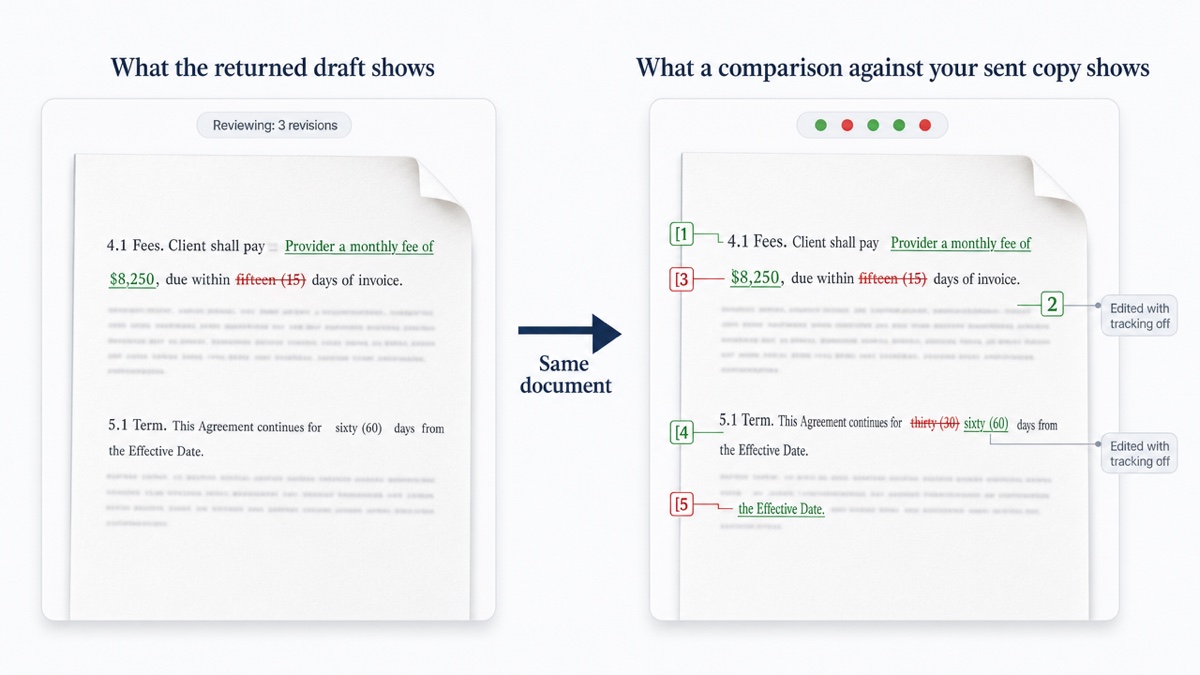
To detect untracked changes in Word, compare the draft that came back against the exact version you sent, using an independent comparison. Every textual difference then shows up, whether or not the other side tracked it. You can't find untracked changes by looking at the tracked ones. Word records only the edits made while Track Changes was on, so its markup never shows a silent edit.
This guide walks through that audit as a practical 10-minute workflow. It covers which baseline to use, how to read a numbered word-level redline, what to check first, and how to send back a record that cites each change by number.
This is general information about document comparison, not legal advice. For questions about your obligations or a specific negotiation, consult a qualified attorney.
First-pass review and a redline audit are different jobs
First-pass review is reading a single document on its own terms. You check it against your standards, your client's position or your playbook: is the indemnity acceptable, is the term too long?
A redline audit answers a narrower question: what exactly did the other side change since I last sent it? You aren't judging the contract yet. You're establishing a complete list of differences so your judgment rests on facts and not on the markup you were handed.
The two fail in different ways. A careless first-pass review misjudges a clause. A careless audit misses a clause entirely, because nobody knew it had changed. Run the audit first, then do your substantive review of what it surfaces.
Why the counterparty's tracked changes can't be trusted
Tracked changes describe what the other side's copy of Word recorded. That's not the same as what changed. The gap usually comes from ordinary mistakes, not bad faith:
- Tracking was off for part of the session. When Track Changes is turned off, Word stops marking new edits. Any markup already in the document stays visible, so a draft can look fully tracked while some edits were never recorded.
- Changes were accepted before sending. If someone accepts a batch of their own revisions and then keeps editing with tracking on, the accepted edits disappear from view.
- Text was pasted in. A clause pasted from another document, or a section rebuilt from a template, may arrive as a block that obscures what actually differs from your language.
- The view hides things. Word's Simple Markup, No Markup and Original views each show less than All Markup. A reviewer on the wrong view can miss tracked edits too.
Word's Reviewing Pane summary shows how many tracked changes and comments remain, and it counts only tracked changes. A count of "12 revisions" tells you nothing about a thirteenth, untracked edit.
Practitioners also report that documents where every change was supposedly accepted can still carry remnants of old tracked changes. Messy markup is common, and it's another reason to compare text directly. For more on where Word's own tools fall short, see Word Compare and Track Changes limitations.
The 10-minute audit, step by step
1. Find your own last sent copy
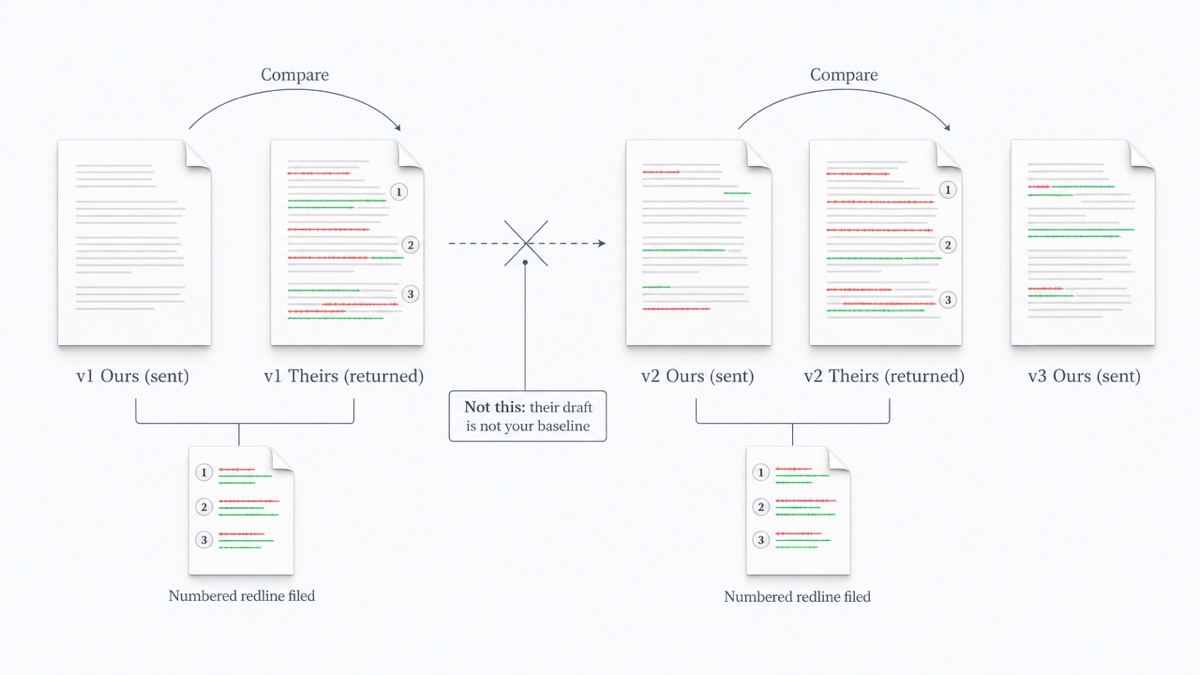
Your baseline is the file you sent, exactly as it left your office. Don't use the counterparty's previous draft, a version a colleague "cleaned up", or a copy with your markup accepted after the fact. If your sent copy contained tracked changes, use a clean version that reflects what you proposed. That's the text the other side was responding to.
This rule matters more than any tool choice. A comparison is only as good as its baseline.
2. Get the returned draft into comparable form
Use the returned file as received. If it contains tracked changes, make a working copy with all changes accepted. You want to compare final text against final text, and the tracked markup is exactly what you're declining to rely on. Keep the original returned file untouched for your records.
3. Run the comparison
In Microsoft Word: go to Review, then Compare, then Compare (the legal blackline option). Pick your sent copy as the Original and the returned draft as the Revised. Under More, choose what to compare and whether to show changes at the word or character level. Leave the output set to a new document. That way both source files stay unchanged. If either file already contains tracked changes, Word asks whether to accept them to continue.
This works well if you have Word and want an editable tracked-changes file. One known weakness: Word recognizes moved text only when a paragraph moved without edits. A paragraph that was moved and changed appears as a separate deletion and insertion.
In DocxDiff: open docxdiff.app, drop your sent copy into Original and the returned draft into Revised, and click Compare Documents. You can also paste text from each version. It reads Word (.docx), Markdown and plain text on the free plan. The comparison runs in your browser, so nothing is uploaded unless you sign in and save it. You don't need a Word license, and it doesn't matter how the other side's file was produced.
4. Turn on the noise filters
Before reading, decide what not to see:
- Ignore whitespace-only changes hides doubled spaces, stray tabs and line-break shuffling.
- Ignore capitalization hides case-only edits such as "Section" becoming "section".
Use the capitalization option carefully. In a contract, the difference between "Services" and "services" can be the difference between a defined term and ordinary English. A good habit is to run the audit once with both options on to see the substantive edits, then once with capitalization checked to catch defined-term case changes.
DocxDiff compares text at the word level, not formatting. A bolded heading or a font swap won't appear. That's usually what you want in an audit, but formatting changes need a separate visual check if they matter in your deal.
5. Read the numbered redline
Every insertion (green) and deletion (red, struck through) gets a number. Work through them in order with the j and k keys or the prev/next controls. Use the focus filters to show only additions, only deletions, or to hide unchanged text. Long unchanged stretches collapse on their own.
As you go, keep a short log. Give each change one line: its number, the clause, and whether it was tracked in the counterparty's markup. Any change in the redline that has no matching tracked change in their file is an untracked edit. Flag those separately.
What to check first
Numbers, dates and parties
Scan for every changed figure: fees, caps, percentages, notice periods, cure periods, payment terms, dates and term lengths. Then check party names, entity types and signature blocks. A one-word edit such as "thirty (30)" becoming "sixty (60)" is easy to read past in a long paragraph. A word-level redline isolates it.
Defined-term cascades
When the definition of a term changes, every use of that term changes meaning with it. The redline may show only one edit, in the definitions section, while the effect runs through the whole agreement. When you see a changed definition:
- Note the change number.
- Search the document for the term and skim each use with the new definition in mind.
- Watch for the reverse too: a term renamed throughout ("Customer" to "Client") produces dozens of small changes. Confirm that every instance changed consistently and that none was missed or swapped for something subtly different.
Cross-references and moved text
If clauses were added or removed, section numbers can shift. A reference to "Section 8.2" may now point somewhere else. Check every cross-reference near a changed area. Where a paragraph appears as a full deletion in one place and an insertion in another, compare the two blocks word for word. Moves are where small edits hide.
Rejected proposals that reappear or vanish
This is the check most people skip. You need two comparisons:
- Your last sent copy against the returned draft shows anything new. If language you struck last round shows up as an insertion, a rejected proposal has quietly come back.
- Your last sent copy against your previous round reminds you what you deliberately changed. If the returned draft reverses one of those edits without tracking it, your change has vanished.
Keep a short list of positions you rejected each round. Five minutes with that list against the current redline catches what memory won't.
Send back a record they can't dispute
An on-screen review helps you. A report helps everyone else. Export the comparison as a PDF, HTML or Markdown report and attach it to your reply.
Because every change is numbered, your response can be precise: "We accept changes 3 through 7. We reject change 9. Change 14 (the notice period) was not tracked in your draft; please confirm it was intended." That framing keeps the conversation on facts and makes untracked edits visible without accusing anyone.
Sending a fixed-format redline alongside the editable Word file is a common practice, because Word's settings can change how markup displays from one machine to another. A static report shows everyone the same thing. The Word file lets the other side respond.
If you sign in, you can save the comparison, including both source files, and reopen the exact redline later from your saved diffs. That's useful when the question "what did they change in round two?" comes up weeks later. Skip saving for drafts you don't want stored.
Multi-round hygiene
Audits get harder when the version trail gets murky. A few habits keep it clean:
- Name every version you send. Use a pattern such as
ServicesAgreement_v4_OurSide_2025-03-14.docx. Include the round, whose draft it is, and the date. Never overwrite a sent file. - Name returned drafts on arrival. Save the counterparty's file as received, for example
ServicesAgreement_v4_TheirReturn_2025-03-18.docx, before opening or editing it. - Always compare against your own last copy. Each round's baseline is the file you sent in that round. Don't chain comparisons from their drafts.
- Keep the round's report with the round's files. The exported redline becomes the record of what changed and when.
Re-check the execution version. Before signing, compare the final execution copy against the last agreed draft to confirm nothing changed in between. If the execution copy is a PDF, comparing it with a .docx is a Pro feature in DocxDiff. Extracted PDF text can pick up headers, footers and page numbers that show up as differences, so read those as layout rather than edits.
For a fuller system, see contract negotiation version control. If you're producing your own markup, how to redline in Word covers the Word side.
Why browser-only comparison suits privileged drafts
Many online comparison tools work by uploading both files to a server. That raises questions you'd have to answer for each tool: where the files go, who can access them, and how long they're kept.
DocxDiff avoids those questions for the comparison itself. Text extraction and comparison run in your browser, and signed-out comparisons never touch a server. A document leaves your device in only two situations: you sign in and save a comparison, or, on Pro, you explicitly approve cloud OCR for a scanned PDF. For a privileged draft, stay signed out or skip saving, and the files stay on your machine.
Whether a tool meets your firm's confidentiality requirements is a decision for you and your firm. Local processing simply leaves fewer things to evaluate.
Run your next audit
Find the file you last sent, drop it next to the draft that came back, and read the numbered list. Ten minutes later you'll know exactly what changed, including anything nobody tracked. Compare two drafts at docxdiff.app. It's free, with no account required.
Frequently asked questions
Can Word tell me if Track Changes was turned off?
Not directly. Word records only edits made while tracking was on, and the Reviewing Pane counts only those. The practical test is to compare the returned draft against the copy you sent. Any difference without a matching tracked change was made untracked.
Does DocxDiff read the tracked changes or comments in a Word file?
No. It compares the text of two versions at the word level. It doesn't read tracking metadata, comments or formatting. That's deliberate for an audit: it shows what the text actually says now against what you sent, whatever the markup claims.
Does DocxDiff decide which changes matter?
No. It shows every textual difference, numbered, and you decide what each one means. The filters and ignore options cut noise. They don't rank or interpret changes.
Can I compare a PDF the other side sent against my Word draft?
Yes, with Pro ($12/month). Pro adds PDF comparison with page-accurate redlines and moved-text detection, page view, and OCR for scanned PDFs. Free covers Word, Markdown, plain text and pasted text.
What should I do when I find an untracked change?
Cite it by number in your reply and ask the other side to confirm whether it was intended. Attaching the exported report lets them see the same redline you do. Treat it as a factual question first, since most untracked edits come from tracking being switched off by accident.
Is my draft uploaded when I compare?
Not unless you choose to save it. Comparison runs in your browser. Saving to your account stores both source files so you can reopen the redline later. For privileged drafts, stay signed out or don't save.