How to Compare Contract Drafts Across Negotiation Rounds
To compare contract drafts during negotiation, save a clean copy of exactly what you sent each round. When the counterparty's draft comes back, compare it against that saved copy, not against their markup. This catches every textual edit, including ones made with Track Changes off. You then answer each change by number and keep the comparison as a record of the round.
This guide sets out that routine step by step. It also covers how to reply to a redline, how to keep formatting noise out of the comparison, and how to check the execution copy before anyone signs. It is general information about document workflow, not legal advice. For questions about specific terms, consult a qualified lawyer.
Why Track Changes isn't version control
Track Changes records edits while it is switched on, in the copy where it is switched on. It does not tell you how today's draft differs from the one you sent last Tuesday. It also misses three common situations:
- Someone forgot to turn it on. Practitioners cite this as one of the most frequent mistakes. Any edit made before it was switched on goes unmarked.
- Changes were accepted before the draft came back. Once accepted, an edit looks like original text.
- The "clean" version. A counterparty sends a clean draft "reflecting our discussion," and nothing in it is marked.
Track Changes also depends on display settings. A recipient with markup partly hidden can miss changes, and markup colors vary from screen to screen. It is a useful editing tool. It is not a record of what changed between two versions you actually exchanged.
File naming helps, up to a point
A consistent naming scheme is still worth having. One workable pattern:
[Client]_[Agreement]_v[round]_[party]_[YYYY-MM-DD].docx
For example, Acme_MSA_v4_ours_2026-03-12.docx. Put the date in year-month-day order so files sort correctly. Use the round number to show sequence and the party tag to show who produced the draft.
A file name records what someone says the file is. It does not prove the contents match. Someone can save over a file, export the wrong draft, or label a draft "v5 clean" that quietly includes a few extra edits. Naming tells you which two files to compare. The comparison tells you what is actually in them.
The per-round routine
Repeat these steps every round.
1. Snapshot what you send
Before a draft goes out, save a copy that is never edited again. This is your "sent" version for that round. It should hold all of your changes as you sent them, whether accepted into the text or left as tracked markup. Be consistent about which. If you send a tracked draft, keep a clean copy too, so you have a clean baseline to compare against.
2. Compare the return against your sent draft
When the counterparty's draft arrives, compare it against your snapshot. Do not rely on their tracked changes or their own redline. Running your own comparison gives you an independent view of every word that moved, whatever they marked.
In Word, go to Review → Compare → Compare. Choose your sent draft as the original and their return as the revised document, then click OK. Word produces a new document showing the differences as tracked changes.
A separate comparison tool helps in a few situations. The return might be a clean PDF. You might not have Word on the machine you're using. Or you might want a numbered report you can cite in an email. DocxDiff runs the comparison in your browser and numbers every insertion and deletion. That makes the next step much easier.
3. Decide: accept, reject or counter
Work through the changes in order. See the next section for how to sort them.
4. Reply by change number
Your cover email should match the redline line for line. See "Citing changes by number" below.
5. Save the comparison
Keep the comparison as the record for that round. Then go back to step 1 with your new draft.
Adjacent and baseline comparisons
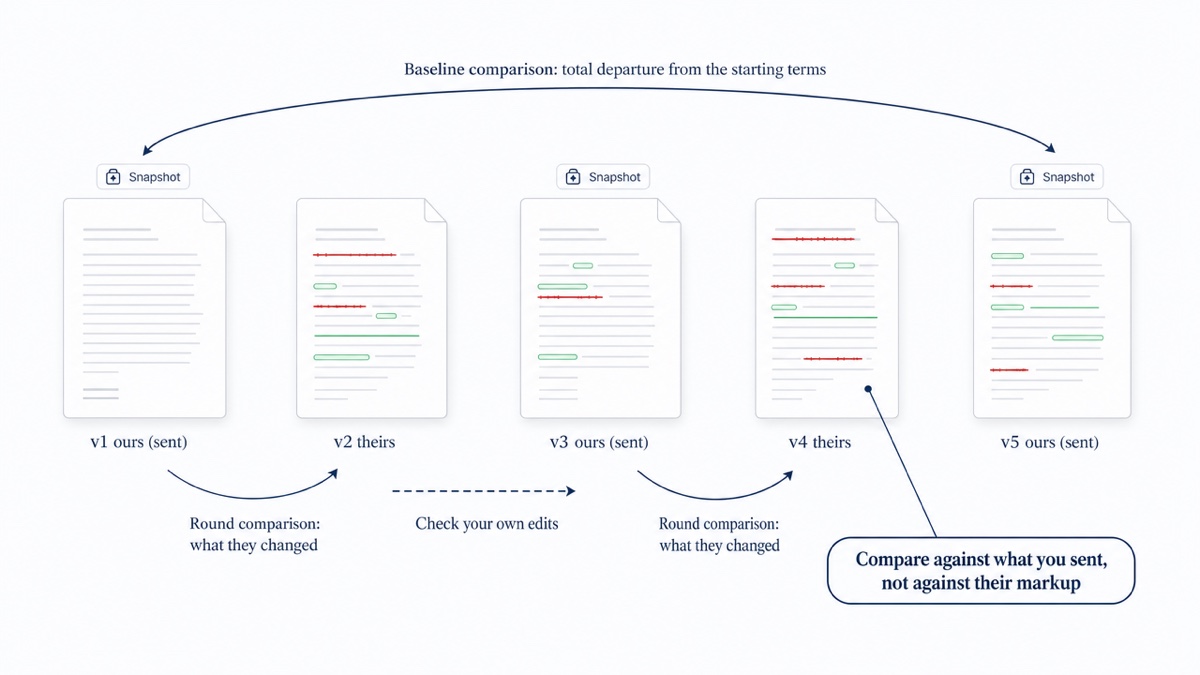
The two comparison types answer different questions.
- Adjacent comparisons (v3 against v4) show what changed in a single round. This is your working comparison. Six versions take five adjacent comparisons, one fewer than the number of versions.
- Baseline comparisons (v1, or your form, against the latest draft) show how far the deal has moved overall. Run one every few rounds and before signing.
The baseline comparison is how you catch a reverted point. Suppose a cap the other side conceded in round two reappears in round five. The adjacent comparison shows it as a fresh change, which is easy to miss in a long redline. Against the baseline, it stands out as a term that moved.
Replying to a counterparty redline
Every change in the comparison falls into one of three groups.
- Accept. The change is fine as written. A widely followed convention is that only the party who did not propose a tracked change should accept it. In deals with more than two parties, many practitioners recommend that no change be accepted until everyone agrees.
- Reject. Restore your language. Add a short reason where it will save a round of emails.
- Counter. Propose new language that meets the concern partway. Keep counters narrow so the next comparison stays readable.
Agree at the start which side produces the next draft. Also agree when settled points can be accepted, so later rounds focus on open issues. Resolve comments rather than deleting them, so the reasoning stays traceable.
For background on marked-up formats, see redline vs blackline and how to redline in Word.
Citing changes by number
Vague cover emails ("we've accepted most of your comments") start arguments in later rounds. A numbered comparison lets you be exact:
Against our March 12 draft, your return has 18 changes. Accepted: 1–6, 9, 11, 15. Rejected: 7 (§4.1 payment term reverted to 30 days), 12. Countered: 8, 14 (§9.2 cap; see our proposed language). Open for discussion on Thursday's call: 16–18.
Each side can now see which terms are agreed and which are still open. Attach the comparison report so the numbers match what the other side sees. In DocxDiff, each change keeps its number in the redline view and in exported reports.
Keeping formatting drift out of the redline
Formatting problems build up over rounds. Accepting tracked changes can trigger automatic renumbering. Pasting text between drafts brings in stray styles. Switching between Word and other editors alters spacing. Those small differences can bury the real edits in a comparison.
To limit the drift:
- Edit in a single program throughout the deal where you can.
- Paste as plain text, then apply your house styles.
- Don't rebuild the document from a different template partway through.
DocxDiff compares text at the word level, so font and style changes do not appear in its redline. Its ignore whitespace-only changes and ignore capitalization options remove more noise. Remember that a formatting change can still matter, such as a heading that stops being a heading. Give the formatted document a quick read as well. For more, see ignoring formatting changes in a redline.
Check defined terms and cross-references every round
A comparison shows text that changed. It does not show text that is now wrong because something else changed. After each round:
- Search every defined term that was added, renamed or deleted in the comparison. A renamed definition can leave other clauses using the old term.
- Check cross-references after any section was inserted, deleted or renumbered. "Subject to Section 8.3" may now point to the wrong clause.
- Scan the changes for section numbers. If many numbers shifted, automatic renumbering probably ran. Check the references by hand.
Scrub before you send
Before a draft leaves your hands, use Word's File → Info → Check for Issues → Inspect Document. This finds comments, hidden text, document properties and personal information. Then open the Reviewing Pane to confirm no tracked changes or comments remain that you didn't mean to send.
Make sure each author is signed into Word under their own name, so tracked changes carry the right attribution. Word display settings vary between users. If you are sending a live redline, attaching a PDF of the markup lets everyone see the same thing.
Compare the execution copy
At signing, one party usually converts the agreed Word draft into a PDF execution version and circulates it. Before the PDF goes out for signature, the other parties should run their own comparison of it against the agreed draft. Skipping this step means risking a signature on the wrong export, or on a document with an unannounced late edit.
Run the comparison between your final agreed Word draft and the execution PDF. Do the same for any signature pages or executed counterparts that come back. Word Compare cannot open PDFs directly. DocxDiff Pro compares PDFs with page-accurate redlines and moved-text detection. It also offers OCR, with your approval, for scanned pages such as signature pages and exhibits.
Keep the comparisons as your history
With a free account, each comparison you save in DocxDiff keeps both source files. You can reopen any round from your saved diffs and download a fresh report. Your contracts still live wherever your team stores them. The saved comparisons act as a log of what changed each round and when you checked it.
If a document must never be stored outside your device, don't save it. Signed-out comparisons stay in your browser.
Next round coming in? Open DocxDiff, drop in your sent draft and their return, and get a numbered redline you can reply against.
Frequently asked questions
Should I compare against my sent draft or against the counterparty's redline?
Compare against your sent draft. Their redline only shows what they chose to mark. A comparison against your snapshot shows every textual change, including any made with Track Changes off.
Does DocxDiff upload my contracts?
Not unless you choose to. The comparison runs in your browser. Files leave your device only if you're signed in and save the comparison, or if you approve cloud OCR for a scanned PDF on Pro.
Can I compare a PDF execution copy for free?
No. Word, Markdown, plain text and pasted text comparisons are free, with HTML and Markdown reports. PDF comparison, page view and scanned-PDF OCR are part of Pro, which costs $12/month.
Will the comparison show formatting changes like bold or font size?
No. DocxDiff compares text at the word level. That means formatting changes won't clutter the redline, but you should still give the formatted document a final visual check.
How many comparisons do I need across a long negotiation?
Plan on one per round, which is one fewer than the number of versions. Add a baseline comparison against the original every few rounds and again before signing, then compare the execution copy at the end.