Can you trust Track Changes? Where Word misses edits, and how to check
You can trust Track Changes to show the edits that were tracked. You cannot trust it to show every edit. If someone turns tracking off, accepts changes and edits again, or works in a part of the document you aren't looking at, the markup can look complete while the text says something different.
The reliable check is to compare the file you last sent against the file you got back. That comparison doesn't depend on anyone's settings. This guide covers the specific gaps in Word's Track Changes and Compare features and gives a step-by-step way to verify a counterparty draft.
This is general information about software behavior and review workflow. For questions about a specific agreement or your professional obligations, consult a qualified attorney.
Track Changes records editing activity, not the difference between versions
Track Changes logs edits as they happen. Deletions get a strikethrough, additions get an underline, and each author's changes appear in a different color. It answers the question "what did people do while tracking was on?" It does not answer "how does this file differ from the one I sent?"
Those two questions usually have the same answer, which is why the gaps are easy to miss.
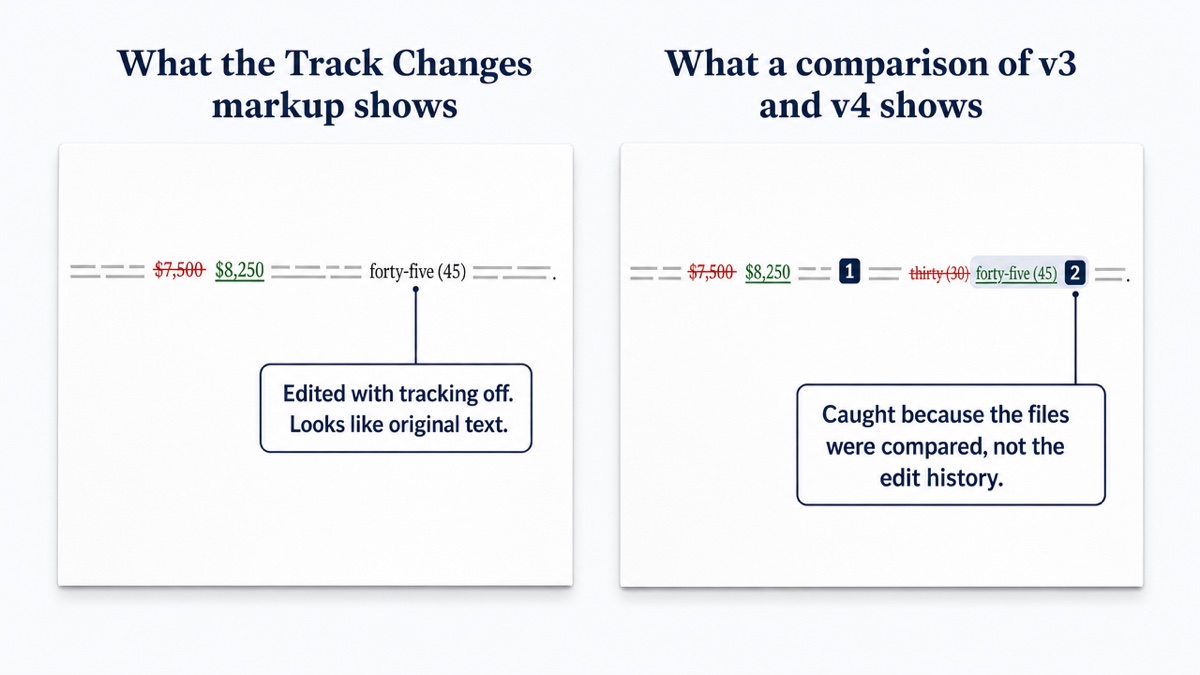
Edits made with tracking turned off
When Track Changes is off, Word simply stops marking new edits. The earlier colored underlines and strikethroughs stay in place, so an untracked edit can sit one line below a tracked one with nothing to tell them apart. A reviewer working through the markup sees a document that looks fully redlined.
Nothing about this requires bad intent. Someone fixes a typo with tracking paused, pastes in a revised clause from another draft, or opens a copy that was saved without review mode.
"Just Mine" and other per-user settings
Word can track changes for everyone or only for the current user ("Just Mine," under Review > Track Changes). On a document passed between several people, settings can differ by person and by session. Some authors' edits end up marked and others' don't. The markup ends up looking inconsistent, and nothing warns you about it.
Accepted, then edited again
Once a change is accepted, it becomes ordinary text. If someone accepts a round of edits and then revises the same clause, the new markup shows only the latest edit against the accepted wording. The intermediate history, including what you actually agreed to last round, is gone from the file. Over a long negotiation with many versions, this is how a clause drifts without anyone seeing a full before-and-after.
Markup that is hidden, not removed
Word has four markup views:
- Simple Markup shows only a red line in the margin.
- All Markup shows colored text for each reviewer.
- No Markup shows the document with changes incorporated.
- Original hides tracked changes and comments.
Hiding markup does not remove it. Unaccepted changes and comments stay in the file. A reviewer in Simple Markup can skim past real edits, and a sender who thinks a document is clean may be sending revision data along with it.
Multi-author drafts and template conversions
Artifacts pile up when drafts move between firms, templates or formats. A counterparty might paste your text into their own template, or convert a PDF back to Word. The result can be renumbered paragraphs, restyled headings, changed quotation marks, extra line breaks and split words. Some of that shows up as tracked changes and some doesn't. Real edits get buried in it either way.
The fix is to choose your baseline deliberately. After a conversion or template switch, compare the converted file against your own last version once. Confirm the wording survived, then treat the converted file as the new baseline for later rounds.
Tables, headers, footnotes and text boxes
Body text gets the most attention. Headers and footers, footnotes, text boxes and tables are each easy to skip during review, whether you are reading markup or a comparison. Comparison vendors also report that Word doesn't always represent changes in embedded Excel tables or images accurately.
When a defined term appears in a footnote, a figure lives in a table, or a party name sits in a header, check those elements specifically. Don't assume they were covered.
Word Compare helps, but has its own quirks
Word's Compare feature (sometimes called legal blackline) is a real independent comparison, and it's worth knowing well. See how to compare two Word documents for a fuller walkthrough. The steps are:
- Go to Review > Compare > Compare.
- Choose the Original and Revised documents.
- Click More to choose what to compare: comments, formatting, text changes and other categories.
- Under Show changes at, choose character level or word level.
- Under Show changes in, keep New document. Choosing Original or Revised modifies that file.
Word creates a third document and leaves both source files unchanged. Keep these points in mind:
- Existing tracked changes get folded in. If either file already contains tracked changes, Word warns you and offers to accept them before comparing. The comparison then runs against the accepted text, so any history inside the files is absorbed into the baseline.
- Formatting noise. With formatting comparison on, restyled headings, font swaps and spacing changes can surround the two wording changes that matter. You can untick formatting in the settings. Some teams then run a separate formatting pass. See ignoring formatting changes in a redline.
- Character level vs. word level. Some vendors describe Word Compare as word-level only. Microsoft documents both options. At word level, a one-character change marks the whole word. At character level, only the changed characters are marked. Word level is usually easier to read in contracts, and character level makes it easier to spot something like "shall" becoming "shall not."
- Moved text. One comparison vendor reports that Word recognizes a move only when the paragraph moved unchanged. A paragraph that was moved and edited shows up as a full deletion in one place and a full insertion in another, and you have to pair them up yourself.
- Several reviewers. For merging edits from multiple authors, Microsoft recommends Combine, not Compare. In multi-party deals you may need to compare one base against several returned versions separately.
- Sharing the result. The output is a Word file with tracked changes. That means revision data travels inside it, there's no summary of changes, and there's no easy way to say "look at the third edit on page 12."
How to verify a counterparty draft, step by step
Comparison vendors and many practitioners recommend running your own comparison on every draft you receive. They also recommend not relying on a comparison the other side sends, because you can't be sure which versions they compared.
- Pull your own last version. Use the exact file you sent, from your own records, not an attachment from further down the email thread.
- Get their clean copy. Use their returned file with changes accepted, or the clean version they sent alongside the markup.
- Compare the two files independently. Run your version against theirs in a comparison tool, so the result depends only on the text in each file.
- Reconcile against their markup. Go through the comparison change by change. Every difference should appear in their tracked changes. Anything that doesn't is an untracked edit worth raising.
- Check the Reviewing Pane count. Open the Reviewing Pane in their file. The summary at the top shows how many tracked changes and comments remain. Make sure nothing unresolved is left behind.
- Check what text comparison can't see. If layout, styles, numbering or embedded objects matter in this deal, review them separately. Also look at headers, footnotes, tables and text boxes.
- Save the record. Export the comparison so you can cite specific changes in a reply or a call.
Before you send or sign, clean your own file too. Accept or reject all changes, delete comments, and run File > Info > Check for Issues > Inspect Document to find remaining revision data, hidden text and document properties.
What DocxDiff compares, and what it doesn't
DocxDiff is built for step 3. You give it two versions, and it produces a word-level redline with insertions in green, deletions struck through in red, and every change numbered. A reply can say "change 6 wasn't in your markup" and both sides know exactly which edit you mean.
It doesn't depend on whether anyone turned tracking on. It compares the text of the two files you give it, so a "clean" draft gets checked the same way as a marked one.
What it compares:
- Text, at the word level. This covers wording, numbers, dates, defined terms and clause language.
- File types: Word (.docx), Markdown, plain text or pasted text, free with no account. PDF comparison is part of Pro ($12/month), with page-accurate redlines and moved-text detection. Scanned PDFs use OCR, also on Pro.
- Options: You can ignore capitalization and whitespace-only changes. This helps with conversion artifacts like stray line breaks.
- Views and reports: Switch between redline and side-by-side views, use j/k to jump between changes, and filter to show only additions or only deletions. You can export HTML or Markdown reports for free. PDF reports and custom branding are on Pro.
What it doesn't compare:
- Formatting. Bold, fonts and styles aren't compared.
- Tracked-change metadata and comments. It doesn't read them. Use the Reviewing Pane and Document Inspector for those.
Where move detection isn't available, a relocated clause appears as a numbered deletion and a numbered insertion, which you can pair by reading.
The comparison runs in your browser. Documents stay on your device unless you sign in and save a comparison, or approve cloud OCR for a scanned PDF on Pro. That matters when the draft is privileged.
DocxDiff shows what changed. Deciding what a change means is up to you. The same check works well for lease agreements and any other document that went back and forth.
To check the next draft you receive, drop your last version and theirs into DocxDiff. It's free and needs no account.
Frequently asked questions
Can Track Changes miss edits?
Yes. Edits made while tracking is off aren't marked, and they look identical to original text. Accepted changes lose their history, and hidden markup views can make real changes easy to overlook. Comparing the two files catches what the markup missed.
Does Word Compare catch untracked edits?
Yes. Compare looks at the text of both files, not the edit history, so it's a valid independent check. Keep in mind that it accepts existing tracked changes before comparing, that formatting settings can add noise, and that moved-and-edited paragraphs appear as a separate deletion and insertion.
Does DocxDiff read tracked changes or comments in a Word file?
No. It compares the text of two versions at the word level and doesn't read revision metadata or comments. Use Word's Reviewing Pane and Document Inspector to check those.
Does DocxDiff detect formatting changes?
No. It compares text, so wording, numbers and defined terms are covered, but bold, fonts and styles are not. If formatting matters in a document, review it separately.
Should I trust a comparison the other side sends me?
Treat it as a convenience, not a record. You can't be sure which versions they compared or what settings they used, so run your own comparison from the file you last sent.
Is it safe to compare confidential drafts in DocxDiff?
The comparison runs in your browser, and signed-out comparisons never touch a server. If you sign in and save a comparison, both source files are stored so you can reopen it later. Skip saving for documents that must never be stored.