Compare Two Texts Online, Word by Word
To compare two texts online, paste the original into one box and the revised version into the other, then click Compare. DocxDiff marks every inserted word in green and every deleted word struck through in red, and it numbers each change. The comparison runs in your browser, so pasted text stays on your device unless you sign in and save it. It's free, with no account required.
Most online diff checkers were built for code. They compare line by line, which works for a config file and works poorly for a paragraph. This guide covers how to paste and compare, why word-level diffing suits prose, and how to read and export the result.
How to compare two texts in under a minute
- Go to DocxDiff and choose Paste text.
- Paste the earlier version into Original Document and the newer one into Revised Document.
- If you want, tick Ignore capitalization or Ignore whitespace-only changes.
- Click Compare Documents.
- Review the numbered redline, then export a report if you need a record.
If your drafts live in files, you can drop in .docx, .md or .txt files instead of pasting. For Word files, see how to compare two Word documents.
Word-level vs line-level: why it matters for prose
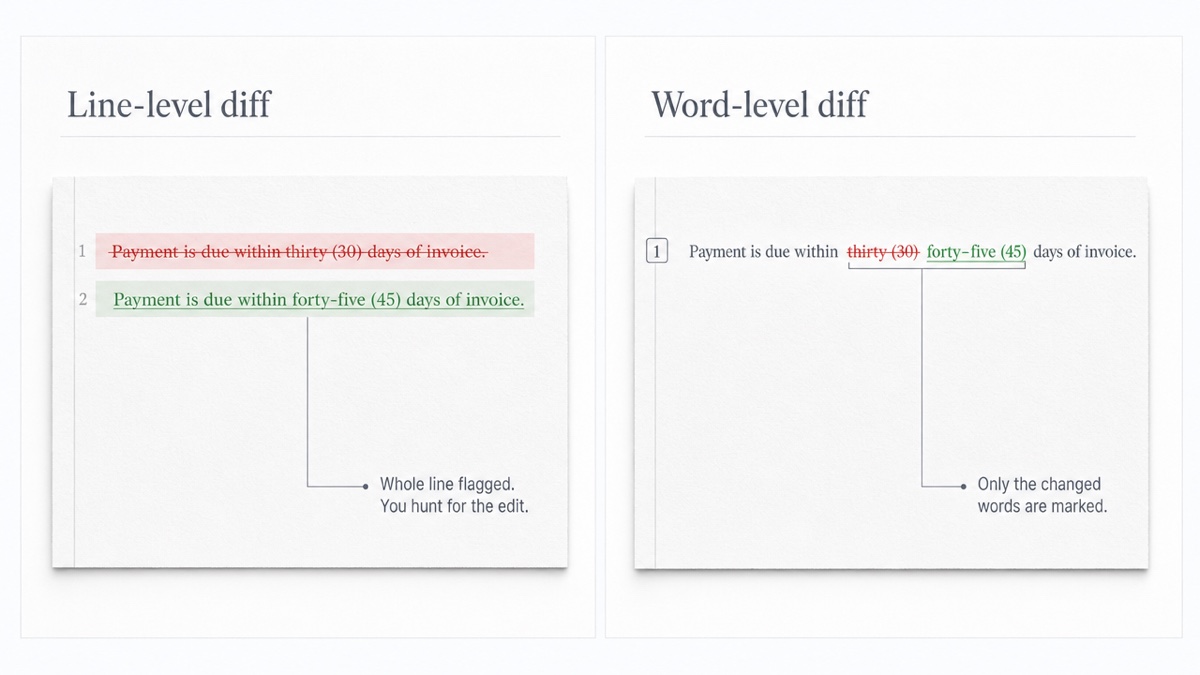
A line-based diff treats each line as a unit. If one word changes in a 120-word paragraph, a line diff can flag the whole paragraph as removed and re-added. You then have to reread both versions to find the edit. Prose pasted from a word processor makes this worse, because a paragraph is often one very long line.
A word-level diff marks only the words that changed. The paragraph stays readable, and the edit is obvious.
Character-level diffing goes one step finer. It shows exactly which character changed, which helps with IDs, hashes and dollar amounts. For sentences, whole-word marking is usually easier to read. "Thirty" becoming "forty-five" reads better as one swapped phrase than as a scatter of changed letters.
Moved and reordered sentences
If you move a sentence to a different paragraph, a word-level text diff usually shows it as a deletion in the old spot and an insertion in the new one. That is accurate, but it can look like more editing than happened. When you see the same sentence deleted in one place and inserted in another, treat it as a move. Moved-text detection is part of Pro's PDF comparison.
Reading the result: redline or side-by-side
Redline view shows everything inline in one column, much like Track Changes in Word. It is the fastest way to read a short passage start to finish.
Side-by-side view puts the original on the left and the revision on the right. It helps when you want to see the full "before" text next to the "after" text, for example when a paragraph was heavily rewritten.
You can switch between the two views at any time. Focus filters let you show only additions or only deletions, or hide unchanged text entirely. Long untouched sections collapse on their own, so a long draft shrinks to the parts that changed. A summary shows counts of added and removed words, and a similarity score shows how much the text really changed overall.
Ignore options and false differences
Sometimes a comparison comes back almost entirely red and green. That is usually caused by whitespace, not content. Common culprits are different line endings between a Windows file and a Mac file, or a paste that turned tabs into spaces. Tick Ignore whitespace-only changes and the noise drops away. Ignore capitalization does the same for edits like "Client" becoming "client," when you only care about wording.
Word processors add a second kind of noise: curly versus straight quotes, en and em dashes versus hyphens, and non-breaking spaces. These count as real character differences. If one version went through Word and the other through a plain editor, check for them before you trust a long list of tiny changes. The simplest fix is to paste both versions as plain text, or to run the same find-and-replace on each before comparing.
Numbered changes and keyboard navigation
Every change gets a number, so you can write "see change 7" in an email or a comment thread instead of quoting a sentence. To move through a long draft, press j for the next change and k for the previous one, or use the prev/next controls. You never scroll past unchanged text looking for the next edit.
Exporting a report
When you need a record, export the comparison as a PDF, HTML or Markdown report. The report is generated on your device.
- HTML is a standalone file anyone can open in a browser. It works well for sharing with a team that needs to see the same changes.
- Markdown drops cleanly into docs, tickets, a README or a version log. That makes it useful for tracking prompt revisions.
- PDF suits a file, a client or an attachment.
Your text stays in your browser
Comparison and text extraction run locally in JavaScript. If you are signed out, nothing you paste is sent to a server. The only time text leaves your device is when you sign in and save a comparison to your account, which stores the source text so you can reopen it later. For anything sensitive, stay signed out or skip saving.
What people compare
- Essays and articles: see exactly what an editor or tutor changed between drafts.
- Policy and contract clauses: paste the old and new wording of a clause and confirm what moved. DocxDiff shows what changed, not what it means. For legal questions, this is general information, so consult a qualified professional.
- AI prompts: track how a system prompt evolved, and keep a Markdown log of each revision.
- Emails: check that a revised message says what you agreed before you send it.
- Applied edits: confirm a requested change was actually made, and nothing else was.
If you work in Word, it helps to know where its built-in tools fall short. See the limits of Word Compare and Track Changes. Legal teams weighing tools can read about choosing a comparison tool for legal drafts.
Ready to see what changed? Paste two versions at docxdiff.app. It's free, there's nothing to install, and the comparison runs entirely in your browser.
Frequently asked questions
Is it free to compare text?
Yes. You get unlimited comparisons with no account required. Pasting text, redline and side-by-side views, numbered changes, and HTML and Markdown reports are all free. A free account adds saved comparison history.
Does DocxDiff compare formatting?
No. It compares text at the word level, which is where substantive changes live. Bold, fonts and styles are not compared.
Can I edit the text after comparing?
DocxDiff shows the differences; it doesn't edit or merge your text. Make your changes in your own editor, then paste the new version to compare again.
Can I compare code with it?
It will compare any text, but it's designed for prose. It marks whole changed words rather than formatting code by language.
Does DocxDiff tell me whether a change is a problem?
No. It isn't an AI review tool and it doesn't interpret or suggest edits. It shows exactly what changed, and you decide what it means.