DiffChecker for Legal Documents: Limits and What to Use Instead
Using DiffChecker for legal documents works well for a quick check of whether two pasted passages differ, but contracts expose its gaps. General diffs line up text line by line, which suits code more than long paragraphs. Pasted text loses the link to the actual file. And the output is a comparison screen, not a numbered redline you can cite, attach or send.
For contract drafts you usually need three things: word-level comparison, the ability to read the .docx or PDF directly, and a clear answer about where the document is processed. Word Compare, document management system (DMS) compare tools and standalone tools like DocxDiff each cover part of that. This guide explains which fits which job, including when DocxDiff is not the right pick.
This page is general information about software tools, not legal advice. For questions about your own matter or obligations, consult a qualified professional.
Line-based vs word-level: why contracts break general diffs
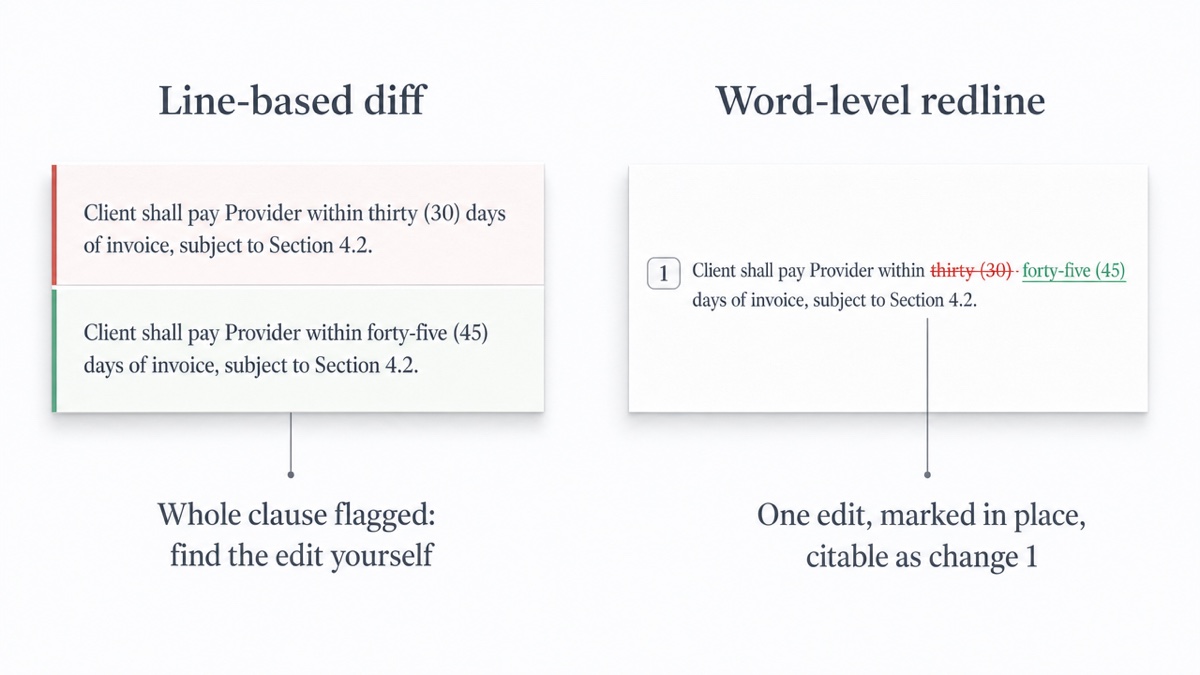
Most general-purpose diff tools come from software development, where the unit of change is a line of code. A contract paragraph is often a single "line" of 80 words. When one word in it changes, a line-based diff marks the whole paragraph as changed. Some tools then highlight the changed characters inside that line.. You still review the clause as a changed block rather than as a single marked edit.
A worked example. Your draft says:
Client shall pay Provider within thirty (30) days of invoice, subject to Section 4.2.
The returned draft says:
Client shall pay Provider within forty-five (45) days of invoice, subject to Section 4.2.
A line-based view flags both versions of the sentence, side by side, as different. A word-level redline shows one sentence with "thirty (30)" struck through and "forty-five (45)" inserted. On a 40-page agreement with dozens of edits, that difference decides whether you can read the changes or have to hunt for them.
Pasting text vs reading the file
Pasting works for a clause or two. For a whole agreement it creates risk. You may miss a section when copying, paste from the wrong version, or lose numbering and line breaks. You also end up with no record of which files you actually compared.
Reading the file directly removes those steps. DocxDiff reads Word (.docx), Markdown and plain text on the free plan, and accepts pasted text when that is all you have. PDF comparison, including scanned PDFs through OCR, is part of Pro. DiffChecker also offers document comparison for Word and PDF files.. Check where those files are processed before you use it for confidential work.
Where the comparison runs
Before you drop a client contract into any web tool, ask whether the comparison happens on a server or on your device. Some web tools compare PDFs in the browser but send Word files to a server-side conversion service first. Desktop apps run locally.
DocxDiff runs extraction and comparison in your browser. Signed out, your documents are not uploaded. A document leaves your device in only two cases: you are signed in and save a comparison, which stores both source files so you can reopen it, or you approve secure cloud OCR for a scanned PDF on Pro. For material that must never be stored, stay signed out or skip saving.
What legal output needs
A comparison screen answers "what changed?" Legal work usually also needs something you can hand to someone else:
- A redline: one document with insertions and deletions marked in place.
- Numbered changes, so a partner, client or counterparty can say "change 14" on a call instead of "the bit on page nine."
- A shareable report that the recipient can open without your software.
DocxDiff numbers every change, offers redline and side-by-side views, and exports HTML and Markdown reports on the free plan. Page-faithful and annotated PDF exports are Pro.
What a numbered change list should contain
When you send changes to a client or counterparty, a useful report includes:
- both file names, so the versions are unambiguous
- the date of the comparison
- each change with its number and enough surrounding text to locate it
- whether any comparison options were on, such as ignoring capitalization or whitespace
A short summary of the substantive changes often beats a full redline for a busy client. Keep the full redline behind it as the record.
Word Compare: strengths and pain points
Word Compare is built into Microsoft Word, is widely used by legal teams and works well for one-off comparisons.. To run it, open Word and go to Review > Compare > Compare. Choose the original and the revised document, adjust the settings under More if needed, and click OK. By default, Word produces a third document showing the differences as Tracked Changes, though you can choose to show them in the original or revised document instead.. Our guide on how to compare two Word documents covers the options in detail.
The pain points come up in negotiation:
It compares documents that Word can open, so PDFs must first be converted, and it shows its marked-up output as Tracked Changes..
- It recognizes a moved paragraph only when nothing inside it changed. A moved paragraph that was also edited often appears as a full deletion and a full insertion rather than as a move..
- It reports formatting changes alongside wording changes. On a document that was reformatted rather than rewritten, those formatting changes can bury the substantive edits.
- You need a Word license, and the output has no numbered change list.
A separate comparison helps most with a "clean" copy a counterparty sent without Track Changes, or when you need a numbered report to circulate.
DMS-bundled compare vs standalone tools
Many firms use a DMS such as iManage, NetDocuments or SharePoint. Specialist comparison tools often integrate with these systems, so you can compare stored versions without exporting files.. iManage lets you start a comparison of stored versions from within the system, often through a connected comparison tool.. For internal drafts that live in the DMS, that integration is hard to beat: versioning, access control and the audit trail stay in one place.
A standalone tool fills the gaps around it. Examples include a counterparty PDF that arrived by email, a document you need to check before it is profiled, or a laptop away from the firm network. DocxDiff is a standalone browser tool, not a DMS integration or a Word add-in. Treat it as a complement. If you are replacing an older desktop compare tool, see our Workshare Compare alternative guide.
Moved text
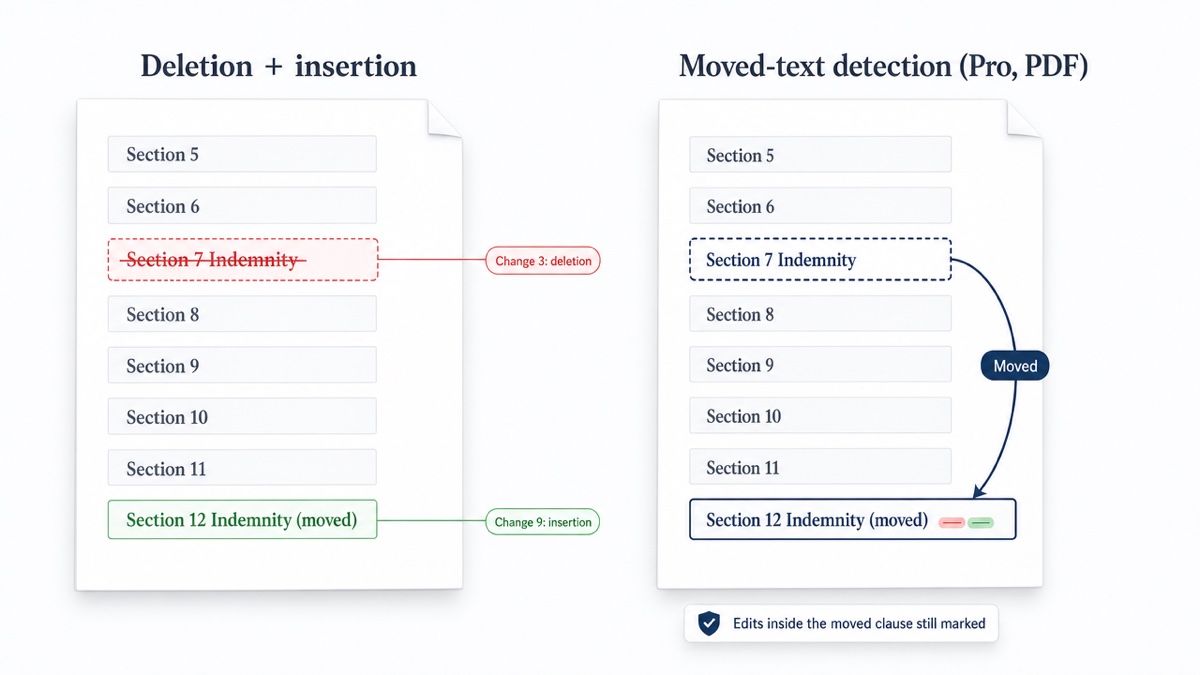
When a tool cannot detect moved content, a relocated clause is reported twice: a large deletion where it was and an unrelated large insertion where it landed. You then have to work out whether the clause was moved or removed, and whether it changed on the way.
DocxDiff Pro includes moved-text detection as part of PDF comparison. In word-level comparisons of Word, Markdown and text files, a relocated clause shows as a deletion and an insertion. When you see a large deletion, search the revised version for its opening words before concluding the clause is gone.
Text, not formatting
DocxDiff compares text at the word level. It does not compare bold, fonts, styles, tracked-change metadata or comments. That is a deliberate trade-off: the substantive changes in a contract are almost always in the wording. A plain-text comparison is the fastest way to answer whether the wording changed. Options to ignore capitalization and whitespace-only edits strip out further noise. If formatting changes matter for your document, use a tool that reports them.
Two jobs worth a step-by-step
Checking a signed PDF against the final Word draft
- Save the last agreed Word draft and the executed PDF with clear names, for example
MSA_final-agreed_2026-03-02.docxandMSA_executed.pdf. - In DocxDiff Pro, load the Word draft as the original and the PDF as the revised version. If signature pages or exhibits are scanned, approve OCR when prompted. Only the scanned pages are processed.
- Read every numbered change. Signature blocks and dates will differ. Anything in the operative terms needs an explanation.
- Export the report and file it with the executed copy.
Counterparty drafts that arrive by email
Name each incoming file with the party, version and date before you open it. Always compare it against the version you sent, not your latest internal draft. Export a report for each turn so you build a simple trail of what changed and when.
When another tool is better
- You need formatting, table structure or image changes: use Word Compare or a specialist legal comparison suite.
- Your drafts live in a DMS and your firm already licenses an integrated compare: use it for internal versions.
- You need native Tracked Changes output to keep negotiating in Word: Word Compare produces that directly.
- You are comparing code or config files: a developer diff tool or DiffChecker's text diff is built for that.
- You only need to check two short pasted passages: any text diff will do. Our guide to comparing text online covers this.
Decision checklist
| If you need… | Good fit |
|---|---|
| Quick check of two short pasted passages | Any text diff, including DiffChecker |
| Word-level redline of two .docx drafts, nothing uploaded | DocxDiff (free) |
| Numbered changes and an HTML report to share | DocxDiff (free) |
| Signed PDF vs Word draft, page-accurate | DocxDiff Pro |
| Moved clauses in PDFs identified as moves | DocxDiff Pro |
| Native Tracked Changes to keep editing | Word Compare |
| Formatting and style changes reported | Word Compare or a specialist suite |
| Compare versions without leaving the DMS | Your DMS's integrated compare |
Free vs Pro
Free ($0, no account required): unlimited comparisons in your browser of Word (.docx), Markdown, plain text and pasted text. You get word-level redline and side-by-side views with numbered changes, focus filters, ignore-capitalization and whitespace options, j/k navigation, and HTML and Markdown reports. A free account adds saved comparison history.
Pro ($12/month): PDF comparison with page-accurate redlines and moved-text detection, page view, scanned-PDF OCR, page-faithful and annotated PDF exports, custom branding on reports, shared comparisons and priority support. You can cancel any time from your account.
To try it on your next contract turn, drop two versions into DocxDiff. No sign-up is needed, and nothing leaves your browser.
Frequently asked questions
Is DiffChecker safe for confidential contracts?
It depends on where a given comparison is processed. Check the vendor's own documentation before uploading client material. With DocxDiff, signed-out comparisons run entirely in your browser and are never uploaded.
Does DocxDiff replace Word Compare?
Not for every job. If you need native Tracked Changes or formatting changes, Word Compare suits better. DocxDiff is quicker for numbered, word-level redlines, works on "clean" copies and doesn't need a Word license.
Can DocxDiff compare a PDF to a Word document?
Yes, with Pro. PDF comparison, including scanned pages through OCR, is a Pro feature.
Does DocxDiff flag risky clauses or suggest edits?
No. It shows exactly what changed between two versions. You decide what those changes mean.
Does it work with iManage or other DMS platforms?
It is a standalone browser tool, not a DMS integration. Download the versions from your DMS and compare them in the browser.