How to Ignore Formatting Changes in a Contract Redline
To ignore formatting changes in a contract redline, either turn off formatting comparison in Word Compare (Review > Compare > More, then clear the Formatting box) or run a text-only comparison, which disregards fonts, styles and spacing and reports only wording changes. Then cut the remaining noise with ignore-whitespace and ignore-capitalization options and triage what's left by change number.
The catch is that a few formatting changes do carry meaning, such as numbering, emphasis and table structure. This guide covers how to remove the noise, how to check those exceptions separately, and how to sort what remains into material and cosmetic edits. It is general information about document review, not legal advice. For questions about what a specific change means for your deal, consult a qualified professional.
Where formatting noise comes from
Most redline clutter is created by how the document was handled, not by what anyone meant to change:
- Template swaps. The other side pastes your draft into their house template, and every heading, body style and margin changes at once.
- Font and style changes. A new default font, a redefined "Normal" style or a tweaked heading style marks thousands of words as changed.
- Spacing. Double spaces after periods, paragraph spacing, tabs swapped for indents and stray line breaks.
- Re-saves and conversions. Opening a file in another word processor, converting to PDF and back, or saving through a document management system can rewrite underlying formatting without changing a word.
- Hidden content. Fields such as dates and cross-references, leftover tracked changes and comments can all show up as differences.
The cost is attention. When a $7,500 fee changing to $8,250 sits among 300 font changes, it's easy to miss.
Option 1: Turn off formatting in Word Compare
If you work in Microsoft Word, you can tell Compare to skip formatting:
- Open Word and go to Review > Compare > Compare...
- Choose the Original document and the Revised document.
- Click More >> to expand the settings.
- Under Comparison settings, clear Formatting. You can also clear Case changes and White space if those are cluttering the result.
- Under Show changes at, choose Word level. This marks whole words, which is easier to scan than character-level markup.
- Under Show changes in, choose New document, so neither original is altered.
- Click OK.
For a fuller walkthrough of comparing and marking up in Word, see how to redline in Word.
Word Compare has limits worth knowing. A paragraph that was moved and edited usually appears as one full deletion plus one full insertion, not as a move. The output isn't numbered, so you can't easily cite a specific change on a call. For more detail, see the limits of Word Compare and Track Changes.
Clean the files before comparing
Whichever tool you use, a few minutes of cleanup prevents false changes:
- Work on copies of both files.
- Decide whether each version should include or exclude pending tracked changes, then accept or reject them so the file reflects the version you actually mean to compare.
- Delete comments if you don't want them compared.
- Update fields (select all, then press F9 in Word) so dates and cross-references show their current values.
- Run File > Info > Check for Issues > Inspect Document to find hidden text and other leftovers.
Option 2: Compare text only
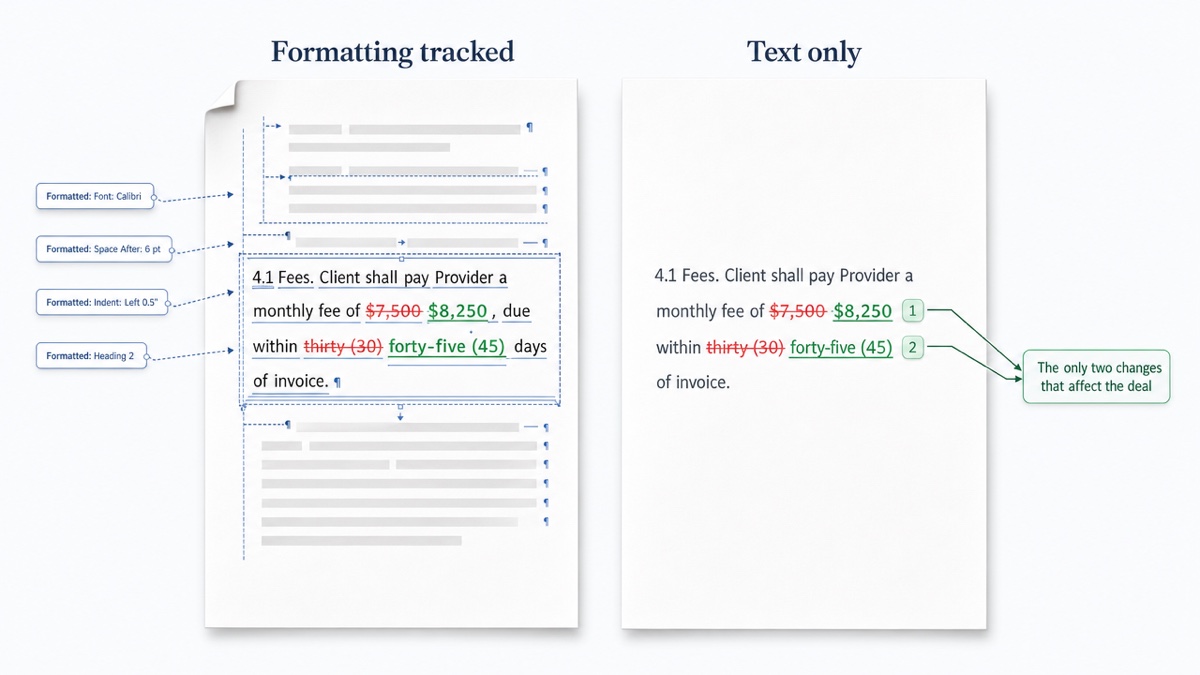
A text-only comparison reduces both files to their text before comparing, so formatting, styling and layout never enter the result. This approach works well when a document has been rebuilt in a new template, converted between formats or re-typeset. In those cases, a standard redline would be buried in markup. It's also the fastest way to confirm that a "clean" final has the same wording as the last agreed draft, however different it looks.
DocxDiff works this way by design. It compares text at the word level, so font, style and template changes don't appear. Insertions show in green and deletions are struck through in red, and every change is numbered. It reads Word (.docx), Markdown and plain text files, or pasted text, for free. PDF comparison is a Pro feature. The comparison runs in your browser, and documents aren't uploaded unless you sign in and save the comparison.
The trade-off is that a text-only tool, DocxDiff included, won't report a change that exists only in formatting. The section below covers when that matters.
Cut the remaining noise: whitespace and capitalization
Even in a text comparison, two kinds of trivial change can pile up:
- Ignore whitespace-only changes hides edits where only spaces, tabs or line breaks differ. This setting is almost always safe to use.
- Ignore capitalization treats "Agreement" and "agreement" as the same word.
Be more careful with capitalization in contracts. A defined term often depends on its capital letter: "Affiliate" may point to a definition, while "affiliate" uses the ordinary meaning. A sensible approach is to run the first pass with capitalization changes visible. Scan for defined terms that gained or lost a capital, then turn the option on if the remaining case changes are just headings.
Both options are on the DocxDiff compare screen, beside the Compare button.
Material vs cosmetic edits
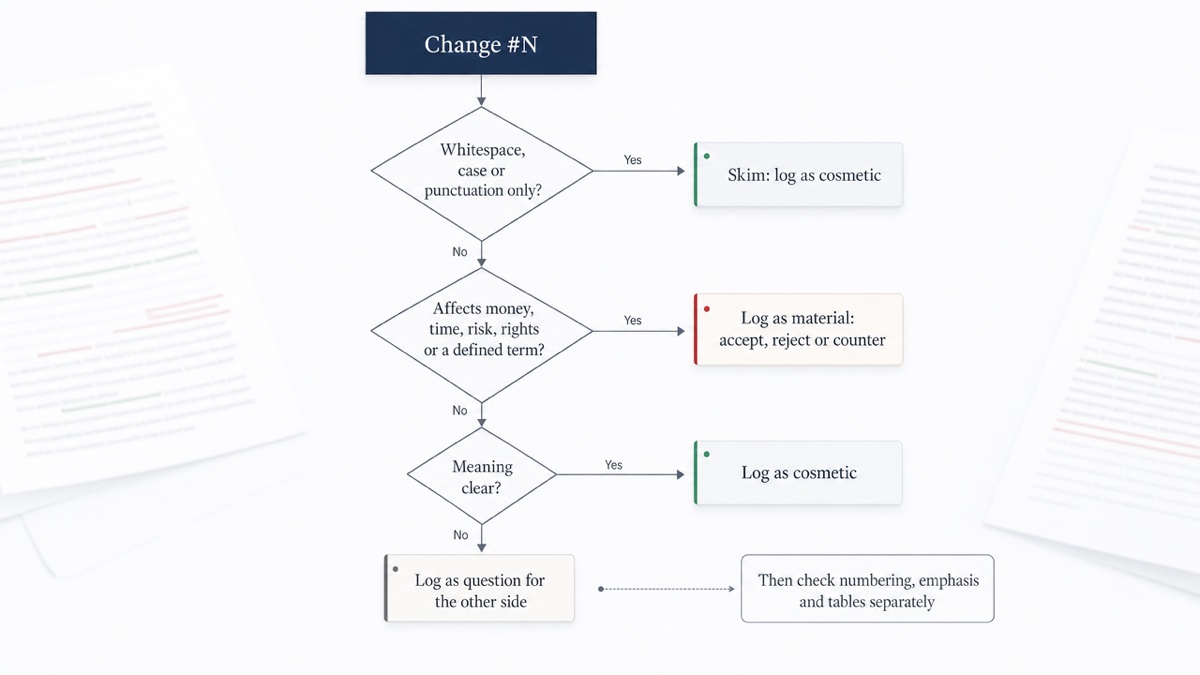
A material edit changes what a party gets, gives, risks or can do. A cosmetic edit changes how the document reads or looks without changing anyone's position.
| Material (read closely) | Cosmetic (usually skim) |
|---|---|
| Fee, price, cap or percentage changes | Fonts, styles, spacing |
| Payment terms, deadlines, notice periods, term length | Serial-comma and punctuation tidying |
| "shall" to "may", "and" to "or", "reasonable" added or removed | "utilize" to "use" and other plain-language swaps |
| Liability caps, indemnities, warranties, exclusions | Heading wording with no operative effect |
| Termination, renewal, assignment and consent rights | Typo fixes |
| Governing law, venue, dispute resolution | Reordered recitals with identical wording |
| New or changed defined terms |
Context can override the table. A comma that changes which items a qualifier applies to is a material edit. When you aren't sure, treat the edit as material.
Formatting changes that can still carry meaning
Ignoring formatting is the right default, but check these items separately. A text-only redline may not show them.
Numbering and cross-references. Automatic list numbering often isn't stored as text, so renumbering can pass without any markup. If a new clause 7 is inserted, "subject to Section 8" may now point to a different clause. After any structural change, open both versions and spot-check every cross-reference against the clause it names.
Emphasis. Bold, capitals or underlining sometimes serve a legal purpose, such as making a disclaimer or waiver conspicuous. Requirements for conspicuous terms can vary by jurisdiction and contract type.. Look over capitalized or bolded disclaimer, limitation and waiver sections in the final document directly.
Table layout. Pricing schedules and service levels often live in tables. If a row is merged or a column is moved, the words can remain the same while a figure ends up under a different heading. Read each table row by row against the prior version.
Headers, footers and exhibits. Confirm that the right exhibit is attached and labeled, and that any headers or footers show the right party names and version.
A 5-minute triage workflow
- Confirm the baseline (30 seconds). Make sure the "original" is the last version you actually agreed or sent, not an earlier draft.
- Compare text only, with whitespace ignored (30 seconds). Leave capitalization visible for now.
- Read the totals (15 seconds). Check the added and removed counts and the similarity score. A rebuilt template that shows only six changes tells you something different than 140 changes does.
- Scan deletions first (1 minute). Filter to show only deletions. Removed protections, caps and conditions are the edits most often missed.
- Scan additions (1 minute). Filter to show only additions and look for new obligations, qualifiers and defined terms.
- Read the full redline with unchanged text hidden (1.5 minutes). Jump from change to change with j and k, and mark each one material or cosmetic.
- Run the structural checks (30 seconds or more). Check numbering, cross-references, emphasis and tables, as described above.
Long contracts will take longer than five minutes. The order stays the same, though: full coverage first, then a focused pass, then structure.
Keep a decision log by change number
Numbered changes make a review easy to cite. Keep a simple log, either a spreadsheet or a list in your email, with these columns: change number, clause, material or cosmetic, decision (accept, reject, counter, ask) and a short note. For example: "Change 14, §4.1, material, counter at $8,000, client approved."
Export the redline as an HTML or Markdown report and save it next to the log so the numbers stay matched to the right comparison. On the next turn, compare the new draft against the version your log refers to. That shows whether the agreed points held.
Semantic comparison vs text diff
A text diff reports exactly which words were inserted or deleted. The result is deterministic: the same two files always produce the same output, and you decide what each change means.
Semantic comparison usually means a tool that also tries to classify changes by impact, often with AI. It might label one change "commercial" and another "formatting only." That can speed up sorting on very large documents. The trade-off is that the labels are a model's judgment, which a reviewer still needs to verify, especially for high-impact items.
The two approaches can work together. A complete, numbered text redline gives you a record to check any classification against. For a deeper comparison, see AI vs deterministic document comparison.
Get a clean redline now
Drop two versions into DocxDiff to get a numbered, word-level redline with no formatting noise. It's free, needs no account, and the comparison runs in your browser.
Frequently asked questions
Does DocxDiff show formatting changes like bold or font changes?
No. DocxDiff compares text at the word level, so formatting changes don't appear in the redline. If emphasis or layout matters in a particular clause, check that section in the documents themselves.
Will a text-only comparison catch renumbered clauses?
Not reliably. Automatic numbering often isn't stored as text, so renumbering can go unflagged. After any inserted or deleted clause, check cross-references by hand.
Is it safe to ignore capitalization in a contract comparison?
Only after a first pass. Defined terms depend on capital letters, so check case changes before you hide them.
Does DocxDiff tell me which changes are material?
No. It shows and numbers every change, and you decide what each one means. The checklist above gives you a consistent way to sort them.
Can I compare a PDF against a Word file?
PDF comparison, including page view and scanned-PDF OCR, is part of Pro at $12/month. Word, Markdown, plain text and pasted text comparisons are free.