Redline vs Blackline: What's the Difference?
When it comes to redline vs blackline, there is no real difference in most offices. A redline and a blackline are both documents that show what changed between two versions of a text, with insertions and deletions marked so you can read them. Which word you hear depends mostly on who trained the person asking, not on what they expect to receive.
That doesn't mean the request is always clear. "Send me a redline" can produce a Word file full of tracked changes, a PDF comparison, or a marked-up copy against the wrong draft. This guide covers what each term means, where the words came from, and how to ask for exactly the document you need.
What a redline is
A redline is a version of a document that marks the changes from an earlier version. Added text is highlighted, often underlined or shown in a color. Deleted text is shown struck through. The reader sees the old and new wording in one place.
Contract redlining is the back-and-forth of exchanging these marked drafts during a negotiation. Each side marks its proposed changes and the other side responds.
What a legal blackline is
A blackline is the same kind of document, and the term is common in legal work. Microsoft Word uses it too. Word's two-document comparison is labeled "Compare two versions of a document (legal blackline)," and it produces a marked comparison in a new third document while leaving both originals unchanged.
Some people draw a narrower distinction. For them, a "redline" is a Word file with live tracked changes, and a "blackline" is a static, read-only comparison generated after the fact. That usage exists, but it isn't universal. If the distinction matters to you, ask about the format explicitly.
Where the terms came from
"Redline" comes from editing on paper. Reviewers marked changes in red ink so they stood out against black type.
The usual explanation for "blackline" is that red markings didn't reproduce well on black-and-white copiers. According to that account, changes were marked in ways that survived copying, such as black lines or bars beside revised text, though the term's exact origin isn't firmly documented.
Software later took over both jobs, and the two words carried on side by side.
Terminology by firm and practice
Usage varies by firm, practice group, region and even individual partner. One team says "blackline" and another says "redline" for the identical document. Business users and in-house teams tend to say "redline," or simply "the marked-up version." There is no rule to learn here. Match the vocabulary of the people you work with, and clarify the deliverable when it matters.
Track Changes vs a comparison-generated redline
There are two different ways to produce a marked document, and they behave differently.
Track Changes records edits as someone makes them. It is the default in many negotiations largely because almost everyone has Word. It has two weaknesses:
- It only captures what was typed while tracking was on. If someone turns it off, pastes in new text, or sends a "clean" version, those edits are invisible.
- Heavily marked documents become hard to read. Accepting changes can cause formatting and numbering problems, and the markup can look different on each recipient's screen.
A comparison-generated redline is made after the fact. You run two finished files through a comparison tool, and it reports every difference between them, whatever happened in between. Use this method to check a document someone describes as "the same as last time."
How to run a comparison in Word
- Open Word and go to Review > Compare > Compare.
- Choose Compare two versions of a document (legal blackline).
- Select the original file and the revised file.
- Under More, choose what to compare (text, formatting, comments) and whether to show changes at the character or word level.
- Keep the default of showing changes in a new document. If you choose the Original or Revised document instead, Word modifies that file.
If either file already contains tracked changes, Word asks before comparing. In the result, tracked changes in the original are accepted and the revised version's differences appear as new tracked changes.
Word works well when you have Word. A separate comparison tool helps when you don't have a license, when you want numbered changes you can cite, or when you want a report you can attach and send. For a broader look at the options, see our guide to legal document comparison software.
Clean vs dirty
A clean copy has no markup. It is the document as it would read if every change were accepted. A dirty copy (also called "marked" or "redlined") shows the changes.
Negotiations usually trade both together. The clean copy is for reading, and the dirty copy is for seeing what moved. A common recommendation is to send the redline as a PDF so everyone sees the same markup, along with the Word file so the other side can respond.
Example: a numbered redline
Here is one clause after a comparison. Each change carries a number, so you can refer to it precisely: "I accept change 1, but change 3 needs discussion."
4.1 Fees. Client shall pay Provider a monthly fee of
$7,500[1] $8,250, due withinthirty (30)[2] forty-five (45) days of invoice.Fees are non-refundable.[3]4.3[4] 4.2 Late Payments. Overdue amounts accrue interest at 1.5% per month.
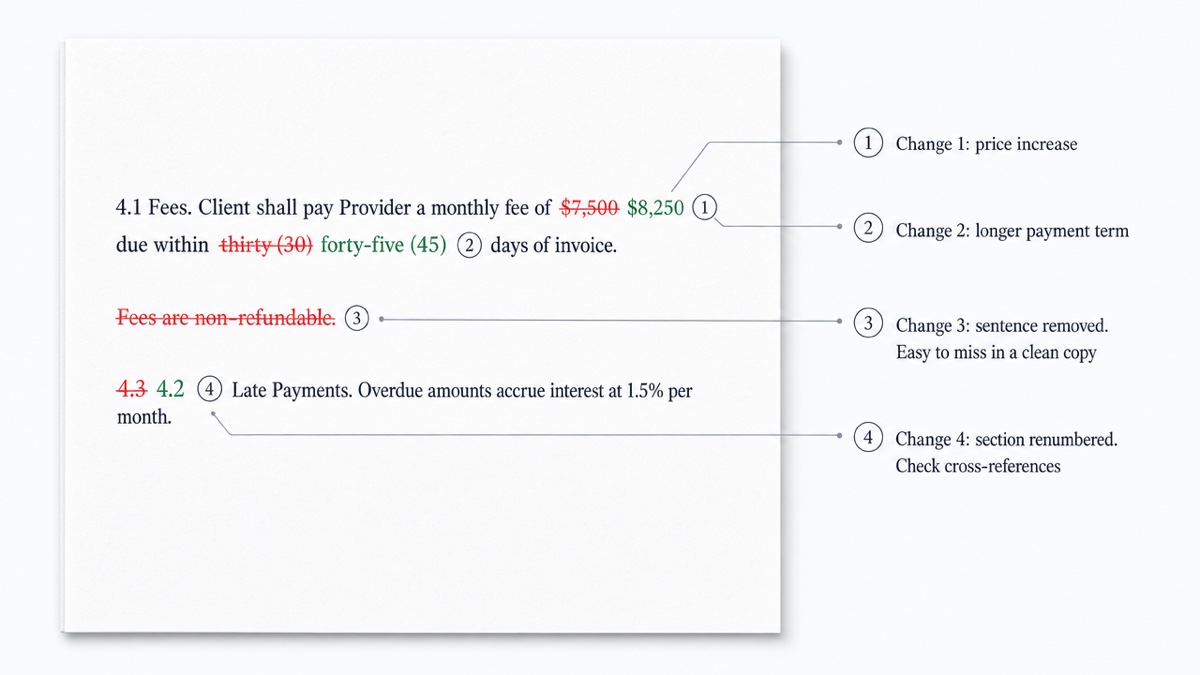
A moved clause usually appears in a word-level comparison as a deletion in one place and an insertion in another. Read those pairs together before you conclude that something was dropped.
How to ask for exactly what you need
Skip the label debate and name four things: the two versions, the format, the scope and the timing. You can adapt this wording:
"Please send a clean version and a blackline in PDF and DOCX. The blackline should compare your draft against our last draft of [date], not against your previous turn."
The distinction in that request matters:
- Cumulative: your new draft against the last version you sent. This shows everything they changed since you last agreed or proposed.
- Incremental: their new draft against their own previous draft. This can hide changes they made earlier that you never accepted.
When you get close to signing, run your own comparison of the execution copy against the last agreed draft. Don't rely only on a redline the other side prepared. Check the headers, footers, exhibits, schedules, tables and defined terms, and confirm any renumbering didn't break cross-references. Our guide on how to compare contract versions walks through this check.
This guide is general information, not legal advice. For questions about a specific agreement, consult a qualified lawyer.
How to create a redline free
DocxDiff compares two files in your browser and produces a numbered, word-level redline.
- Drop in the original and revised versions as Word (.docx), Markdown or plain text, or paste the text directly.
- Review the changes. Insertions appear in green and deletions are struck through in red, each with a number. Use j/k to jump between changes, or switch to side-by-side view.
- Export an HTML or Markdown report to share.
This needs no account, and nothing is uploaded unless you sign in and save. PDF comparison with page-accurate redlines, moved-text detection and PDF exports are part of Pro, which costs $12 a month. DocxDiff shows what changed. It doesn't judge whether a change is acceptable. That decision is yours (see AI vs deterministic document comparison for why that matters).
Compare two documents now at docxdiff.app.
Frequently asked questions
Are a redline and a blackline the same thing?
In most practice, yes. Both are a document marking the changes between two versions. Some people use "redline" for live tracked changes and "blackline" for a static comparison, so ask about the format if it matters.
What is a dirty redline?
It is the marked version of a document, showing insertions and deletions. A clean copy shows the same text with no markup.
Can a comparison catch changes made with Track Changes off?
Yes. A comparison looks at the two finished files, not at the editing history, so it reports any difference in the text however the edit was made.
Does DocxDiff show formatting changes like bold or fonts?
No. It compares text at the word level. Changes to formatting, styles or comments don't appear in the redline.
Can I compare PDFs or scanned documents?
PDF comparison is a Pro feature, and so is OCR for scanned PDFs. Cloud OCR only runs after you approve it. On the free plan, you can compare Word, Markdown, plain-text files and pasted text.