How to Detect Moved Text in a Contract Redline
To detect moved text in a redline, look for large pairs of deleted and inserted text, because most redlines show a moved clause as a block of deleted text in one place and a matching block of inserted text somewhere else. Search the revised draft for a distinctive phrase from each deleted block, then compare the old and new passages word by word.
Move-detection features can label the pair for you. The word-by-word check is still what catches an edit buried inside the moved text.
This guide explains why moves are hard to detect and gives a manual check that works with any comparison tool. It also covers what to verify elsewhere in the contract once a clause has changed position.
Why clauses move during negotiation
Clauses rarely move for no reason. Common causes:
- Restructuring. One side groups related terms together, such as pulling every payment provision into a single article.
- Switching templates. The counterparty reflows your draft into their house structure.
- Merging or splitting sections. Two short indemnity clauses become one, or a long limitation-of-liability section is broken into subsections.
- Consolidating definitions. Terms defined inline get moved into a definitions section.
- Renumbering. Inserting a new Section 4 pushes every later section down a number. Nothing moved, but every cross-reference shifts.
Each of these can be harmless. Each is also a convenient place for a substantive change to go unnoticed.
What a move looks like in a standard redline
A typical comparison engine lines up the two documents as sequences of words and finds the longest runs that appear in the same order in both. Text that sits in a different position can't be matched in both places at once. One copy gets marked as deleted, and the other gets marked as inserted.
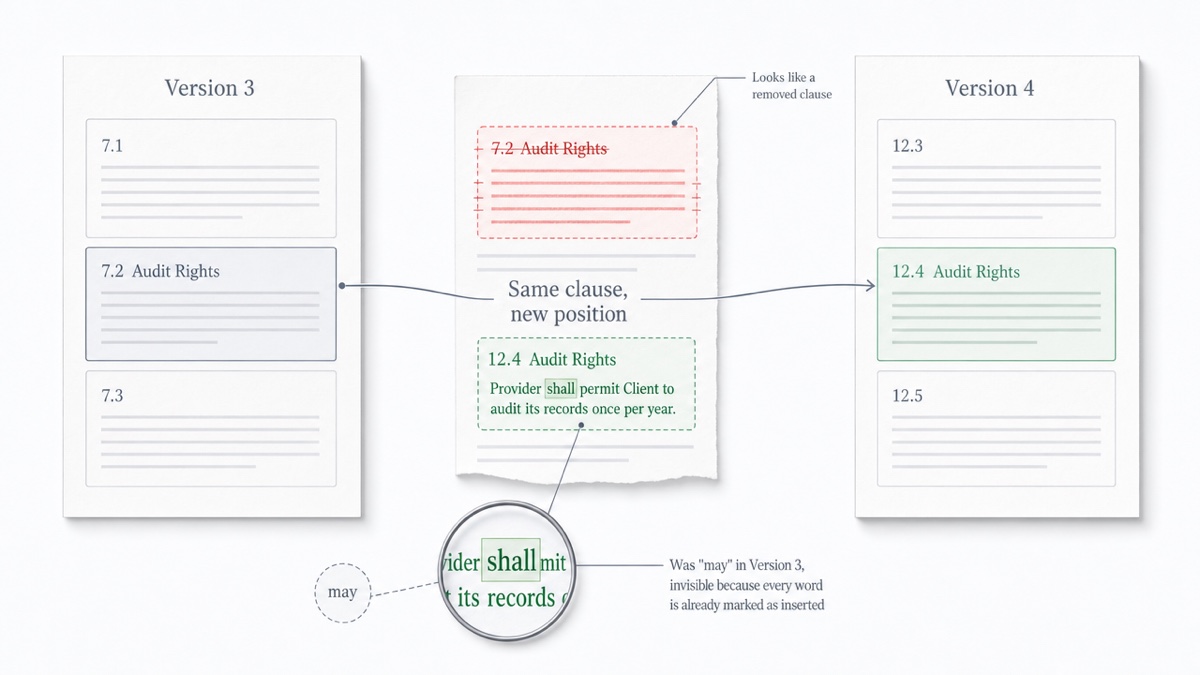
If move detection is unavailable or switched off, a relocated clause shows up only this way. You get a long red strikethrough in Section 7 and a long green insertion in Section 12, with nothing connecting them.
Why move detection is hard
To report a move, software has to decide that a deleted block and an inserted block are "the same" text. Several things get in the way.
Edits inside the moved text. If the clause was moved and also revised, the two blocks no longer match exactly. The engine has to guess how similar is similar enough. More capable engines can recognize moved text even after it was edited, and they mark the words changed within it. Simpler ones give up and show a deletion and an insertion.
Partial moves. Sometimes half a clause moves and the other half stays, or two old clauses merge into one new one. No single block on either side matches cleanly.
Short runs. Common phrases like "subject to Section" appear all over a contract. To avoid false alarms, move detection usually requires a minimum length. In one widely used legal comparison tool, a moved run must be at least five words by default, adjustable from two to ten. Anything shorter is shown as a separate deletion and insertion.
Heavy rewrites. When a paragraph is largely redrafted, an algorithm may flag fragments of the old wording as "moves" inside the new text. Those false move markers clutter the redline and can bury the real changes.
Tables. Text moved between a table and ordinary body text is a known hard case for comparison tools.
The real risk: edits hiding inside a moved clause
A reviewer sees a long red block, scrolls down, and spots a long green block that reads the same. The reviewer concludes "just moved" and moves on.
That is exactly where a changed word survives. When the whole clause is already marked as inserted, a single changed word has no extra marking. "May" becomes "shall." "Thirty (30) days" becomes "forty-five (45) days." A carve-out loses its last sentence. "Confidential Information" becomes "Confidential Materials," a term that may be defined differently or not at all.
A move is never confirmed until you have compared the two passages directly.
How Microsoft Word handles moves
Word's Compare feature can mark moves:
- Open Word and go to Review > Compare > Compare.
- Choose the original and revised documents.
- Click More and confirm Moves is checked under Comparison settings.
- Click OK.
Detected moves appear as "Moved From" and "Moved To" markings rather than ordinary deletions and insertions. Word tracks moves most reliably when a paragraph moved largely intact. When the moved text was also edited, or only part of it moved, you may see plain deletions and insertions instead.
Word's Compare also needs both versions as Word files and a Word license. For a step-by-step walkthrough, see how to compare two Word documents.
A manual check that works with any tool
This method needs nothing more than a redline and a search box.
- Compare the closest pair of drafts. Comparing v4 to v5 gives a cleaner redline than v1 to v5, because fewer overlapping changes blur the picture.
- List every large deletion. Write down its change number and location, for example "change 14, old Section 7.2."
- Copy a distinctive phrase from each one. Pick five to eight words that are unlikely to appear elsewhere, such as a dollar figure, a party name, a defined term or an unusual verb. Avoid boilerplate.
- Search the revised draft for it. If it appears once, you have a candidate landing spot. If it doesn't appear, try a shorter phrase, because the phrase itself may have been edited. If nothing turns up, treat the deletion as a real deletion.
- Compare the two passages directly. Copy the old clause and the new clause into a fresh comparison of their own. Every difference between them now shows as a marked change instead of hiding inside one big insertion.
- Read for the small things. Check numbers, dates and dollar amounts. Check defined terms, modal verbs (may, shall, must, will) and qualifiers (reasonable, material, solely). Check list items and the exceptions that start with "except" or "provided that."
- Record the result. For example: "Changes 14 and 31: old 7.2 moved to new 12.4, with one edit, may to shall." Numbered changes make this note easy to cite in an email or call.
Use side-by-side view and focus filters
On a long contract, filters make step 2 much faster.
- Show only deletions to build your list of candidate moves.
- Show only additions to find where they might have landed.
- Hide unchanged text so that only the changed blocks remain on screen.
- Switch to side-by-side view to see where a block sat in each version and what now surrounds it.
- Jump between changes with the j and k keys instead of scrolling.
Ignoring capitalization and whitespace-only edits also cuts noise, so the large pairs stand out. See ignoring formatting changes in a redline for more on reducing clutter.
For complex agreements, two passes work well. First, read every change once for full coverage. Then do a filtered pass focused on the large deletion and insertion pairs.
Check what the move did to the rest of the contract
A clause can be word-for-word identical and still behave differently in its new position. This is general information, not legal advice. Consult a qualified attorney about what a change means for your agreement.
After confirming a move, check:
- Cross-references. Search for the old section number. Any "as set out in Section 7.2" that wasn't updated now points to the wrong clause, or to nothing.
- Headings. A clause moved under a different heading may be read in light of that heading. Many contracts include a clause saying headings are for convenience only.
Order of precedence. If the contract ranks its own sections or attached schedules, a clause moving from the main body into a schedule, or the reverse, can change which provision controls a conflict.
- Positional wording. Phrases like "the foregoing," "the following" and "this Section" refer to whatever surrounds them now.
- Survival and termination lists. These often cite section numbers that renumbering silently breaks.
- Defined terms. Make sure a term is still defined where it is first used.
Moved-text detection in DocxDiff Pro
DocxDiff Pro ($12/month) includes moved-text detection as part of its PDF comparison. Pro PDF comparison also includes page-accurate redlines and a page view that shows original and revised pages side by side.
The free tier compares Word, Markdown, plain text and pasted text. In those comparisons, a moved clause appears as a numbered deletion and a numbered insertion, so the manual check above is the way to verify it. Paste-text comparison makes step 5 quick. Paste the old clause on one side and the new one on the other, and every word that differs is marked.
DocxDiff compares text, not formatting, and it doesn't interpret what a move means. It shows you exactly what changed, and you decide whether it matters. For more on that distinction, see AI vs. deterministic document comparison.
Comparison runs in your browser, and signed-out comparisons never leave your device. Compare two drafts now at docxdiff.app. No account is needed.
Frequently asked questions
Why does my redline show a moved paragraph as deleted and inserted?
Most comparison engines match text in order. A paragraph in a new position can't be matched in both places, so one copy is marked deleted and the other inserted. Move detection, where it exists, tries to link the two, but it can fail when the text was also edited.
Does DocxDiff detect moved text in Word documents?
Moved-text detection is part of DocxDiff Pro's PDF comparison. Word, Markdown and text comparisons show a move as a deletion plus an insertion. If you have Pro, you can save both Word drafts as PDFs and compare those instead.
Can a clause be moved and edited at the same time?
Yes, and that combination is the one most likely to be missed. Always compare the old and new passages directly rather than assuming a matching block is unchanged.
Does renumbering show up as a change?
Renumbering usually shows up as a change when the numbers are typed as part of the text. If your drafts use automatic numbering, check the cross-references by searching for the old section numbers.
Is it safe to compare confidential contracts this way?
The comparison runs locally in your browser. Documents are stored only if you sign in and save a comparison, or if you approve cloud OCR for a scanned PDF on Pro.