Workshare Compare and compareDocs Alternatives: What to Use Now
If you need a Workshare Compare alternative, you have four realistic paths: move to Litera Compare, switch to another specialist legal comparison tool such as Draftable Legal, use Microsoft Word's built-in Compare for simple jobs, or adopt a lightweight browser-based redline tool. The right choice depends on three things: whether you need document management system (DMS) integration, how much of your work is PDF or scanned, and whether recipients expect a Word file with tracked changes. For former users, the background is simple: Workshare Compare now lives on as Litera Compare, and Litera is retiring compareDocs in favor of the same product.
This guide covers what changed, how to sort out which features your firm actually used, and how to test a replacement on your own documents before you commit. It also covers where DocxDiff fits and where it doesn't.
What happened to Workshare Compare and compareDocs
Both tools ended up with the same owner through acquisitions. Litera acquired Workshare in 2019 and later ended support for Workshare Compare, folding its comparison features into Litera Compare.. Litera also acquired DocsCorp, the original developer of compareDocs, and is ending support for compareDocs while steering customers to Litera Compare..
The products also split apart. Workshare's metadata cleaning, sold as Workshare Protect, did not carry over into the comparison product. Workshare Protect was retired, and Litera now offers metadata cleaning through a separate product called Metadact.. If your firm relied on one Workshare install to compare documents and clean them, you now need to cover two jobs.
Several firms have written publicly about running a replacement search once compareDocs reached end of life. Firms replacing compareDocs often weigh pricing and whether a tool includes features they won't use.. Exact timelines and renewal terms vary by contract, so check your own agreement rather than relying on a general date.
What former users actually relied on
Many firms paid for more than they used. Before you shop, write down which of these your people used each week:
- Redline output. Was the deliverable a Word document with tracked changes, a Word redline without tracked changes, or a PDF redline? Legal comparison tools commonly offer all three, plus changed-pages-only PDFs, Excel and PowerPoint redlines, and change summary tables.
Check whether your old tool compared PDF, Excel and PowerPoint files and handled scanned documents with OCR, and confirm any replacement does the same.. If your team compared signed scans against final drafts, PDF support isn't optional. Check whether your old tool let users compare files directly from your document management system and save the redline back as a new document or version.. Firms on iManage or NetDocuments often treat this as a hard requirement.
- Reports for others. Who reads the redline? A client, opposing counsel, or only the drafting lawyer? That decides whether you need branded reports, PDFs or a simple shareable file.
- Moved-text detection. This reports a relocated clause as moved instead of as a deletion plus a separate insertion. Specialist tools advertise it, and it cuts noise in heavily restructured drafts.
A useful requirements list might include comparison inside your document management system, short changes-only output, easy-to-use software, responsive support and transparent pricing.. That list is a reasonable template for your own.
The main options, fairly
Litera Compare. This is the direct successor. It detects changes in text, tables, charts and images, catches formatting and hidden layout changes, and offers a server version that integrates with other applications.. It suits firms already running other Litera products that want one vendor and deep Word and DMS integration. For more detail, see our Litera Compare alternative guide.
Draftable Legal. A specialist legal comparison product with iManage support. Confirm with the vendor that it outputs Word with tracked changes, PDF redlines and change summary tables.. It suits firms that want a dedicated comparison vendor with DMS integration but not a full suite.
Microsoft Word Compare. It comes free with Office and is adequate for one-off Word comparisons. It compares documents that Word can open and shows the result as tracked changes, without the PDF redlines or summary reports that legal comparison tools provide.. To use it, go to Review → Compare → Compare, choose the original and revised documents, expand More to set comparison options, then click OK. Word opens a new document with the differences marked as tracked changes.
Browser-based tools. These are lighter tools such as Diffchecker and DocxDiff. They suit occasional or individual use, people without a Word license, and confidential work where you want to control exactly where files go. Our Diffchecker alternative for legal guide covers that category in more depth.
Standalone tool or suite?
A suite is attractive when you already use several products from the same vendor. You get one contract, one deployment, one support line and consistent Word integration. The trade-offs are less pricing flexibility, features you may never use, and a harder exit if you later want to switch one component.
A standalone tool does one job. It is usually faster to evaluate and easier to replace, and its price usually reflects only what it does. The trade-off is that you cover the other jobs yourself, such as metadata cleaning, DMS filing and Word add-ins, with separate tools or Word settings.
For many small firms the honest answer is a mix. Use a standalone comparison tool for daily redlines and a dedicated metadata tool or careful Word habits for outbound files. Our document comparison guide for small law firms goes further on sizing this.
Where your documents go during comparison
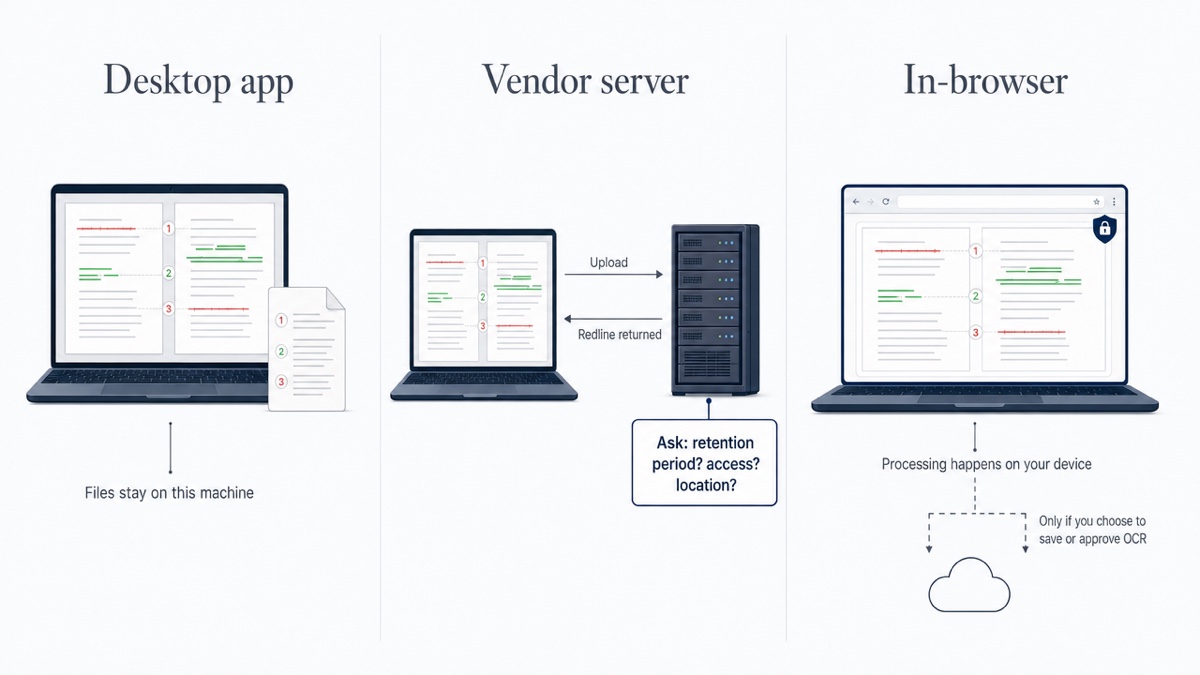
This is the question most vendor pages answer least clearly. There are three common models:
- Desktop. The software runs on your machine, and the files stay local.
- Vendor server or cloud. Files are uploaded, processed remotely, and the results are returned. Ask how long files are retained and who can access them.
- In-browser. The comparison runs in your browser on your own device. Watch for tools that process some file types locally but send others to a server for conversion first.
Whatever the model, get the answers in writing. Ask where processing happens for each file type, what is stored and for how long, whether files are used for any other purpose, and which security certifications the vendor holds. Vendors in this market commonly cite ISO 27001, SOC 2, GDPR compliance, and encryption in transit and at rest. Ask for the reports rather than relying on a logo. This page is general information. For confidentiality obligations specific to your jurisdiction or clients, consult a qualified professional or your bar's ethics resources.
Test a replacement on your own documents
Don't judge a comparison tool by its demo files. Build a test set from real (or sanitized) matters and run every candidate on the same pairs:
- A routine contract turn. It should have a handful of word changes in fees, dates and party names.
- A moved clause. Cut a full section and paste it elsewhere. Does the tool show it as moved, or as a deletion plus an insertion?
- Renumbered sections. Insert a new section 3 so everything after it shifts. Count how much false noise appears.
- A table-heavy document. Use a fee schedule or a disclosure schedule.
- A "clean" final against the last agreed draft. This is the comparison that catches unannounced edits.
- A text PDF and a scanned PDF, if PDFs are part of your work.
Score each result on three counts. Missed changes are real edits the tool didn't show, and they are the serious failure. False changes are noise flagged as edits. Usability covers whether a lawyer can read the result, cite a specific change, and send it to a client without cleanup. Have a second person check the missed-change count against a manual review of at least one pair.
Where DocxDiff fits
DocxDiff is a standalone, browser-based comparison tool. It compares two versions of a Word (.docx), Markdown or plain-text file, or pasted text. It produces a word-level redline with insertions in green and deletions struck through in red, and it numbers every change so you can refer to "change 14" on a call. You can switch between inline redline and side-by-side views, filter to only additions or only deletions, ignore capitalization or whitespace-only edits, and move between changes with j/k.
When you aren't signed in, the comparison runs entirely in your browser and the documents are not uploaded. If you sign in and save a comparison, both source files and the extracted text are stored so you can reopen it later. Skip saving for anything that must never be stored.
Free, no account required: unlimited comparisons of Word, Markdown and text files, plus HTML and Markdown reports. A free account adds saved comparison history.
Pro, $12/month: PDF comparison with page-accurate redlines and moved-text detection, a page view of the original and revised pages side by side, page-faithful and annotated PDF exports, and scanned-PDF comparison. For scans, OCR runs in the cloud only after you approve it. Pro also adds custom branding on reports and shared comparisons for your team or clients.
What it doesn't do: it doesn't integrate with iManage, NetDocuments or Outlook. It doesn't clean metadata. It doesn't compare formatting such as bold, fonts or styles, because it compares text at the word level. Its reports are PDF, HTML and Markdown, not a Word file with tracked changes. It shows what changed, and the lawyer decides what it means.
DocxDiff is the better fit for daily contract turns, verifying clean finals, and confidential matters where you want to control where files go. A suite is the better fit if you file comparisons back into a DMS from a right-click menu.
Migration steps for a small firm
- Read your legacy contract. Check auto-renewal terms, notice periods and minimum seat counts. A missed notice window can lock you into another term.
- Inventory actual use. Ask each lawyer and assistant which outputs they send and to whom.
- Decide what moves elsewhere. Metadata cleaning needs its own tool, or a consistent Word habit using File → Info → Check for Issues → Inspect Document before files go out. DMS filing can be a simple manual save until volume justifies integration.
- Run the test set above on two or three candidates.
- Run tools in parallel for a few weeks. Use the new tool on live matters while the old one is still available, and spot-check results against each other.
- Train briefly. A 20-minute walkthrough covering upload, filters, citing numbered changes and exporting is usually enough.
- Update templates. Revise the cover emails and engagement language that describe the redlines you send clients, so recipients know what format to expect.
- Give notice on the old tool once the parallel run is clean.
To try the test set today, open DocxDiff, drop in two versions of a recent contract, and compare the redline against what your old tool produced. No account is needed.
Frequently asked questions
Is Litera Compare the same as Workshare Compare?
After Litera acquired Workshare, it ended support for Workshare Compare and moved customers to Litera Compare.. Features and licensing may differ from your old Workshare agreement, so review the current terms rather than assuming continuity.
What should compareDocs users do first?
Read your contract for renewal and notice terms, then list what your team actually used: PDF and OCR, DMS integration, report formats. That list narrows the field quickly.
Can DocxDiff compare PDFs and scanned documents?
Yes, on Pro. PDF comparison, page view and scanned-PDF OCR are Pro features. For scanned pages, the file is sent to an OCR provider only after you approve it. The free tier covers Word, Markdown, text and pasted text.
Does DocxDiff replace metadata cleaning?
No. Comparison and metadata cleaning are separate jobs. Use a dedicated metadata tool or Word's Document Inspector for outbound files.
Can DocxDiff output Word tracked changes?
No. It produces a numbered redline you can view in the browser and export as an HTML or Markdown report on the free tier, or as a PDF report on Pro. If recipients require a Word file with tracked changes, Word's Compare or a suite tool will fit better for that step.