How to check if a contract was changed before you sign
To check if a contract was changed before signing, run a document comparison between the execution copy you were sent and the last draft both sides agreed. Every insertion and deletion appears marked up. If the comparison shows nothing, the wording matches. If it shows something, you have a specific, numbered list to raise before anyone signs.
The check takes about two minutes. Most differences it catches are honest mistakes, not bad faith, so the aim is to confirm the agreement matches, not to accuse anyone.
This guide is general information, not legal advice. If a discrepancy affects your rights or obligations, talk to a qualified lawyer.
Why execution copies drift from the agreed draft
Once negotiations finish, one party usually turns the agreed Word document into a PDF execution version. The other side should then compare that PDF against the agreed draft before signing. Lawyers commonly do this, often with document comparison software, but it does not always happen, so do not assume the PDF matches. Differences tend to come from a few places:
- Tracked changes handled wrongly. Someone accepts every change, including one that was later rejected. Or a deletion that was never accepted survives into the clean copy.
- The wrong file exported. The PDF was made from version 6 when version 7 was agreed.
- Late edits. A number, date or clause gets tidied up after the last turn, and nobody circulates the change.
- Conversion and template artifacts. Moving a document into a new template or format can drop a cross-reference or duplicate a paragraph. It can also bring back a clause from an earlier draft.
None of these is visible when you read a clean PDF. A comparison makes them visible.
Step 1: Get the right two versions
A comparison is only as good as its inputs, so confirm which draft was really agreed before you run it.
- Find the last agreed draft in the email trail. Look for the message where both sides said "agreed" or "approved". Use the attachment from that message, not a later forward.
- Check version numbers. If you use a document management system, note the version number. Make sure no later version was saved after sign-off.
- Check file details. Look at the modified date and the author in the file properties. A "final" saved after the agreement email deserves a closer look.
- Ask for the whole package. That means exhibits, schedules and the signature page. A swapped schedule is as important as a changed clause.
If you can't tell which draft was agreed, settle that with the other side before you compare.
Step 2: Compare the Word draft against the PDF
Checking an execution copy usually means comparing Word against PDF, not Word against Word.
In Microsoft Word, go to Review → Compare → Compare. Choose the original and the revised document. Open More to pick what to compare and whether to show changes at word or character level, then click OK. Word puts the results in a new document and leaves both originals untouched. Two things to know:
- Word only compares Word files. A PDF must be converted first, and the conversion can add its own artifacts.
- If either file already contains tracked changes, Word warns you. It treats the original's tracked changes as accepted, which can hide exactly the acceptance error you're looking for.
In DocxDiff, you skip the conversion. Drop the agreed .docx in as the original and the execution PDF in as the revised document. Text-based PDFs, the kind exported from Word or Google Docs, are read in your browser. PDF comparison is a Pro feature at $12/month. It gives page-accurate redlines and moved-text detection, so a relocated clause shows as moved rather than as one deletion plus one insertion. On the free plan, you can copy the PDF's text and paste it in for a word-level comparison.
The comparison runs on your device. Signed-out comparisons are never uploaded, which suits confidential or privileged agreements.
Two settings help reduce noise: ignore capitalization and ignore whitespace-only changes. Leave them off if capitalization could matter, for example in a defined term.
Step 3: Scanned copies and OCR
Sometimes the "PDF" is really a scan, such as a printed and re-scanned copy or a signature page photographed on a phone. That file is a stack of page images with no text, so a text comparison comes back empty.
On Pro, DocxDiff detects scanned pages, including mixed files where only an exhibit or signature page is scanned. It then asks whether to use secure cloud OCR. Only the scanned pages are OCR-processed, over an encrypted connection, and nothing is sent without your approval. See comparing a scanned PDF to Word for the details.
OCR has limits. Poor scans, handwriting and dense tables can produce misread characters. Treat odd-looking OCR "changes" as prompts to check the page. Always read the key commercial terms by eye on a scanned copy: price, term, parties, dates and payment.
Step 4: Read the results
Redline view shows one marked-up text. Insertions are in green, deletions are struck through in red, and each change is numbered. This is the fastest way to see whether anything changed at all.
Side-by-side view puts the agreed draft and the execution copy in two columns. Use it to understand a change in context, for example whether a reworded sentence shifts its meaning.
Use the focus filters to hide unchanged text, then step through changes with the j and k keys. A typical result might look like this:
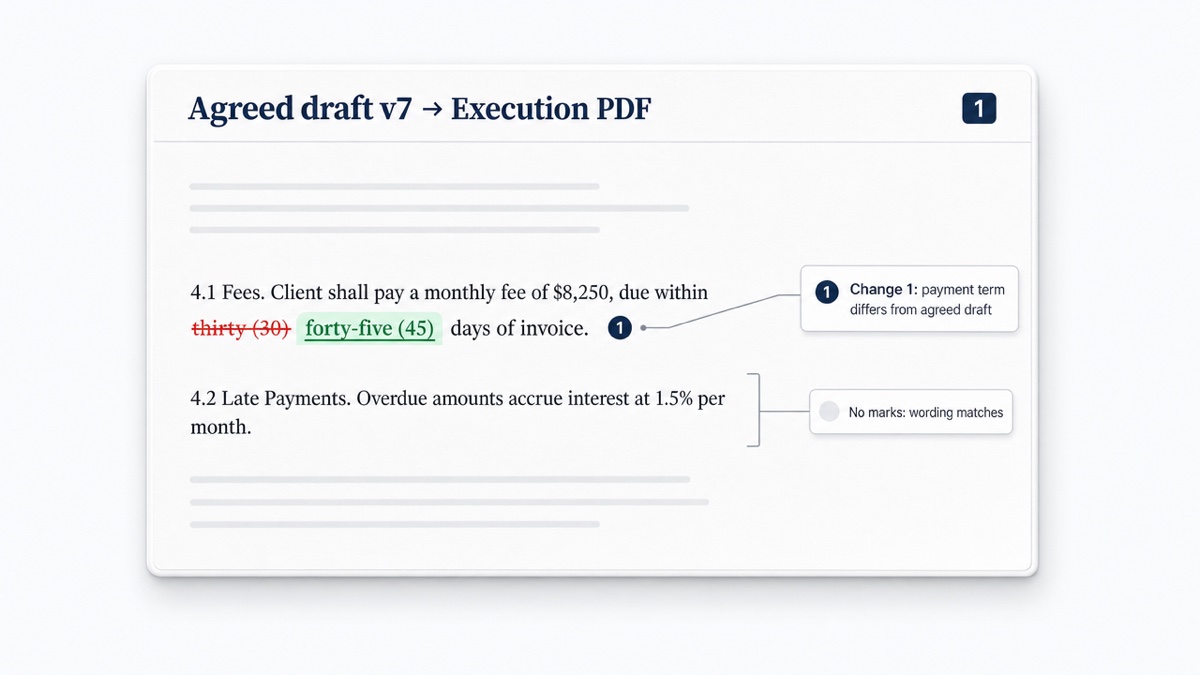
Know what a text comparison won't show. Margins, page breaks, logos and the layout of signature blocks are invisible to it, because it compares words, not formatting. Headers, footers and footnotes are text, though, so changes there do show up. Those areas are easy to miss when you read by eye.
Step 5: What to do when you find a difference
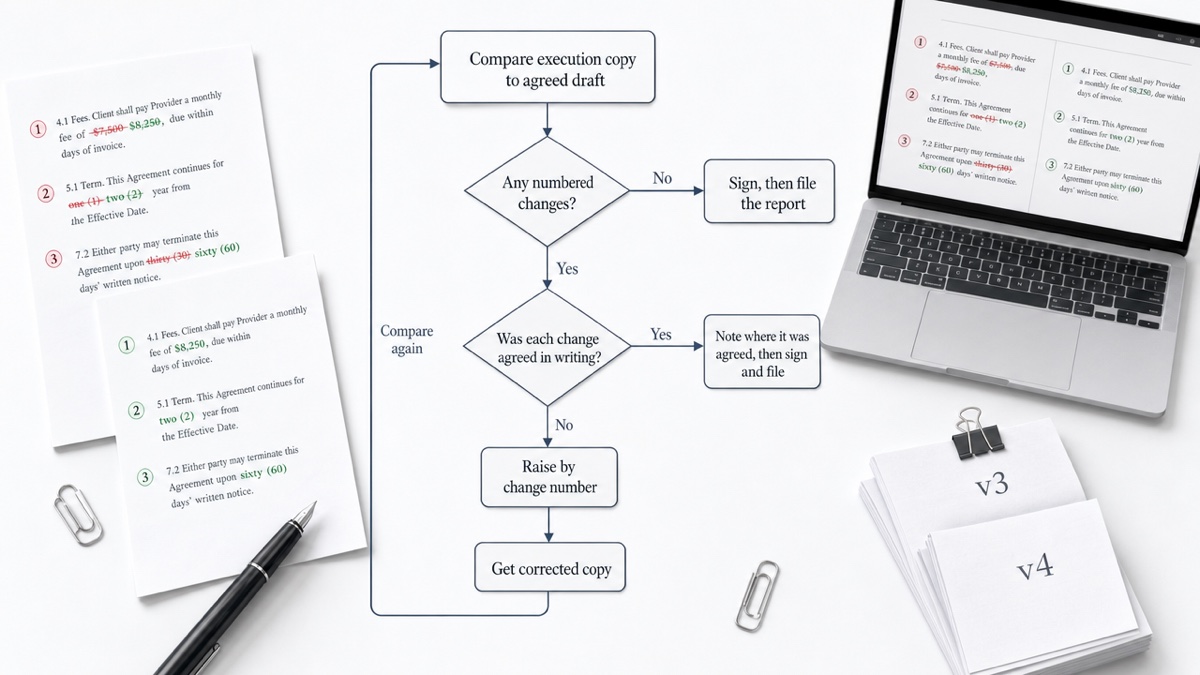
Don't sign around it. Raise each change by number, plainly and without blame. For example:
"Before we sign, our comparison of the execution PDF against the v7 draft agreed on [date] shows two differences: change 1 (payment term reads 45 days, agreed 30) and change 3 (clause 9.2 is missing). Could you confirm and send a corrected execution copy?"
Then compare the corrected copy again, because fixes can introduce new errors. Some parties fix small last-minute points with initialed handwritten changes instead of a new copy. Practice varies, so check with your lawyer about what's appropriate for your agreement.
Step 6: Export a report for the file
Save a record showing you checked. DocxDiff exports HTML and Markdown reports free. Pro adds page-faithful and annotated PDF exports and custom branding. File the report with the signed copy, the agreed draft and any audit trail from your e-signature platform. How long to keep it depends on your organization's retention policy.
With a free account you can also save the comparison, including both source files, and reopen it later. For documents that must never be stored, skip saving and stay signed out.
Pre-signature checklist
- Last agreed draft identified from the email trail or DMS version
- Execution copy includes all exhibits, schedules and the signature page
- Comparison run: agreed draft as original, execution copy as revised
- Every numbered change either traced to a written agreement or raised
- Blanks filled at execution checked by eye: party names, dates, amounts, notice addresses
- Defined terms and cross-references spot-checked
- Scanned pages read manually for key terms
- Corrected copy compared again
- Report filed with the signed copy
For a broader read of the substance, see the contract review checklist before signing. For multi-round negotiations, see comparing settlement agreement drafts.
Run your check now at DocxDiff. It's free, needs no account, and the comparison happens in your browser.
Frequently asked questions
Can I compare a signed PDF against the Word draft?
Yes. If the signed PDF has a text layer, Pro compares it directly with page-accurate redlines. If it was printed and scanned, Pro's OCR reads the scanned pages first.
Does the comparison catch formatting changes?
No. DocxDiff compares text at the word level. Font, bold, margin and layout changes won't appear, so check the signature block layout and page setup by eye.
Is my contract uploaded anywhere?
Not when you're signed out. Comparison runs in your browser. Files are stored only if you save a comparison to your account, or sent for OCR only if you approve it on Pro.
Does DocxDiff tell me whether a change matters?
No. It shows exactly what changed and numbers each change. Deciding what a change means is up to you or your lawyer.
What if the other side says the change was agreed?
Ask where it was agreed: an email, a call note, or a tracked change in an earlier turn. If it's documented, note that alongside your report. If not, resolve it before signing.