How to Compare a Scanned PDF to a Word Document
To compare a scanned PDF to a Word document, first run OCR (optical character recognition) to turn the scanned page images into text. Then compare that text word by word against the Word draft, and check each flagged change against the actual page image so you can separate recognition errors from real edits. Skip the OCR step and a text comparison has nothing to read: a scan contains only pictures of pages, so the result comes back empty.
This is the usual job when a signed agreement comes back as a scan, or when a counterparty printed the draft, marked it up and scanned it back. This guide covers how OCR works, the errors it typically makes, and a workflow for confirming that the signed copy matches the draft you agreed.
How OCR works, and where it falls short
A scanner produces a photograph of each page. OCR software studies the shapes in that image and guesses which characters they represent. It then writes those guesses into a hidden text layer that can be searched, copied and compared.
The key word is guesses. Recognized text may not fully match what appears on the page image, and OCR tools can miss their own errors. That is why a person still needs to review the result. Accuracy drops with:
- Low resolution, skewed pages, speckles or poor contrast
- Pages that have been copied, faxed or scanned more than once
- Very small, decorative or handwritten text
- Colored, discolored or textured paper
- Layouts where text overlaps images, stamps or logos
A noisy scan doesn't make the comparison useless. It means some of the changes the comparison flags are the OCR's mistakes, not the other side's.
Common OCR artifacts to recognize
Most OCR errors fall into a few patterns. Once you know them, you can sort many flagged changes at a glance.
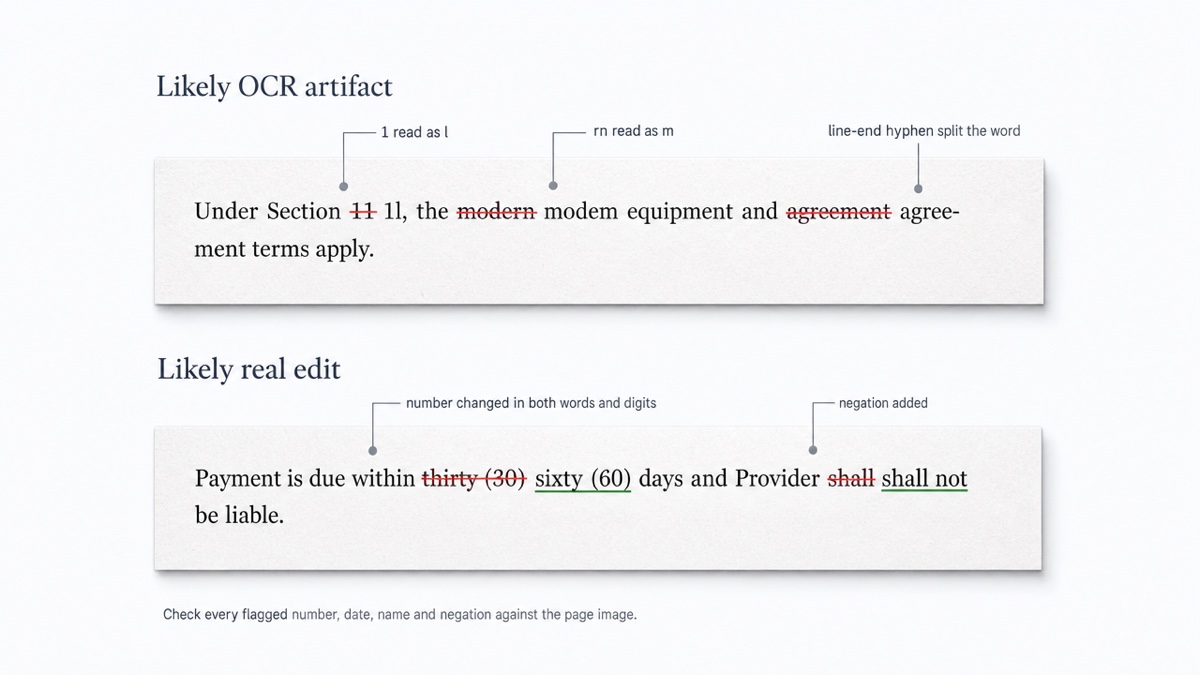
Look-alike characters. Lowercase l, capital I and the numeral 1 get swapped, as do capital O and zero. "Section 1l" or "2O25" is almost always the scanner.
Merged or split letters. A tight rn can be read as m, so "modern" becomes "modem". The reverse also happens.
Ligatures. Some fonts join fi and fl into a single glyph. OCR may drop, split or substitute it, so "fiduciary" or "flat fee" comes back broken.
Line-end hyphenation. A word split across a line in the scan ("agree-" / "ment") may come back as two fragments with a stray hyphen. Your Word draft has the whole word.
Stray punctuation. Specks and staple shadows become periods, commas or apostrophes.
Get the cleanest scan you can
A cleaner scan gives a cleaner comparison, so it pays to fix the input before you compare. If you control the scanning:
- Scan at 300 DPI. Adobe suggests 300 DPI for grayscale and 600 DPI for color content.
- Keep pages straight. Crop and deskew before OCR.
- Scan old or faint documents in color (RGB) rather than black and white.
- Save to TIFF or PNG rather than JPEG, which adds compression artifacts.
- Turn off sharpening filters and avoid extreme brightness or contrast.
- If you're using a phone camera, use natural light without flash.
If the other side sent the scan, you can't fix it. But knowing these causes tells you which pages to treat with extra suspicion.
Step by step: compare a scanned PDF to the Word draft
1. Confirm the PDF is actually a scan
Try to select a sentence in the PDF. If you can't highlight text, or the page looks blurry or has handwriting on it, it's a scan. Some files are mixed. A contract exported from Word may have a scanned signature page or exhibit attached.
2. Load the Word draft as the original
In DocxDiff, put the last agreed .docx on the original side and the scanned PDF on the revised side. PDF comparison, including scanned PDFs, is part of Pro ($12/month). Comparing Word, Markdown and plain-text files is free.
3. Approve OCR, or decline it
DocxDiff detects scanned pages, including in mixed documents, and asks before doing anything with them. If you approve, the file goes over an encrypted connection to our OCR provider. Text-based pages are read directly, only the scanned pages are OCR-processed, and the extracted text comes back to your browser for the comparison. If you cancel the prompt, the document stays on your device.
4. Turn on the noise filters
Select Ignore whitespace-only changes and Ignore capitalization. OCR often adds or drops spaces and line breaks, and it sometimes misreads case. These options hide those differences so you're left with word changes. They won't fix a misread character or a hyphen-split word, so expect some artifacts to remain. For more on reducing noise, see how to ignore formatting changes in a redline.
5. Triage the redline
Every change is numbered. Work through them with j/k. On Pro, page view puts the original and revised pages side by side, so you can compare each flagged spot with the scan itself. Sort each change into one of two piles:
- Probable artifacts: single-character swaps, broken words, stray punctuation, and errors that cluster on one smudged or skewed page.
- Must verify: any change to a number, dollar amount, date, percentage, party name, defined term, cross-reference, or a negation such as not, no or except. Also flag any change where whole words differ, and any edit that appears in a clean region of the page.
Treat the second pile as real until the page image proves otherwise. An OCR error rarely produces a different, meaningful word that fits the sentence. A counterparty's edit always does.
6. Check signature pages and handwriting by eye
Handwriting usually doesn't convert accurately through OCR. The typed text around a handwritten date or name normally does convert. A text comparison can't confirm that a signature, initials or a margin note is present or correct. Review those pages visually, and look closely for handwritten strike-throughs or insertions that a text comparison would miss. A signature page may also show up in the redline as gibberish where the ink was. That noise is expected and tells you nothing about the signature.
7. Record what you found
Export a PDF, HTML or Markdown report with the numbered changes, then note which numbers you confirmed as artifacts. If you're signed in and save the comparison, both source files are stored in your account. Stay signed out for anything that must not be stored.
Privacy: local comparison versus cloud OCR
For text-based files, DocxDiff runs the whole comparison in your browser. A scan is different, because recognizing the page images requires sending the scanned file to an OCR service. That's why DocxDiff asks for approval each time instead of doing it silently.
For privileged or highly sensitive material, decide before you click. Your firm's or client's confidentiality rules may decide it for you. The alternative is to ask for a text-based PDF or the .docx, which can be compared without the document leaving your device. This page is general information, not legal advice, so consult a qualified professional about your confidentiality obligations.
When to stop and ask for the native file
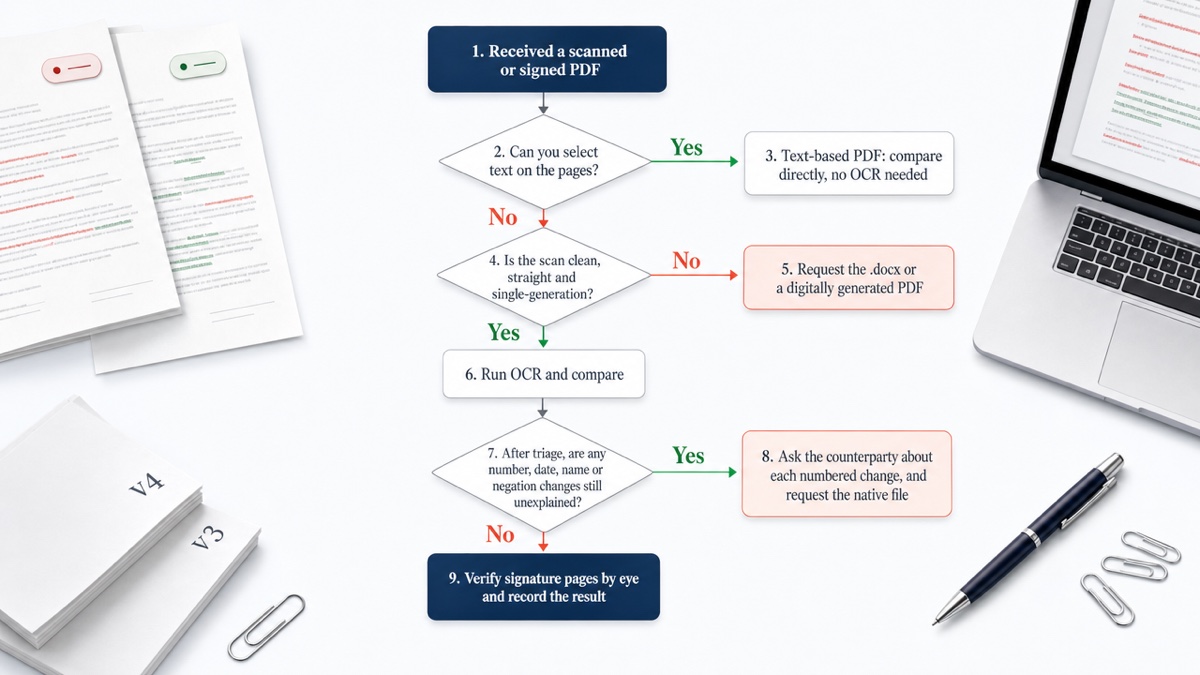
Request the .docx or a digitally generated PDF when:
- The scan has been faxed or copied more than once, or pages are skewed or speckled
- Whole pages come back as garbled text
- Several substantive-looking changes remain after triage
- The document is too sensitive to send to cloud OCR
Asking for the native file is a routine request, and it's often faster than proving a smudge is only a smudge. It also helps to ask early, as part of checking a contract before you sign.
Ready to check a signed copy against your draft? Open DocxDiff, drop in both versions, and work through the numbered changes.
Frequently asked questions
Can I compare a scanned PDF without OCR?
No. A scan has no text layer, so a text comparison returns nothing. Either run OCR or get a text-based version of the document.
Does DocxDiff read handwriting?
No. Handwritten signatures, initials and margin notes don't convert reliably through OCR. Check those pages visually.
Is my scanned document uploaded?
Only if you approve OCR, which is a Pro feature. The file is sent over an encrypted connection, only the scanned pages are OCR-processed, and the text returns to your browser. If you decline, nothing is sent.
Will ignoring whitespace remove all OCR noise?
No. It removes spacing and line-break differences, and ignoring capitalization removes case differences. Misread characters and hyphen-split words still show up, so you need to triage them.
Does the comparison check formatting or layout?
No. DocxDiff compares text at the word level. Margins, fonts and signature block placement aren't compared.
Does DocxDiff decide which changes matter?
No. It shows what changed and numbers each change, and you decide what each one means. See AI vs deterministic document comparison for why that distinction matters.