How to Compare Settlement Agreement Drafts and Catch Late Changes
To compare settlement agreement drafts reliably, run your own word-level comparison of the last version everyone agreed to against the copy you are being asked to sign. Then read every change the comparison flags, starting with release scope, payment terms, confidentiality and liability language. Don't rely on the other side's tracked changes or their summary of what moved. The execution copy often arrives as a PDF, so the check is usually Word against PDF.
This guide gives you a repeatable final-version routine, the clauses to read most closely, and how to keep the comparison confidential. It is general information, not legal advice. Consult a qualified attorney about what any specific change means for you.
Why settlement drafts change at the last minute
Settlements close under pressure. A hearing date is coming, a client wants it done, and the "final" draft passes through several hands in the last day or two. That is when small edits slip in.
Some are honest mistakes. Someone exports the wrong version to PDF, or a fix from an earlier round never gets carried forward. Others are deliberate: a new sentence added to the release, a payment deadline pushed out, a non-disparagement clause that quietly becomes one-sided. Either way, the result is the same. The document in front of you may not say what was agreed.
The risk is highest when the deal was reached orally or by email and one side then writes it up. The written draft can include terms nobody discussed, such as indemnities, liquidated damages for breach of confidentiality, or restrictions on future conduct.
Why tracked changes aren't enough
Tracked changes only record what the editor chose to track. Edits get left untracked by accident, Track Changes gets switched off for one paragraph and never back on, and a recipient's Word settings can hide markup entirely. A redline supplied by the other side has a similar problem: you don't know which two versions they compared.
The safer habit is to compare every version you receive yourself, against the version you know you agreed to.
Using Word's Compare feature
If both versions are Word files and you have Word, the built-in tool works:
- Open Word and go to the Review tab.
- Click Compare, then Compare... (compare two versions).
- Choose the agreed draft as the Original document and the new version as the Revised document.
- Click OK. Word opens a blackline showing insertions, deletions and moves.
This falls short in three common situations. The execution copy is a PDF. You only have a "clean" file with no history. Or you need a numbered list of changes you can cite back to opposing counsel. A separate comparison tool handles all three.
The final version check: a routine you can repeat
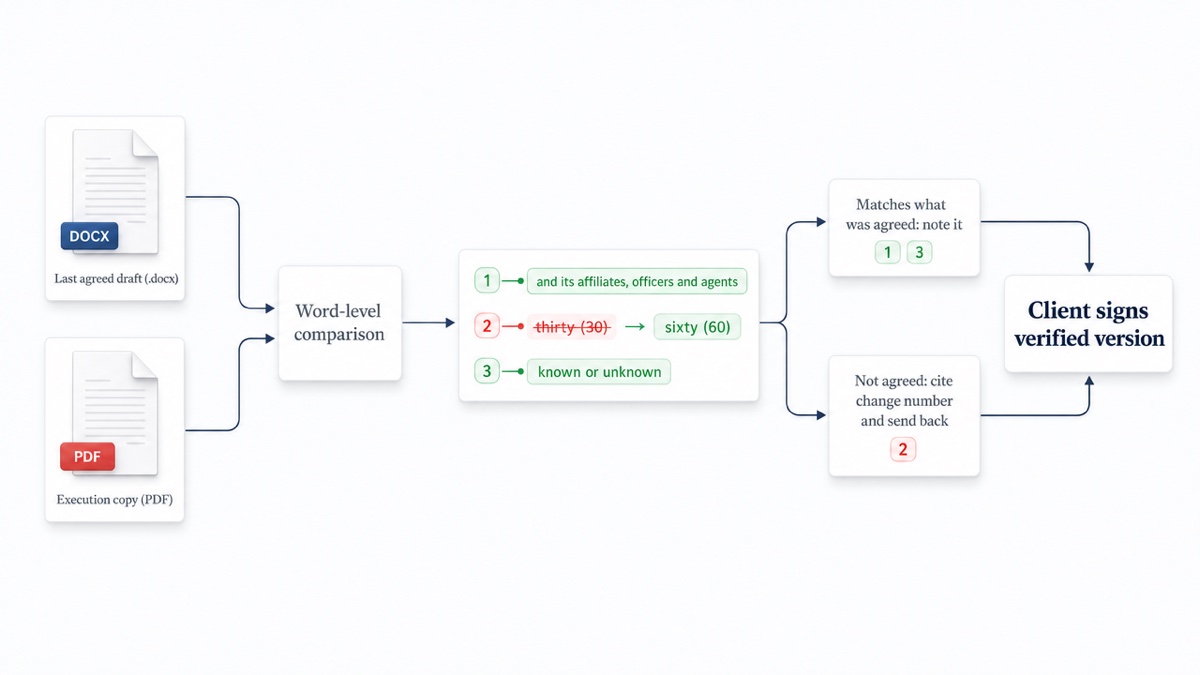
Many practitioners consider it good practice for the receiving side to compare the execution PDF against the agreed Word draft before the client signs, though it is a habit rather than a formal requirement. Here is a routine that takes minutes:
- Pin down the baseline. Identify the last version both sides actually accepted. That might be the draft attached to the "agreed, please prepare signature copies" email. Save it with a clear name so you never compare against the wrong file.
- Get the execution copy as sent. Use the exact file you received, not a version you edited or re-saved.
- Run the comparison. Put the agreed draft on the left (original) and the execution copy on the right (revised).
- Turn on noise filters. Ignore whitespace-only changes and, if you choose, capitalization. PDFs often introduce line-break and spacing artifacts that would otherwise bury the real edits.
- Review every numbered change. Use the next/previous controls or the j/k keys to step through each one. Filter to deletions only, then additions only, so nothing hides in a long redline.
- Check the attachments too. Compare exhibits, schedules and any release forms separately. Make sure the signature pages belong to the version you just verified, not an earlier one.
- Record and respond. Export a report and cite specific changes ("changes 3, 7 and 12 were not agreed") in your reply.
Where last-minute changes hide
Read every change, but give these clauses the closest attention.
Release scope
The release is where a few words carry the most weight. Look for:
- Added parties: affiliates, parent companies, officers, insurers, successors or "agents" appearing on the released side, or quietly dropped from yours.
- Broader claims: a release that grows from claims "arising from the dispute" to claims "of any kind."
- "Known and unknown" language: wording that extends the release to claims you haven't discovered yet. Whether such wording is enforceable, and what it covers, depends on the jurisdiction.
- Mutuality: a mutual release that becomes one-way, or carve-outs that disappear.
Payment amount, timing and tax language
Check the figure itself, then everything around it: the payment schedule, the payment method, the deadline (from signing, from dismissal, from receipt of tax forms), and what happens if payment is late or missed. A shift from "within 14 days of signing" to "within 14 days of dismissal" can change when money actually arrives.
Watch any language about how the payment is characterized or allocated, and who handles tax reporting. How a payment is described and allocated can affect its tax treatment, although the IRS looks at what the payment actually compensates for and not just the label. A reworded allocation deserves a tax adviser's look.
Confidentiality and non-disparagement
These clauses tend to expand late. Check who is bound, what is covered (the terms, the amount, the existence of the settlement, the underlying facts), the exceptions (advisers, family, legally required disclosures), and any new penalty or liquidated-damages provision for breach. Check whether non-disparagement stayed mutual. For a deeper checklist on confidentiality wording, see how to compare NDA drafts.
Admission and denial of liability
Most settlements state that no party admits liability. Small edits here matter. A deleted "no admission" sentence, a recital that now characterizes the facts, or a denial that became one-sided can all change how the document reads later. Also check that any "without prejudice" or settlement-communication language survived. That wording is generally used to help keep settlement discussions out of evidence if talks fail, though in U.S. courts the protection comes mainly from the forum's evidence rules, which have exceptions.
Cooperation and future obligations
Look for new duties that outlast the payment: cooperation in related matters, references or letters of recommendation, return or destruction of documents, restrictions on future work or contact, dismissal mechanics, and ongoing business terms. Obligations nobody discussed are a classic late addition.
Multi-party settlements
With three or more parties, each side may circulate its own "final." Compare each party's version against the same agreed baseline, not against each other. Then you can see exactly who changed what, and you avoid tracing changes through a chain of drafts.
If two parties send conflicting edits to the same clause, the separate comparisons make the conflict visible before anyone signs. Confirm that every party's signature page attaches to the identical verified text.
Keep the comparison confidential
Settlement terms are often confidential by agreement, and drafts exchanged in negotiation may be privileged. Uploading them to an unknown online service is a decision your firm or client should be comfortable with.
DocxDiff runs the comparison entirely in your browser. When you are signed out, documents never reach a server. A document leaves your device only in two cases: you sign in and save a comparison, or you approve cloud OCR for a scanned PDF on Pro. For terms that must never be stored, stay signed out or simply don't save.
Export a record for the file
Once you've reviewed the changes, export a comparison report so the file shows what you checked and when. A PDF report suits the matter file or a client email. An HTML report lets a colleague open the same numbered redline in any browser. Because every change is numbered, your response to the other side can point to exact items rather than paraphrasing them.
If you sign in, the comparison and both source files are kept in your saved comparison history, so you can reopen the redline if a dispute about the final text comes up later.
The same routine works for other documents you sign under time pressure. See checking a contract before signing and comparing lease agreements.
Run your final version check now: drop the agreed draft and the execution copy into DocxDiff and read every numbered change before anyone signs.
Frequently asked questions
Can I compare a Word draft against a PDF signature copy?
Yes. PDF comparison is a Pro feature ($12/month), with page-accurate redlines and moved-text detection. On the free tier you can compare Word (.docx), Markdown and plain-text files, or paste text from both versions straight into the tool.
What if the execution copy is a scan with signatures?
A scanned PDF has no text layer, so it needs OCR before it can be compared. On Pro, DocxDiff detects scanned pages, including mixed files where only the signature page or an exhibit is scanned. It then asks you to approve secure cloud OCR. Only the scanned pages are OCR-processed. Nothing is sent unless you approve.
Will DocxDiff tell me whether a change is bad for my client?
No. It shows exactly what changed, word by word, and numbers each change. Deciding what a change means, and whether to accept it, is your call or your lawyer's.
Does it catch formatting changes, comments or hidden tracked changes?
It compares text at the word level, which is where substantive changes live. It does not compare formatting such as bold or fonts, and it does not read Word comments or tracked-change history. Clean up or check those separately in Word.
Do I need an account to compare settlement drafts?
No. Comparing and exporting reports works without signing in, and signed-out comparisons stay on your device. A free account adds saved history. Saving stores both source files, so skip it for documents that shouldn't be stored.