Contract Review Checklist Before Signing (Plus Template Drift)
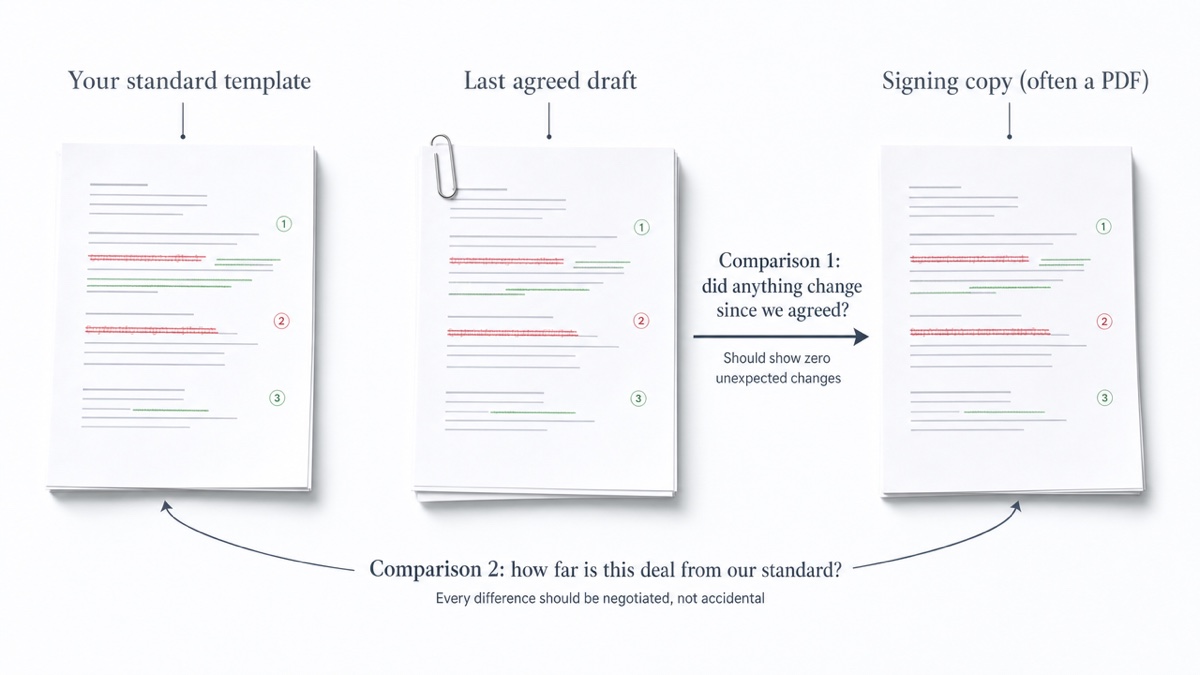
A contract review checklist before signing starts with confirming you have the final version, then comparing the signing copy word by word against the last agreed draft. Next, check parties, dates, amounts, defined terms, key clauses, schedules and cross-references. Finally, compare the deal against your standard template and file the comparison report with the executed copy.
Most checklists skip the two comparison steps, yet those are the steps that catch changes nobody mentioned.
This guide is for business, operations and procurement people, and the legal assistants who support them. It is general information, not legal advice. Whether a particular term is acceptable is a question for a qualified attorney.
Why the comparison comes first
Negotiations generate many drafts, often from several people. When the talking stops, one side usually turns the agreed Word draft into a PDF and sends it for signature. You can't assume that PDF matches what you agreed. Someone may have exported the wrong version, or added a change without saying so. For this reason, comparing the execution copy against the agreed draft before anyone signs is common practice.
Don't rely on the other side's tracked changes or on a comparison they send you. Edits can slip through untracked. With someone else's comparison, you don't know which two files they compared. Run your own.
The pre-signing checklist
1. Confirm the version and gather your sources
- Identify the last draft both sides agreed to. Use the email thread or meeting notes for this, not the filename.
- Collect four things: the last agreed draft, the signing copy, your standard template, and any term sheet or emails recording agreed points.
- What the redline reveals: if the comparison shows changes you already accepted, your baseline is wrong. Find the correct agreed draft before going further.
2. Compare the signing copy against the last agreed draft
The ideal result is no changes at all, or only the ones you expect, such as a filled-in date. Every other change needs an explanation.
If both files are Word documents and you have Word, use the built-in comparison:
- Go to Review > Compare > Compare Documents.
- Choose the original and the revised file.
- Word builds a third document showing the differences.
A separate tool helps when the signing copy is a "clean" PDF someone sent, when you don't have a Word license, or when you want a numbered report for the file. DocxDiff numbers every change so you can cite "change 6" in an email. It compares Word, Markdown and plain text free, in your browser. PDF comparison is a Pro feature.
Leave "ignore whitespace" on to cut noise. DocxDiff compares text, not formatting, so check bolding and layout by eye.
For a shorter walkthrough of this step, see how to check a contract before signing.
3. Parties, dates, amounts, term and renewal
- Parties: legal names in the opening paragraph match the signature blocks, spelled identically.
- Dates: the effective date, the start and end dates, and any milestones are all stated.
- Amounts: every price, fee and payment date is correct. Figures written in both words and numerals agree, for example "thirty (30)". Invoicing frequency matches what you agreed.
- Term and renewal: does the contract renew automatically? How much notice is needed to stop it?
- What the redline reveals: a single changed digit shows up as a numbered deletion and insertion. That makes "$7,500" becoming "$8,250" impossible to miss.
4. Defined terms
- Each capitalized term is defined once and used consistently.
- A changed definition quietly changes every clause that uses it. Read each altered definition, then search for where the term appears.
- Check the working words. "Shall" means required, "may" means permitted, and "and" versus "or" changes meaning. Note whether each list is exhaustive or only examples.
- What the redline reveals: a one-word edit in the definitions section is a single numbered change with contract-wide effect. Turn off "ignore capitalization" for this check, because "Confidential Information" and "confidential information" may not mean the same thing.
5. High-priority clauses
Give these a full read even if the redline shows no changes:
- Payment: amounts, timing, late fees, price adjustments.
- Liability: caps, exclusions, indemnities.
- Termination: who can end the contract early, on what notice, and what survives.
- Confidentiality: what's covered, for how long, and the exceptions.
Use the "only deletions" filter to spot removed language quickly. Deciding whether a change matters is your call, or your attorney's.
6. Schedules, exhibits and tables
- Every exhibit, schedule or attachment the contract mentions is actually attached.
- Pricing tables, statements of work and service levels match the agreed versions.
- Exhibits often travel as separate files. Compare each one against its agreed version, not just the main agreement.
- Text in tables is compared as text. Glance at the layout to confirm nothing shifted between columns.
7. Cross-references and numbering
When a clause is added or removed, the numbering shifts and references like "Section 8.2" can point to the wrong place.
- What the redline reveals: renumbered headings appear as changes. When you see them, check every cross-reference that points past the edit.
8. Signature blocks
- Names, titles and dates appear under each signature line and match the typed names.
- Any handwritten change to a printed contract is initialed by every signer. This is good practice, but check whether the contract requires changes to be made in a separate signed amendment instead.
- If you're unsure who has authority to sign for a company, ask your attorney.
Extra checks for leases and offer letters
Leases. Check:
- renewal options and their notice windows
- rent increases
- which party pays for repairs, utilities and insurance
- what you owe at move-out
Notice deadlines are easy to miss and costly to get wrong, so confirm they match what you negotiated.
Offer letters. Check:
- salary, title, start date and bonus terms
- at-will language
- the scope of any non-compete, non-solicitation or confidentiality clause
Promises made in conversation but missing from the written document generally don't carry over once you sign, especially if the contract says it is the entire agreement. There are limited exceptions, and they are hard to prove. If something was promised, check that it's in the text.
If the comparison finds an unexpected change
- Don't sign yet.
- Export the redline and note the change numbers.
- Tell the sender in writing. Cite the change: "Change 6 alters the payment window from 30 to 45 days; this wasn't in the agreed draft."
- Ask for a corrected copy, then compare it again from scratch.
- Bring in your attorney if the change is substantive or the explanation doesn't add up.
After signing: verify the executed copy
E-signature platforms can return a file that differs from the one you approved. A document might have been re-uploaded at the last minute, or pages assembled from different versions. Download the fully executed copy and compare it against the signing copy you approved.
Flattened or scanned PDFs may have no text layer. On Pro, DocxDiff can run OCR on those pages, but only after you approve sending the file to its OCR provider. OCR can misread characters such as 1 and l, or 0 and O, so re-check numbers and dates by eye.
Template drift: what it is and how to check for it
Template drift is the gap that opens between your standard contract and the deals you actually sign. Drafters update templates for legal changes, lessons from disputes, or new business terms, but old versions stay in circulation. Each new deal often starts from the last deal instead of the current template. Small edits compound until two "standard" contracts carry different protections.
The risk is inconsistency. One customer gets a liability cap and another doesn't, or a confidentiality clause added after a dispute never reaches older agreements.
How to check:
- Compare the signing copy against your current template.
- Sort each difference into one of three groups:
- Negotiated: agreed with the other side and recorded.
- Drift: inherited from an old version, with nobody choosing it.
- Error: a typo, a broken reference or a missing clause.
- Escalate drift and errors before signing.
- Periodically compare templates in your library against each other, and compare a sample of signed deals against the template.
Some organizations, including government contracting offices, require legal sign-off on a template before it can be used. For related workflows, see comparing NDA drafts and comparing contract amendments.
Save the comparison for the file
A saved redline shows what you checked and when. With a free account, you can save a comparison, including both source files, and reopen it later from your saved diffs. On the free plan, you can export an HTML or Markdown report. Pro adds page-faithful and annotated PDF exports and custom branding.
For material that must never be stored, stay signed out. The comparison runs on your device, and you can export the report locally.
Name files so the final version is unambiguous. For example:
2026-10-14_Acme-MSA_EXECUTED.pdf2026-10-14_Acme-MSA_redline_agreed-vs-signing.html
Keep both files together, for as long as your organization's records policy requires.
Printable checklist
- [ ] Last agreed draft identified from correspondence, not filename
- [ ] Signing copy compared to agreed draft; every change explained
- [ ] Party names match intro and signature blocks
- [ ] Dates, amounts, payment timing, term and renewal notice correct
- [ ] Changed definitions read, and their uses checked
- [ ] Payment, liability, termination and confidentiality read in full
- [ ] All exhibits and schedules attached and compared
- [ ] Cross-references checked after any renumbering
- [ ] Signature blocks complete; handwritten changes initialed
- [ ] Lease or offer-letter specifics confirmed
- [ ] Signing copy compared to current template; drift flagged
- [ ] Executed copy compared to approved signing copy
- [ ] Redline report saved with the executed copy
Ready to run step 2? Drop your agreed draft and signing copy into DocxDiff. You don't need an account.
Frequently asked questions
Do I need to compare if the other side says nothing changed?
Yes. A comparison takes moments and doesn't depend on anyone's memory. The wrong file getting exported is an honest mistake, and it's exactly what this step catches.
Can I compare a signing PDF against a Word draft?
Yes, with Pro, which adds PDF comparison with page-accurate redlines and moved-text detection. Scanned PDFs need OCR, also a Pro feature, which runs only with your approval.
Will DocxDiff tell me whether a clause is risky?
No. It shows exactly what changed, numbered and highlighted. You decide what each change means, with your attorney where needed.
Does it catch formatting changes like bold or font?
No. It compares text at the word level. Check formatting and layout visually.
Are my contracts uploaded?
Not unless you choose to. Comparison runs in your browser. Files leave your device only when you save a comparison while signed in, or approve cloud OCR for a scanned PDF on Pro.