How to Compare Contract Amendments and Addenda Against the Original
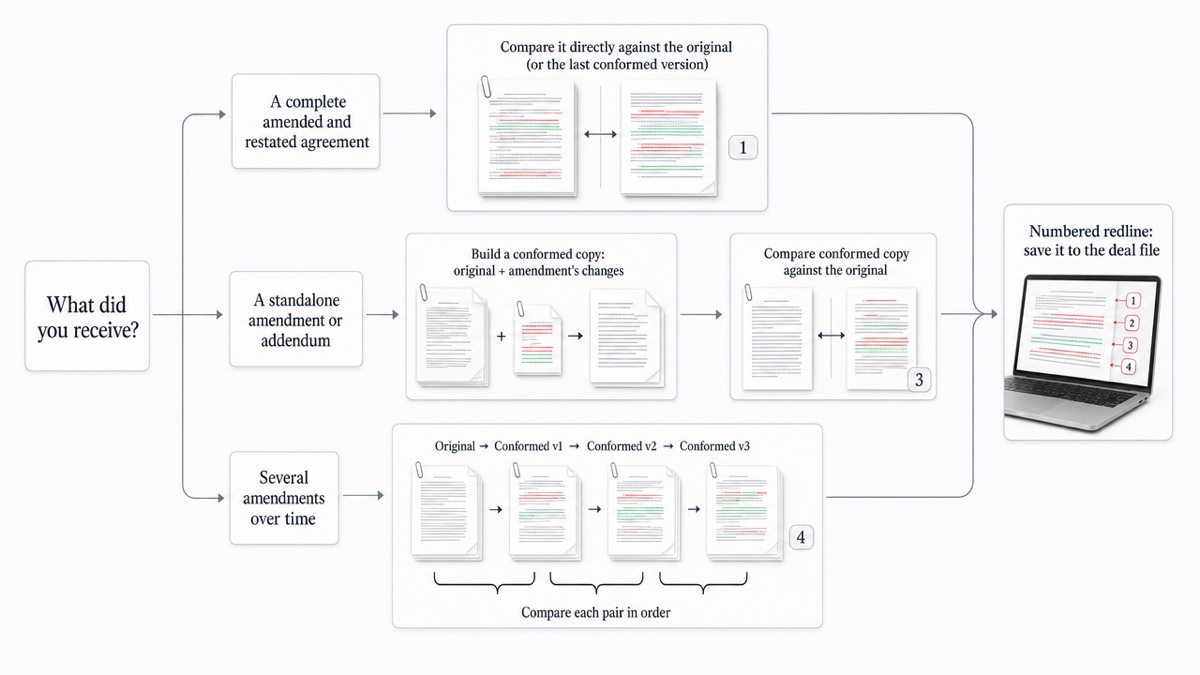
To compare contract amendments properly, compare full versions of the agreement, not the amendment document by itself. If you have an amended and restated agreement, compare it directly against the original. If you have a standalone amendment that only lists changes, first build a conformed copy (the original with those changes written in), then compare that copy against the original. If there have been several amendments, compare each version against the one before it, so every round of changes shows up on its own.
The rest of this guide gives the step-by-step method for each situation, the errors amendments tend to hide, and a checklist to run before anyone signs. It is general information, not legal advice. For questions about what an amendment means or whether it is effective, consult a qualified attorney.
Amendment, addendum, or amended and restated: which do you have?
These labels are used loosely, so read the document rather than trusting its title. In general:
- Amendment. A short document that changes specific provisions of an existing agreement. It usually reads like instructions, such as "Section 4.1 is deleted and replaced with the following." The original stays in force except where it is changed.
- Addendum. A document that adds terms to an agreement, often attached at signing or shortly after. Examples include a pet addendum to a lease or a data-handling addendum to a services contract. Some addenda also modify existing terms, which blurs the line with an amendment.
- Amended and restated agreement (A&R). A complete new version of the agreement that includes every change made to date. It is generally meant to replace the prior agreement in full, so readers work from one document instead of an original plus a stack of amendments. The exact effect depends on its wording, and some restated agreements keep obligations or rights that arose under the earlier version, so check its supersession and effective-date clauses.
The type you have determines which comparison will actually show you what changed.
Recipe 1: Compare an amended and restated agreement against the original
An A&R is the simplest case because both documents are complete.
- Use the executed original, or the most recent conformed version if there were earlier amendments, as the Original.
- Use the A&R draft as the Revised document.
- Run a word-level comparison and review every numbered change.
What this catches: changes the cover email never mentioned. An A&R is often described as "just consolidating the prior amendments," but it is also an easy place for new edits to appear. These might be a quietly changed fee, a tightened notice period, or a deleted carve-out. If the comparison shows anything beyond the amendments you already agreed to, you need to ask about it.
Expect noise from renumbering. If the A&R reorganizes sections, many changes will be numbering shifts. Use the side-by-side view to separate those from real substance.
Recipe 2: Build a conformed copy for a standalone amendment
A standalone amendment can't be meaningfully compared with the original, because the two documents look nothing alike. You need a conformed copy, which is the original rewritten as if the amendment had been applied.
How to build it:
- Start from the executed original in editable form. If you only have a PDF, convert it to text or Word and spot-check the conversion.
- Apply each instruction in the amendment, one at a time. Delete what it deletes, insert what it inserts, and replace defined terms where it says to.
- Mark the source next to each change, for example "[Amended by First Amendment, §2]", so anyone can trace it back.
- Save the file with a clear name and status, such as
MSA_conformed_through_Amendment1_DRAFT.docx.
How to check it:
- Compare the conformed copy against the original. Every change in the redline should match an instruction in the amendment, and every instruction should appear in the redline. A change with no matching instruction is a drafting slip on your part. An instruction with no matching change means you missed it, or it pointed at text that doesn't exist (more on that below).
- Re-read the amendment once more against the redline, line by line.
DocxDiff doesn't apply amendments for you. You build the conformed copy, and the comparison confirms it says what you intended. A conformed copy is a working tool, not a signed document. Whether it carries any legal weight is a question for counsel.
Recipe 3: Compare successive amendments, and the amendment-to-the-amendment problem
With multiple amendments, comparing the latest version against the original shows everything at once. That is useful for a summary, but it hides the history. A sequential comparison is clearer: compare the original to conformed v1, then v1 to v2, then v2 to v3. Each redline shows exactly one round of changes.
This method also catches the amendment-to-the-amendment problem. Here is an example:
- The original sets a monthly fee of $7,500.
- The First Amendment replaces Section 4.1 entirely, raising the fee to $8,250 and changing payment terms from thirty to forty-five days.
- The Second Amendment says "Section 4.1 of the Agreement is amended to change 'thirty (30)' to 'sixty (60)'."
The phrase "thirty (30)" no longer exists in Section 4.1, because the First Amendment removed it. The Second Amendment was drafted against the original instead of the agreement as already amended. When you build conformed v2, the instruction has nothing to act on. Comparing v1 to v2 shows no change where one was expected, and that is your signal to raise the question.
The rule: draft and review each amendment against the cumulative conformed version, not the original.
Catching amendments that cite the wrong section or term
Wrong references are among the most common amendment errors. A few patterns to look for:
- Stale section numbers. An amendment cites "Section 7.2," but an earlier A&R renumbered that clause to 8.2. The amendment now points at a different clause, or at nothing.
- Defined-term drift. The amendment uses "Services" when the agreement defines "Service Deliverables," or it redefines a term without updating the provisions that rely on it.
- Quoted text that doesn't match. The amendment says "replace the words 'within ten business days'," but the agreement says something slightly different.
The method: while you build the conformed copy, check every reference against the current version. Search for each quoted phrase exactly as written. If you can't find it, mark it. After you run the comparison, search the redline for each changed defined term to see where else that term appears in the agreement. Whether a mis-cited amendment still has its intended effect is a legal question to put to your attorney, not something to settle by assumption.
When the original is a scanned PDF
Older executed agreements often exist only as scans, while the new amendment or A&R arrives in Word. A scanned PDF is a set of page images with no text layer, so it has to go through optical character recognition (OCR) before it can be compared.
On DocxDiff Pro, PDF comparison includes scanned-PDF OCR. When a scan is detected, you are asked to approve sending it to secure cloud OCR. Only the scanned pages are processed, and the extracted text comes back to your browser for comparison. If you decline, nothing is sent. OCR can misread characters, so double-check any flagged change in a number, date or name against the scan before relying on it.
Doing this in Microsoft Word
Word can run these comparisons too. On the Review tab, choose Compare, then Compare Documents. Select the Original (for example, the prior conformed version) and the Revised document. Click More to adjust the comparison settings and to choose whether changes appear in the original, the revised document or a new document. A new document is usually the cleanest option.
A separate comparison tool helps when you don't have a Word license, when the other side sent a "clean" A&R with no tracked changes, or when you want a numbered report. Being able to say "change 14 wasn't in the term sheet" is faster than describing a clause. More on that in the limits of Word Compare and Track Changes.
Keep a deal history you can rely on
Amendments pile up over years, and the people who negotiated them move on. A few habits help:
- Name files consistently, for example
[Agreement]_[Version]_[Status]_[Date], where status is something like executed, conformed or draft. - Keep every redline, not just the latest. The sequence of redlines is the record of who changed what, and when.
- Store executed signed copies separately from working conformed copies.
With a free DocxDiff account, you can save each comparison, including both source files, and reopen the exact redline later from your saved diffs. For privileged material that should never be stored, stay signed out. The comparison runs in your browser, and you can export an HTML or Markdown report to your own file system instead. Your firm's or company's record-retention policy should decide how long these records are kept.
Checklist: what to verify on every amendment
- Parties: the names match the original exactly, including any assignment or name change since signing.
- Agreement identification: the correct title, date and any prior amendments are recited.
- Effective date: stated clearly, and consistent with any retroactive provisions.
- Recitals: they describe the history accurately.
- Section references: each one points to the right clause in the current version.
- Quoted text: every phrase to be replaced appears verbatim in the current version.
- Defined terms: they are used consistently, and any new or changed definitions flow through the whole agreement.
- Schedules and exhibits: replaced, added or left alone, and labeled to match.
- Order of precedence: you understand which document controls if the amendment and the original conflict.
- "All other terms remain in effect": confirm the conformed copy reflects this.
- Redline reconciliation: every change in the comparison traces to an instruction, and every instruction appears in the comparison.
For the broader pre-signing review, see the contract review checklist before signing. For lease addenda specifically, see how to compare lease agreements.
Run the comparison
Drop your original and your conformed copy or A&R into DocxDiff and get a numbered word-level redline in your browser. It's free for Word, Markdown and plain text, with no account needed. PDF and scanned-PDF comparison are available on Pro.
Frequently asked questions
Can I compare an amendment document directly to the original?
You can, but the result is rarely useful. A standalone amendment contains instructions, not the agreement's text, so nearly everything shows as changed. Build a conformed copy first, then compare that copy to the original.
Does DocxDiff apply the amendment to the original for me?
No. You build the conformed copy, and DocxDiff shows every word-level difference between the versions so you can confirm it's right. You decide what each change means.
Should I compare the latest version to the original or to the previous version?
Do both if you have time. Comparing to the previous version shows exactly one round of changes and catches amendments drafted against outdated text. Comparing to the original gives a summary of everything that has changed since signing.
Does the comparison pick up formatting changes in the amendment?
No. DocxDiff compares text at the word level, so changes to bold, fonts or styles won't appear. Wording, numbers, dates and section references will.
Is it safe to compare confidential deal documents?
The comparison runs entirely in your browser, and nothing is uploaded unless you sign in and save the comparison, or approve cloud OCR for a scanned PDF on Pro. If documents must never be stored, stay signed out.