How to Compare NDA Drafts: A Clause-by-Clause Redline Checklist
To compare NDA drafts, run a word-level comparison between the last version you sent and the draft that came back, rather than relying on the counterparty's tracked changes. Then work through every numbered change against a short clause checklist covering:
- the definition of confidential information
- term and survival
- permitted and compelled disclosures
- any clauses that don't belong in an NDA
- return and destruction
- remedies
Finish by replying with change numbers, so nothing is vague.
NDAs are short, which makes them easy to skim and easy to get wrong. One added word in a definition can change what you are promising to protect. This guide covers the comparison workflow and then the checklist.
This is general information, not legal advice. For questions about what a clause means for you, talk to a qualified lawyer.
Why compare against your own last version
Tracked changes show what the other side's software recorded. That is not always everything that changed. Edits slip through untracked for ordinary reasons:
- Someone turned tracking off for a "quick fix" and forgot to turn it back on.
- A second person edited the file without tracking.
- Changes were accepted before the file was sent back.
- The counterparty retyped the agreement on their own template.
- They sent a "clean" copy with a note saying only a few points changed.
A recipient's Word settings can also change how tracked changes appear. Two people may literally not see the same markup.
The fix is simple. Keep a copy of every version you send. When a draft comes back, compare it to that copy, not to whatever the markup claims. Anything that differs shows up, tracked or not.
The same logic applies at the end of a deal. One party typically converts the agreed Word file into a PDF execution version for signature. That PDF may not match the agreed draft, either because the wrong version was exported or because changes were added without a word. Comparing the execution copy against the last agreed draft before signing is a widely recommended practice, and many lawyers do it routinely..
Step by step: compare two NDA versions
Option 1: Microsoft Word's Compare
If you have Word, it can do this:
- Open Word and go to the Review tab.
- Click Compare, then choose Compare... (two versions).
- Under Original document, select your last sent version. Under Revised document, select the counterparty's draft.
- Click OK. Word builds a third document showing the differences as tracked changes.
This works well when both files are Word documents and you have a Word license. It is less convenient when the draft arrives as a PDF or pasted email text. It also gives you no numbered list of changes to cite in a reply.
Option 2: A browser-based numbered redline
DocxDiff runs the comparison in your browser and numbers every change:
- Add both versions. Drop in your last sent version as the original and their draft as the revised. You can use:
- Word (.docx), Markdown or plain-text files, free
- pasted text, for an NDA that arrived in the body of an email
- PDFs, on the Pro plan ($12/month), which adds page-accurate redlines, moved-text detection and OCR for scanned PDFs
- Leave "ignore capitalization" off. In an NDA, "Confidential Information" with capitals is usually a defined term, and "confidential information" in lowercase may not be. You want that difference to show. Ignoring whitespace-only changes is generally safe.
- Read the redline. Insertions appear in green and deletions are struck through in red. Each change carries a number.
- Press j and k to jump from one change to the next.
- Switch to side-by-side view if a rewritten paragraph is easier to read in two columns.
- Filter when useful. Show only deletions to check for protections that quietly disappeared. Show only additions to spot new obligations.
- Export or save. Download an HTML or Markdown report for free, or a PDF report on Pro. Sign in to keep the comparison in your saved comparison history.
DocxDiff compares text, not formatting. It shows what changed, and you decide what each change means.
The clause-by-clause checklist
Go through the numbered changes in order. As you go, tag each one against the clauses below.
1. Definition of confidential information
This is where the smallest edits matter most. Some NDAs define confidential information very broadly, with few or no exceptions. Others narrow it with conditions. Check for:
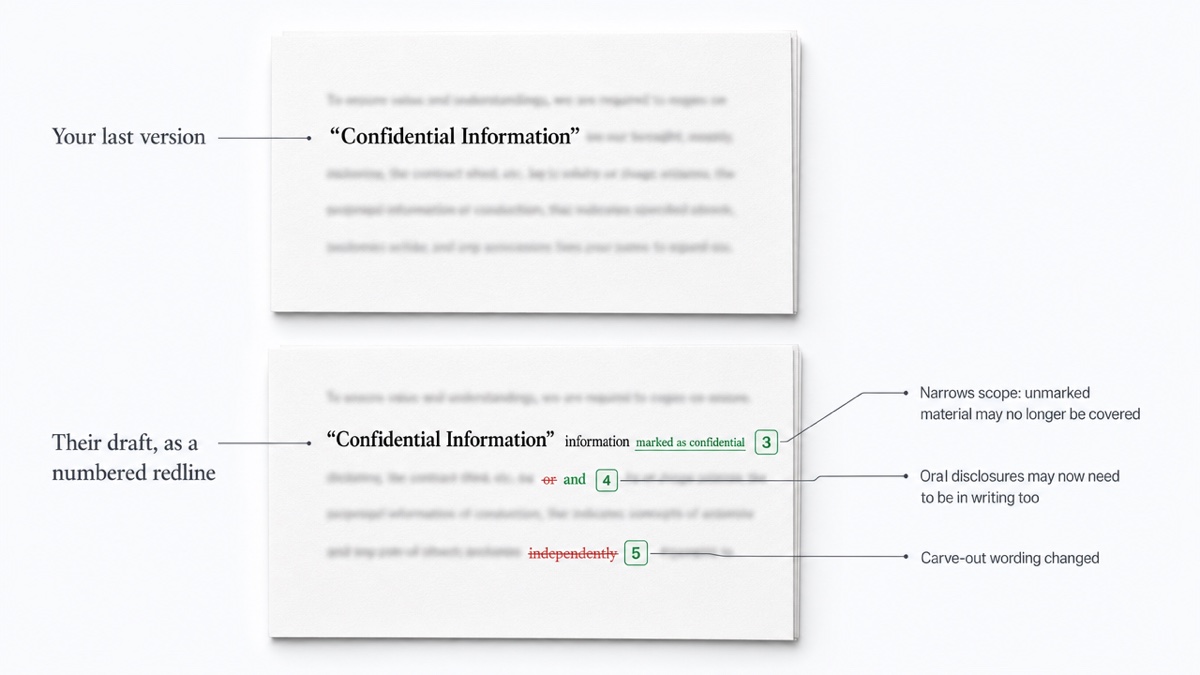
- Marking requirements. For example, "information marked as confidential," or a requirement to confirm oral disclosures in writing within a set period. These narrow what is protected.
- Scope words. Look for "including but not limited to," "and," "or," and "all information." Swapping "and" for "or" can broaden or narrow the scope considerably.
Common exclusions cover information that is public, information the recipient already had, information received from a third party, and information the recipient develops independently.. Check whether any carve-out was deleted, or qualified with words like "lawfully" or "without breach."
- Defined-term drift. A capital letter added or removed, a term renamed ("Information" becoming "Proprietary Information"), or a definition moved. Search the redline for every instance of the defined term.
On a clause list, these edits look like nothing changed in "the definition clause." In a word-level redline, they show up as individual numbered changes.
2. Term and survival
Check two different durations:
- how long the agreement runs, or how long information can be disclosed under it
- how long the confidentiality obligations survive after it ends
Watch for:
- a number changed in words but not in figures, or the reverse ("two (2)" becoming "two (3)")
- survival language that was deleted
- "perpetual" or "indefinite" survival added or removed
- separate treatment for trade secrets that appeared or disappeared
What counts as reasonable varies by deal and jurisdiction, so ask your lawyer if the numbers moved.
3. Permitted disclosures and compelled disclosure
Permitted-disclosure language decides what the recipient may share and with whom. Check:
- whether the list of permitted recipients changed (employees, affiliates, advisors, financing sources, "Representatives"), and whether the recipient stays responsible for their compliance
- the "need to know" qualifier, if it was added or removed
- the compelled-disclosure process, if notice periods, cooperation duties or "to the extent legally permitted" wording changed
Some NDAs also include notice language about legally protected whistleblower disclosures. Some NDAs also include notice language about legally protected whistleblower disclosures. In agreements with employees, contractors or consultants, federal trade secret law ties certain remedies to that notice, so if the language was deleted, flag it for counsel..
Lawyers signing NDAs should look closely here. Lawyers signing NDAs should look closely here. Professional conduct rules, which vary by state, permit lawyers to reveal certain information in limited situations, and strict NDA language could arguably conflict with that discretion..
4. Non-solicitation and other clauses that don't belong
Counterparties sometimes use an NDA to add obligations that have nothing to do with confidentiality. Scan the additions for:
- Non-solicitation of employees or customers
- Non-compete or exclusivity language
- Standstill provisions
- Residuals clauses letting the recipient use information retained in memory
- Ownership or license language over feedback or ideas
- Changed governing law, venue or assignment terms
A whole new paragraph is easy to spot. A non-solicit folded into an existing sentence is not, so the "additions only" filter helps here. Enforceability of non-solicits varies by state, which is a question for your lawyer, not the redline.
5. Return and destruction
Some NDAs let the disclosing party dictate when and how information must be returned or destroyed. Check:
- the deadline and who triggers it (on request, at termination, or both)
- whether you must certify destruction, and whether an officer must sign
- exceptions for backup systems and copies kept for legal or compliance purposes, especially if one was deleted
Return-or-destroy duties can conflict with record-retention obligations. Return-or-destroy duties can conflict with record-retention obligations. Some states, such as Massachusetts, set minimum client-file retention periods, while others, such as California, set no fixed period. Check whether the destruction clause allows copies to be kept where law or professional rules require it..
6. Remedies and injunctive relief
Read every change in the remedies section word by word. Look for:
- added acknowledgments that a breach causes "irreparable harm"
- consent to injunctive relief
- waivers of any requirement to post a bond
- indemnities, liquidated damages or attorneys' fees provisions
- changes that make remedies one-sided when they used to be mutual
The legal effect of this wording depends on jurisdiction and the deal. Note what changed and raise it with counsel.
7. The silent edits a clause list misses
After the six clauses, go back through any numbered changes you haven't tagged yet. These are often the ones that matter. Check for:
- "mutual" becoming one-way, or party names swapped in a single sentence
- "shall" becoming "may," or "reasonable" being removed
- cross-references pointing to a different section number
- edits to the signature block or effective date
For a broader pre-signing pass, see the contract review checklist before signing.
Turn the numbered changes into a precise reply
Numbered changes make your response specific. Instead of "we have some concerns about section 2," write:
Changes 3 and 4 (definition): We can't accept the marking requirement or the change from "or" to "and." Please restore our language. Change 5: Carve-out wording deleted without comment. Please reinstate. Change 9 (new non-solicit): Outside the scope of this NDA. Please remove. Changes 11–14: Accepted.
A few habits help:
- Account for every number, even if it's just "accepted," so nothing is skipped.
- Attach the comparison report so both sides look at the same numbered markup, whatever their Word settings.
- Keep your reply draft as the next "your last version" and compare the following turn against it.
The same workflow suits other short, high-stakes documents, such as lease agreements and settlement agreement drafts.
Keep the comparison itself confidential
An NDA draft is often confidential in its own right, and uploading it to an unknown server undercuts the point. DocxDiff extracts text and compares it in your browser, so signed-out comparisons never touch a server. A document leaves your device in only two cases:
- you sign in and save the comparison, which stores both source files so it can be reopened
- you approve cloud OCR for a scanned PDF on Pro
For drafts that must never be stored, stay signed out or skip saving.
Ready to check the draft that just came back? Compare your two NDA versions at docxdiff.app. It's free, needs no account, and runs on your device.
Frequently asked questions
Can I compare an NDA I received as a PDF?
Yes, on Pro. PDF comparison, with page-accurate redlines and moved-text detection, is part of the $12/month plan, and scanned PDFs can be read with OCR you approve. On the free plan, compare Word, Markdown or text files, or copy the PDF's text and paste it in.
Will the comparison show formatting changes or the counterparty's comments?
No. DocxDiff compares the text at the word level. It doesn't compare bold, fonts or styles, and it doesn't read tracked-change metadata or comments. For an NDA, the substantive changes are in the words.
Does DocxDiff tell me which changes are risky?
No. It shows exactly what changed and numbers each change. Deciding what a change means, and whether to accept it, is up to you and your lawyer.
What if the counterparty says they "only changed a few things"?
Compare their draft against your last sent version anyway. The number of changes in the redline tells you right away whether "a few" is accurate.
Should I ignore capitalization to reduce noise?
Not for an NDA. Capitalization often marks defined terms, and a change from "Confidential Information" to "confidential information" can matter. Ignoring whitespace-only changes is usually fine.