How to Compare SaaS Agreement Drafts and MSAs Without Missing a Change
To compare SaaS agreement drafts reliably, run an independent word-level comparison of the vendor's new draft against your last version before you read anything, then review the changes in priority order: fees, SLA, data, renewal, liability, and definitions. After that, compare the order form and every attached schedule the same way. Don't rely on the vendor's tracked changes or cover email to tell you what moved. A comparison you run yourself shows every edit, including the ones nobody mentioned.
This guide covers that workflow and what tends to change in each clause. It also covers how to reply with numbered changes so the next turn is faster. It's written for procurement, operations and in-house legal teams on either side of a software deal. It is general information, not legal advice. Talk to a qualified attorney about which terms are acceptable for your deal.
Step 1: Run the comparison before you read
Tracked changes only show what the other side's editor recorded. If they accepted some changes before sending, pasted in a fresh section, or sent a "clean" copy, those edits are invisible. A comparison you run yourself doesn't depend on their markup.
Choose the right baseline
- If you sent the last turn, compare their draft against the exact file you sent. Use the file you sent, not your internal working copy.
- If you're on vendor paper, you're often starting from their template. Before you mark up anything, compare the draft they sent against their published version, such as the terms on their website or the standard MSA from their sales team. Any difference is a change they made for your deal, or a change to the template that you'd otherwise never notice.
- For a renewal, compare the renewal draft against the agreement you signed last time, not against the vendor's current template.
Set up the comparison
In DocxDiff, add the two versions as Word, Markdown or text files, or paste text directly. Pasting works well for terms published on a web page. Turn on "ignore whitespace-only changes" so reformatting doesn't bury the real edits. Turn on "ignore capitalization" only if you're sure case doesn't matter. In contracts, "Services" and "services" can mean different things.
Every insertion and deletion gets a number. Use the focus filters to hide unchanged text. Then step through with j/k and note the change numbers that need a response.
Step 2: Review the changes in priority order
Start with the clauses that move money and risk, then the rest.
Pricing model and fees
Fee changes rarely announce themselves. Look for:
- A switch in pricing basis. Moving from per-seat to usage-based pricing, or the reverse, changes how your bill grows. Watch for a newly defined unit such as "Active User," "API Call" or "Transaction."
- Overage rates, and whether overages are billed automatically.
- Annual price increases: a new uplift percentage, a removed cap, or "then-current list price" replacing a fixed rate.
- Payment terms: net days, late-payment interest, and invoicing in advance versus in arrears.
Many fee terms live in the order form, not the MSA. Check both.
SLA uptime and service credits
The headline percentage matters less than how downtime is defined. If scheduled maintenance, third-party failures or "degraded performance" are excluded, real coverage is narrower than the number suggests. Read the SLA definitions first. Then check which components are excluded and whether availability is measured per instance or across a pool.
Use this table to compare tiers when a draft changes the number:
| Uptime commitment | Allowed downtime per 30-day month | Allowed downtime per year |
|---|---|---|
| 99.9% | about 43 minutes | about 8.8 hours |
| 99.95% | about 22 minutes | about 4.4 hours |
| 99.99% | about 4.3 minutes | about 53 minutes |
Also compare these service credit terms:
- Credit percentages
- Any cap on total credits
- The claim deadline
- Whether credits are your "sole and exclusive remedy" for downtime
Check how the SLA interacts with the notice-and-cure clause. If the contract gives the provider a 30-day cure period, a customer could lose access for up to a month without recourse unless the SLA provides refunds or a termination right for extended downtime. Cure periods and SLA remedies vary by contract, so check the actual wording..
Data ownership, portability and deletion
Check who owns customer data, and who owns anything derived from it, such as usage analytics or aggregated data. Watch for new license grants that let the vendor use your data to "improve the services."
For exit terms, compare:
- Export format. A standard, usable format, or "a format determined by Provider."
- Retrieval window. How many days after termination you can pull your data, and whether there's a fee.
- Deletion. Whether deletion happens on a set schedule and whether the vendor certifies it in writing on request.
Auto-renewal and termination
Auto-renewal clauses can lock you into another term, carry a price increase into it, and make cancellation hard. Compare:
- The renewal term length
- The non-renewal notice window, since a change from 30 to 90 days is easy to miss
- How notice must be given
Check termination rights in both directions. Provider-drafted MSAs often don't include termination for convenience but do include termination for cause. Government and large-customer contracts frequently add a convenience right, so check both.. If a draft adds or removes either right, or changes what you owe on early termination, flag it. Also confirm that the MSA term covers the term of any order form signed under it.
Limitation of liability and indemnification
In an MSA, limitation of liability is often the most one-sided clause. Provider-drafted caps are often tied to the fees paid over a set look-back period, such as the preceding 12 months, under the relevant order or SOW.. The difference between "12 months" and "the fees paid in the 3 months preceding the claim" is one short edit. Small wording changes here move a lot of risk.
Compare the carve-outs, meaning the categories excluded from the cap. Customers commonly look for gross negligence, intentional misconduct, breach of confidentiality and indemnification obligations.. Then check indemnification:
- Who indemnifies whom
- Which claims are covered, such as IP infringement or data breach
- Whether indemnities sit inside or outside the cap
Some customers, including certain government entities, can't agree to indemnify a vendor at all, or can do so only to the extent their state's law allows, so direction matters..
Definitions that cascade
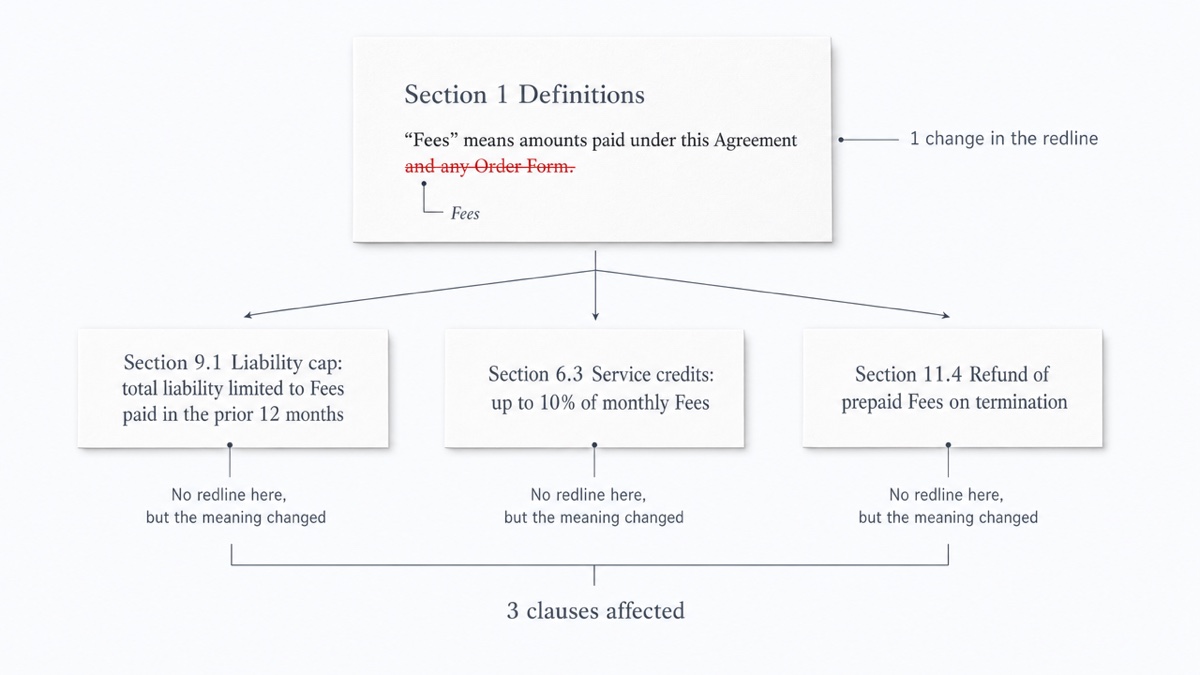
A single edited definition can change every clause that uses it. If "Confidential Information" drops "whether or not marked," or "Fees" now excludes amounts paid under an order form, the confidentiality and liability clauses change meaning without a single visible edit in them.
A redline of the definitions section alone therefore understates the impact. For each changed definition, search the agreement for the term and reread each clause that uses it.
Step 3: Compare the order form to the MSA
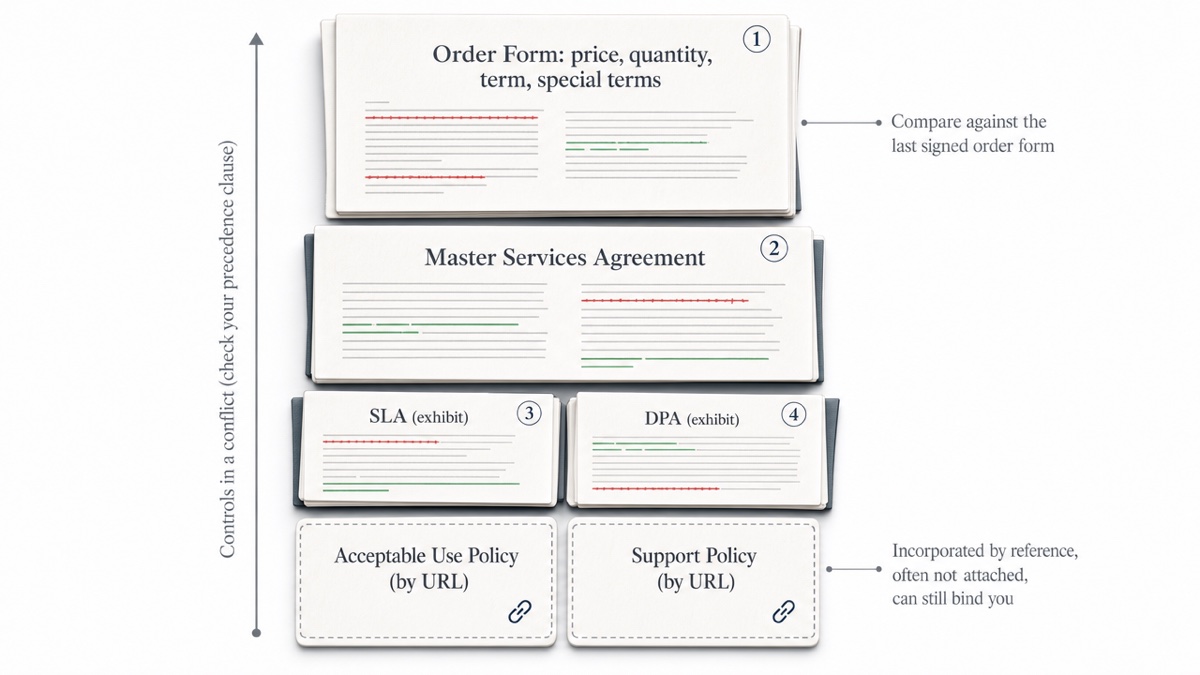
SaaS deals are usually several documents: an MSA plus order forms, and often an SLA, a DPA and policies incorporated by reference. Two things decide which terms you actually live with.
Order of precedence. Find the clause that says which document controls in a conflict. Order of precedence varies. Many MSAs control over the order form or SOW unless the order form expressly overrides a specific term, while others give the order form or SOW priority.. If they do, a line in the order form can override the liability cap or renewal terms you negotiated in the MSA. Check whether a new draft changes the ranking, or adds "unless expressly stated otherwise in the Order Form."
Compare like with like. A word-level redline of an order form against an MSA isn't useful. They're different documents, so nearly everything shows as changed. Instead:
- Compare the new order form against the last signed order form, or against the quote you approved. This catches changed quantities, prices, terms and added special terms.
- For any order form term that touches an MSA topic, such as renewal, payment or liability, paste the two passages into a side-by-side comparison. That shows exactly how the order form's wording departs from the MSA's.
Step 4: Check every schedule, exhibit and DPA
Attachments change between turns too, and they're easy to skip. Compare each one against its prior version:
- SLA
- Support terms
- Security exhibit
- Pricing schedule
- Data processing agreement (DPA)
The DPA is where security controls and breach notification commitments are usually set, so changes there matter even when the MSA body is unchanged.
Watch for documents incorporated by reference, such as policies linked by URL. They often aren't attached, yet they can add obligations or even impose a narrower liability limit than the MSA. One practical step is to ask for each one to be attached as an exhibit. Another is to save a copy of the current text on the date you sign, so you have something to compare against later. Pasting that text into a comparison takes seconds.
Step 5: Reply with change numbers
Once you've reviewed, build your reply from the numbered redline instead of re-marking the whole draft:
Changes 3 and 4 (Section 4.2, price increase): we can't accept removal of the 5% cap. Change 11 (definition of "Downtime"): please restore the prior wording. Change 18 (Section 9.1, liability cap): we'd like to discuss on our call. Changes 22–25 (DPA, Section 5): accepted.
Numbers give everyone the same reference point on a call, and they make it obvious if something was skipped. Export an HTML or Markdown report from the comparison so the other side, or your internal approvers, can see the exact edits you're citing. If you sign in with a free account, you can save the comparison to your saved comparisons and reopen it on the next turn. Saving stores both source files in your account. Stay signed out if a document shouldn't be stored.
The same workflow works for other agreements. See our guides to comparing NDA drafts, lease agreements and settlement agreement drafts.
Run your first comparison
Drop the vendor's draft and your last version into DocxDiff. The comparison runs in your browser, so nothing is uploaded unless you choose to save it. It's free with no account required. You get a numbered redline you can work through, filter and cite.
Frequently asked questions
The vendor sent a clean copy with no tracked changes. Can I still see what changed?
Yes. Compare their clean copy against the last version you sent, or against their published template if you started from their paper. The comparison reads the text of both documents, so it doesn't matter whether anyone used Track Changes.
Can I compare the vendor's PDF terms?
PDF comparison is part of Pro ($12/month), with page-accurate redlines and moved-text detection. On the free plan you can paste the text of web-published terms, or compare Word, Markdown and text files.
Will the redline flag risky clauses?
No. DocxDiff shows exactly what changed, word by word, and numbers each edit. You or your counsel decide what each change means and whether it's acceptable.
Does it catch formatting changes, like a clause switched to bold?
No. It compares text at the word level, which is where substantive changes in a contract live. It doesn't compare fonts, styles, comments or tracked-change metadata.
Is it safe for confidential deal documents?
The comparison runs locally in your browser. Documents leave your device only if you sign in and save the comparison, or if you approve cloud OCR for a scanned PDF on Pro.