Document comparison for legal teams: a redline for every draft
Document comparison for legal teams shows every word that changed between two versions of a contract, pleading or policy, whether or not anyone turned on Track Changes. It matters because a single missed edit can quietly change a deal: a cap, a deadline or a governing-law clause. A comparison you run yourself is cheap insurance against that, and it is fast enough to use on every draft, not just the big matters.
This guide covers where missed edits come from, how to check counterparty and outside counsel work, what to compare against, and what to require from a comparison tool.
The risk is the edit nobody mentioned
Most contract changes arrive with a cover email that describes them. The risk sits in the changes the email leaves out. Someone may have tightened an indemnity, moved a notice period from 30 to 15 days, or deleted a "reasonable" before "efforts." These edits are rarely flagged and easy to miss on a read-through.
Missed edits tend to come from a few places:
- Track Changes was off for part of the editing, so some changes carry no markup.
- A "clean" copy arrives with no markup at all, and you are asked to trust that it matches the last turn.
- The wrong version gets exported, often at the execution stage.
- Late additions go in after the parties thought the draft was final.
Reading carefully helps, but a careful read cannot prove that two 40-page documents match. A comparison can.
Verify every redline yourself
Many lawyers treat a redline or tracked-changes file from the other side as a convenience, not a record, and run their own comparison against the last version they sent. This is a widely recommended habit, not a formal rule.. The reason is simple. You cannot know which two versions they compared, which settings they used, or whether changes were accepted before the file was sent.
The same applies to work from outside counsel. In-house teams often receive drafts carrying several layers of tracked changes from the commercial team, the counterparty and the firm. Run your own comparison between the version you last sent and the version you received. Then you can review against a known baseline, whatever markup the file carries.
Choose the right baseline
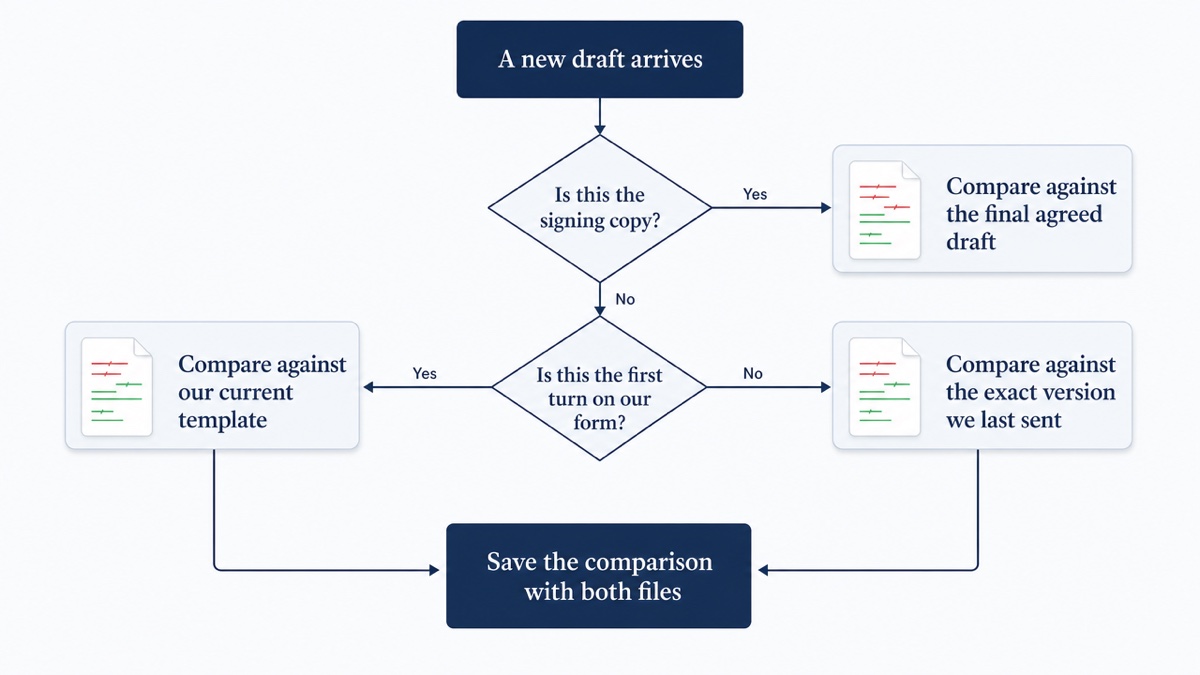
The comparison is only as useful as the version you compare against. Three situations cover most of the work:
| Situation | Compare the new draft against |
|---|---|
| Ongoing negotiation | The exact version you last sent, not your internal working draft |
| First turn on your paper | Your current template or standard form |
| Execution version | The final agreed draft |
Checking a draft against your template or playbook
When a counterparty returns your form with no tracked changes, compare their draft to your template. Each departure from your standard language shows up as a numbered change, so you can check it against your playbook positions one by one. This works just as well when you receive their paper and want to see how far it strays from your preferred form, although the redline will be longer.
Two practical points. Keep a clean, dated copy of each template version so you know exactly which one went out. And remember that the comparison shows what differs. Whether a deviation is acceptable is a judgment call for you or your playbook owner.
Separate substantive changes from noise
A redline full of trivial differences is a risk of its own. When reviewers have to wade through hundreds of formatting or spacing "changes," the one substantive edit is easier to miss.
Noise usually comes from a few sources:
- Formatting differences such as fonts, spacing and indentation
- Whitespace and capitalization changes
- Conversion artifacts. Turning a PDF into Word can break tables, flatten automatic clause numbering into typed text so every number looks edited, split lines into separate paragraphs, and pull headers and page numbers into the body.
DocxDiff compares text at the word level, not formatting, so font and style changes never show up as edits. You can also ignore capitalization and whitespace-only changes. Focus filters show only additions, only deletions, or hide unchanged text, and long unchanged sections collapse on their own. The trade-off is that a change made purely through formatting won't appear. If bolding or styling carries legal meaning in your document, check it separately.
Moved text and tables
Clauses get reordered in negotiation, and a moved clause can hide a small edit. A standard word-level comparison generally shows a moved block as a deletion in one place and an insertion in another. You can still find it, but you have to match the two halves yourself and read them closely.
DocxDiff's Pro PDF comparison includes moved-text detection. For Word and text files, scan for large paired deletions and insertions and compare them directly.
Tables need extra care. DocxDiff compares the words, not the layout, so you will see changed figures and terms but not changed borders or cell structure. For pricing schedules and fee tables, read the changed numbers in context.
PDFs and scanned copies
Many comparisons cross formats: an execution PDF checked against the agreed Word draft, a counterparty markup returned as PDF, or a signature page that was scanned. A common closing step is to compare the execution PDF against the agreed Word version before the client signs. Often the side that prepared it checks it, the other side checks it, or both do.. Skipping that step is how a signed copy ends up differing from the agreed draft.
Scanned pages are images, so optical character recognition (OCR) has to read them before any comparison can run.
On DocxDiff Pro ($12/month), PDF comparison produces page-accurate redlines, and page view shows original and revised pages side by side. Scanned PDFs use secure cloud OCR, which runs only after you approve it. Text-based pages are read directly, and only the scanned pages are processed. Word, Markdown, text and pasted text comparisons are free.
Confidentiality of the tool itself
A comparison tool sees your most sensitive drafts, so ask where the documents go. Common questions for any vendor:
- Is the document uploaded to a server at all?
- If it is, is it encrypted in transit and at rest, and for how long is it kept?
- Which security certifications or audits does the vendor hold, such as ISO 27001 or SOC 2?
Tools that compare locally avoid most of these questions. DocxDiff runs the comparison in your browser. A document leaves your device only if you are signed in and save the comparison, which stores both source files, or if you approve OCR for a scanned PDF on Pro. For material that must never be stored, stay signed out or skip saving. Your own ethical and confidentiality obligations still govern how you handle client data, so treat this guide as general information and check your firm's policies or a qualified professional for specifics.
Cite changes by number
Numbered changes make review conversations precise. DocxDiff numbers every edit, so instead of "the change in the payment section," you can write "change 14." A simple format pairs each number with the section and your position:
Subject: Services Agreement v4 – comments on your turn We compared v4 against our v3 of 12 March. Comments below by change number. - Change 3 (§4.1 Fees): Fee increase to $8,250 accepted. - Change 4 (§4.1): Payment term of forty-five days not accepted; we can do thirty-five. - Change 11 (§5.1 Term): Two-year term accepted subject to a termination-for-convenience right. - Changes 15–19 (§9): Not discussed in your cover email; please explain. Redline report attached.
Attach the HTML or Markdown report, both free, so everyone is looking at the same numbering. On a call, j/k shortcuts let you jump straight to the change under discussion.
Keep an audit trail
If anyone later asks whether the signed copy matched the agreed draft, you want an answer on file. Save the final comparison along with both source files, named with dates and version numbers. With a free account, DocxDiff keeps saved comparisons, including both files, so you can reopen the exact redline later.
Before sending a draft out, also strip comments and leftover tracked changes. In Word, use File > Info > Check for Issues > Inspect Document. Then compare the cleaned file against your last version to confirm the clean-up removed only what you meant to remove.
Requirements checklist for in-house teams
- Compares Word, PDF and text, plus scanned files through OCR
- Word-level redline with insertions and deletions clearly marked
- Options to ignore capitalization and whitespace noise
- Numbered changes you can cite
- Side-by-side and inline views
- Exportable reports you can attach to the file or send
- Clear answer on where documents are processed and stored
- Fast enough for a late-night "can you run a compare?" request
- Low enough cost and training that every reviewer uses it on every draft
For a broader look at evaluating tools, see our guide to legal document comparison software. Smaller practices can read document comparison for small law firms, and if you are weighing enterprise desktop options, see alternatives to desktop comparison software.
When Word's Compare is enough
Word's built-in Compare is free with Office and fine for a simple one-off check. Go to Review > Compare > Compare, choose the original and revised documents, and click More to set Show changes at: Word level and Show changes in: New document. It works only on Word files, though, and it shows results as tracked changes. A separate comparison helps when you received a PDF or a "clean" copy, when someone on the team has no Word license, or when you want a numbered report to circulate.
Run your next compare at DocxDiff. Drop in two drafts and the numbered redline appears in your browser, with no account needed.
Frequently asked questions
Does DocxDiff tell me whether a change is risky?
No. It shows exactly what changed, and you decide what it means. It does not review clauses or suggest edits.
Can I compare a counterparty's PDF against my Word draft?
Yes, on Pro. PDF comparison, page view and scanned-PDF OCR are Pro features. Word, Markdown, text and pasted-text comparisons are free.
Does it compare formatting or tracked-change metadata?
No. It compares text content at the word level, so formatting, comments and tracked-change history don't appear in the redline.
Are my documents uploaded?
Not unless you choose to upload them. Comparison runs in your browser. Files are stored only when you sign in and save a comparison, or sent for OCR only when you approve it on Pro.
Do I need an account?
No. Comparisons and HTML and Markdown reports are free without signing in. A free account adds saved comparison history.