Draftable Alternative: Free, Private Document Comparison
DocxDiff is a Draftable alternative for people who want a free comparison tool that keeps documents on their own device. It compares Word (.docx), Markdown, plain text or pasted text in your browser and produces a numbered, word-level redline, with no account and no charge. Pro costs $12/month and adds PDF comparison with page-accurate redlines, moved-text detection, scanned-PDF OCR and branded reports.
DocxDiff is not the right replacement for everyone. If you need formatting comparison, PowerPoint or Excel support, or integration with a document management system, Draftable's paid editions may suit you better. This guide sets out the differences so you can decide quickly.
What people look for when they evaluate a compare tool
Most people start looking for a different comparison tool for one of four reasons.
- Cost. A per-seat license is hard to justify for someone who compares a few contracts a month.
- Privacy. Before using a tool for privileged or confidential drafts, you need to know exactly where your files go.
- Installation. Some people can't install desktop software on a work machine, or they work on a computer that isn't theirs.
- Output. Some people need a redline they can send, file or cite. Others only need to see what changed.
The questions below are worth asking of any tool, including ours.
- Is the comparison done on my computer or on a server?
- If files are uploaded, when, and are they stored?
- Which file types does it accept, and does it handle scanned PDFs?
- Does it detect moved text, or show a move as a deletion plus an insertion?
- What can I export, and can I point someone to a specific change?
- What does it not compare, such as formatting, headers, comments or images?
DocxDiff vs Draftable at a glance
| DocxDiff Free | DocxDiff Pro | Draftable | |
|---|---|---|---|
| Privacy model | Comparison runs in your browser; nothing is uploaded unless you sign in and save | Same, plus OCR only with your explicit approval | Paid desktop app processes files locally, with cloud and self-hosted API options; the free online tool uploads files to Draftable's cloud |
| Price | $0, unlimited comparisons | $12/month | Check Draftable's current pricing page; not stated here |
| File types | .docx, .md, .txt, pasted text | Adds PDF, including scanned PDFs | Desktop editions, including Draftable Legal, support Word, PDF, PowerPoint and Excel |
| Redline style | Word-level redline, numbered changes, side-by-side view | Adds page view and page-accurate PDF redlines with moved-text detection | Redline and side-by-side views with move detection |
| Reports | HTML and Markdown | Adds page-faithful and annotated PDF exports and custom branding | Exports include PDF redlines and Word redlines with or without tracked changes |
| Formatting comparison | No, text only | No, text only | Detects formatting changes as well as text changes |
| Integrations | None; runs in the browser | Shared comparisons for your team or clients | See Draftable's site for current document management and email integrations |
The Draftable details above are taken from Draftable's own materials. Products change, so confirm them with Draftable before you buy.
Where your documents go
Privacy statements are often written as lists of certifications. Privacy statements are often written as lists of certifications and audits, such as ISO 27001 or SOC 2 reports.. Certifications describe how a vendor protects data it holds. A more basic question is whether the vendor receives your document at all.
With DocxDiff, text extraction and comparison run in your browser. If you are signed out, your documents never reach a server. A file leaves your device in only two situations:
- You sign in and save a comparison. Both source files and the extracted text are stored in your account so you can reopen the redline later.
- You approve cloud OCR for a scanned PDF (Pro). The file is sent over an encrypted connection to our OCR provider. Only the scanned pages are OCR-processed, and the text is returned to your browser. If you cancel the prompt, the document stays on your device.
For material that must never be stored, stay signed out or don't save the comparison.
Numbered changes you can cite
DocxDiff numbers every insertion and deletion. This makes it easier to discuss changes in an email, a markup memo or a call: "Change 14 shortens the payment term from thirty to forty-five days, and change 15 is new." The other side can find that change immediately without you quoting the paragraph.
You can move between changes with the j/k keys or the prev/next controls. Focus filters let you show only additions, only deletions, or hide unchanged text. Long unchanged sections collapse automatically. You can ignore capitalization or whitespace-only edits so that small changes don't hide substantive ones. A similarity score shows how much the document changed overall.
Redline vs side-by-side
Each view has strengths, and DocxDiff offers both.
A redline shows every change inline on one page. Deletions are struck through in red and insertions appear in green. Because everything is on one page, a redline is usually faster to read. It becomes harder to follow when a document has many changes close together.
A side-by-side view puts the original and revised versions in two columns. It gives you more context around each change and helps with heavily rewritten clauses.
A good approach is to read the redline first, then switch to side-by-side for any section where the inline markup is hard to follow. On Pro, page view shows the original and revised PDF pages next to each other with every change marked.
What Pro adds for PDFs
PDFs are where comparison tools differ most. DocxDiff Pro adds:
- Page-accurate PDF redlines that follow the original page layout.
- Moved-text detection, so a relocated clause appears as a move rather than as a deletion in one place and an insertion in another.
- Scanned-PDF OCR. This works on mixed files too, such as a typed agreement with a scanned signature page or exhibit.
- Page-faithful and annotated PDF exports, with custom branding on reports and shared comparisons.
A caution that applies to every tool. A PDF stores positioned text, not paragraphs. Extracting that text can produce false differences: headers and footers mixed into body text, hyphenated words split across lines, or text reflowed differently between two exports. OCR can misread characters, especially in numbers. If a change involves money, dates or parties, check it against the original document.
What DocxDiff doesn't do
These limits are worth knowing before you choose:
- It compares text, not formatting. A change from bold to plain text, or a font change, will not appear. Tracked-change metadata and comments are not compared either.
- There is no Word add-in or document management integration. DocxDiff runs in a browser tab. If your firm compares documents from inside iManage or NetDocuments, that is a reason to use a tool that integrates with them.
- It is not a contract reviewer. It shows what changed. Deciding what a change means is up to you.
How Word Compare fits in
Many people already have Microsoft Word. In Word, open Review > Compare > Compare, choose the original and revised documents, and Word shows the differences as tracked changes, by default in a new third document.. This works well if both files are .docx and you have a Word license.
A separate tool helps in three situations: when you have no Word license, when you want a numbered report to send to someone, and when you need to compare a "clean" copy someone sent you against the last draft you agreed. Word Compare does handle that last case. The advantage of a separate tool there is a numbered, filterable result you can share.
Who should choose which
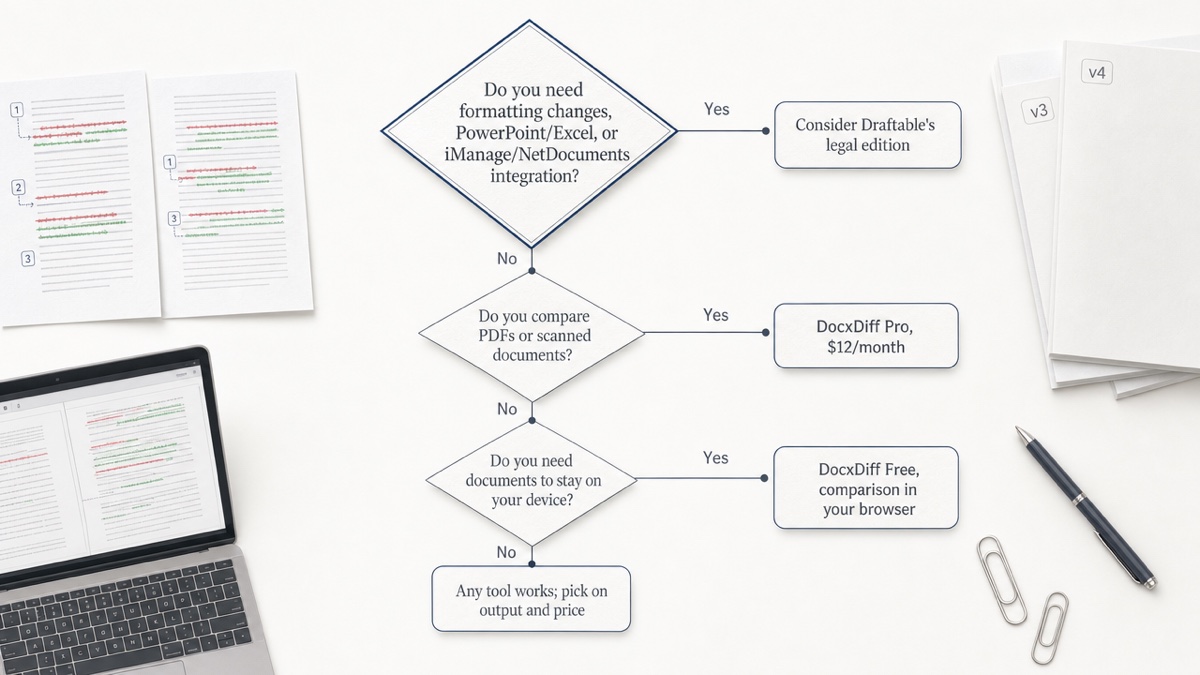
Choose DocxDiff Free if you compare Word or text drafts, want unlimited comparisons at no cost, and want documents to stay on your device. It suits solo practitioners, legal assistants, procurement staff and anyone checking a lease or offer letter. For more on smaller practices, see document comparison for a small law firm.
Choose DocxDiff Pro if PDFs are a regular part of your work: signed copies, scanned exhibits, or counterparties who only send PDF. Pro also suits you if you want branded reports or shared comparisons.
Choose Draftable if you need formatting change detection, PowerPoint or Excel support, or a desktop app deployed across a firm.. For a wider view, see legal document comparison software and document comparison for legal teams.
A final-redline checklist before signing
This is general information, not legal advice. For questions about what a change means, consult a qualified professional.
- Compare the version you were sent against the last version you approved, not the last version they sent.
- Read every numbered change. Use the additions-only filter to catch new wording that was added quietly.
- Check numbers, dates, names and defined terms against the original, especially if either file is a PDF or a scan.
- Check formatting separately if it matters, such as a clause changed to small print, because a text comparison won't show it.
- Keep the report with the file so you can show what you reviewed.
Drop two versions into DocxDiff to see a numbered redline in your browser. It is free and needs no account.
Frequently asked questions
Is DocxDiff really free?
Yes. Unlimited comparisons of Word, Markdown, text and pasted text are free, including HTML and Markdown reports, with no trial and no watermark. Pro is $12/month and you can cancel any time.
Can DocxDiff compare PDFs?
Yes, on Pro. Pro includes page-accurate PDF redlines, moved-text detection, page view and OCR for scanned PDFs.
Does DocxDiff detect formatting changes?
No. It compares text at the word level, so changes to bold, fonts or styles will not appear. Formatting comparison is under consideration for Pro.
Is there a Word add-in?
No. DocxDiff runs in your browser. You can upload files or paste text, and nothing needs to be installed.
Is it safe for privileged documents?
The comparison runs locally in your browser, so a signed-out comparison never reaches a server. If you save a comparison, both files are stored in your account. Skip saving for anything that must not be stored.
Can I compare a Word file against a PDF?
Each side can be a different supported file type. PDF input requires Pro. Expect some extraction noise from PDFs, and check key terms against the original document.