Legal document comparison software: a practical buyer's guide
Legal document comparison software takes two versions of a contract, pleading or policy and produces a redline of every insertion and deletion, so you don't have to proofread one draft against the other. There are four main types of legal document comparison software: the Compare feature built into Word, desktop and enterprise suites, standalone browser tools, and AI review platforms that add summaries on top of a redline. The right choice depends on four things: your file formats, where your documents are allowed to be processed, whether comparison has to live inside your document management system, and how many comparisons you run each week.
This guide covers each type, how comparison works under the hood, the outputs clients and courts expect, and a test you can run on your own drafts before you buy. We make DocxDiff, a browser-based tool, so we also say where it fits and where an enterprise suite is the better buy.
This is general information, not legal advice. Check court rules and confidentiality obligations with a qualified professional or your firm's risk team.
The four types of comparison tools
Word's built-in Compare
Every firm with Microsoft Word already has a comparison tool. In Word, go to Review > Compare > Compare (the legal blackline option). Choose the original and revised documents, then click More to pick what to compare (text, formatting, comments) and whether to show changes at the character or word level. Under "Show changes in," choose New document.
That last setting matters. Word can also write the results into the original or the revised file, and either choice modifies that document. Many people alter a source file by accident this way. Word also accepts any tracked changes already in the original, then shows the differences in the revised version as new tracked changes.
Word Compare works only on Word documents, and its output is always tracked changes. If formatting comparison is on, a restyled heading can bury a changed number. Auto-numbered lists and complex tables can also produce confusing results.
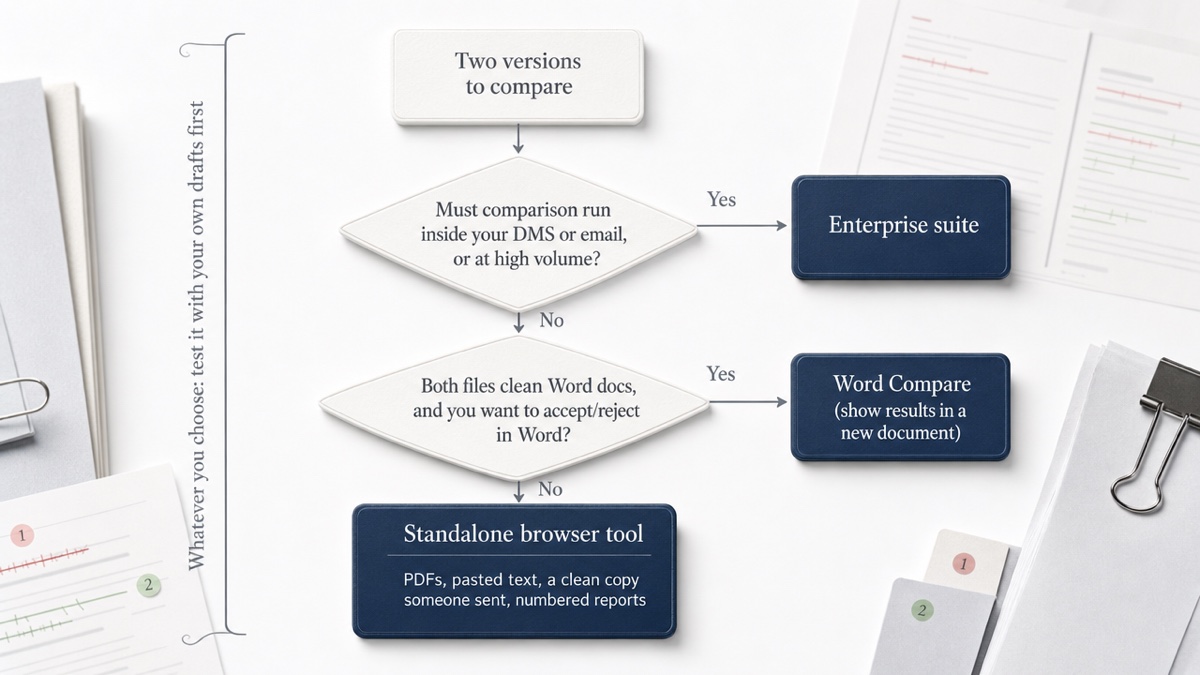
Good enough when: both sides work in Word, the files are clean .docx, and you want to accept or reject changes in the document itself.
Desktop and enterprise suites
These are installed applications and Office add-ins sold to law firms and legal departments. Their strengths are workflow and volume:
- Integration with document management systems such as iManage, NetDocuments, SharePoint and Worldox
- Outlook add-ins that redline an email against earlier messages in the thread
- Bulk comparison of hundreds of document pairs at once
- Metadata-cleaning tools
- Outputs such as departures tables, which summarize changes clause by clause
Suits: mid-size and large firms where comparison has to run inside existing systems, and IT wants central license management. Some desktop products run only on Windows, so check this if your lawyers use Macs. Also check compatibility with your Office version and any Citrix or virtual desktop setup.
Browser-based tools
You open a web page, drop in two files and read the redline, with nothing to install. These tools run on any operating system with a modern browser. Most sell self-serve plans, and some have a free tier.
Processing location varies a lot between browser tools. Some upload your files to a server. Others, including DocxDiff, run the comparison in the browser itself.
Suits: solo practitioners, small firms, in-house teams, contract managers, and anyone who needs a reliable redline without a procurement process. See our guide to document comparison for a small law firm.
AI review platforms
A growing set of products adds AI features on top of a redline: change summaries, chat-based redlining, risk analysis, mitigation suggestions and clause rewrites. These are review and drafting tools, and they are a separate purchase decision from comparison.
How document comparison algorithms work
A traditional comparison engine is deterministic: the same two files always produce the same redline. Most engines follow the same basic steps:
- Extract the text from each file. For Word and text-based PDFs, the text is read directly. Scanned PDFs are images of pages, so optical character recognition (OCR) has to convert them to text first.
- Break the text into tokens, either individual words or individual characters.
- Find the longest sequence of tokens the two versions share, in order. That shared sequence is the unchanged text.
- Mark everything else. Tokens found only in the original are deletions. Tokens found only in the revision are insertions.
Word level vs character level
The token size changes what the redline looks like.
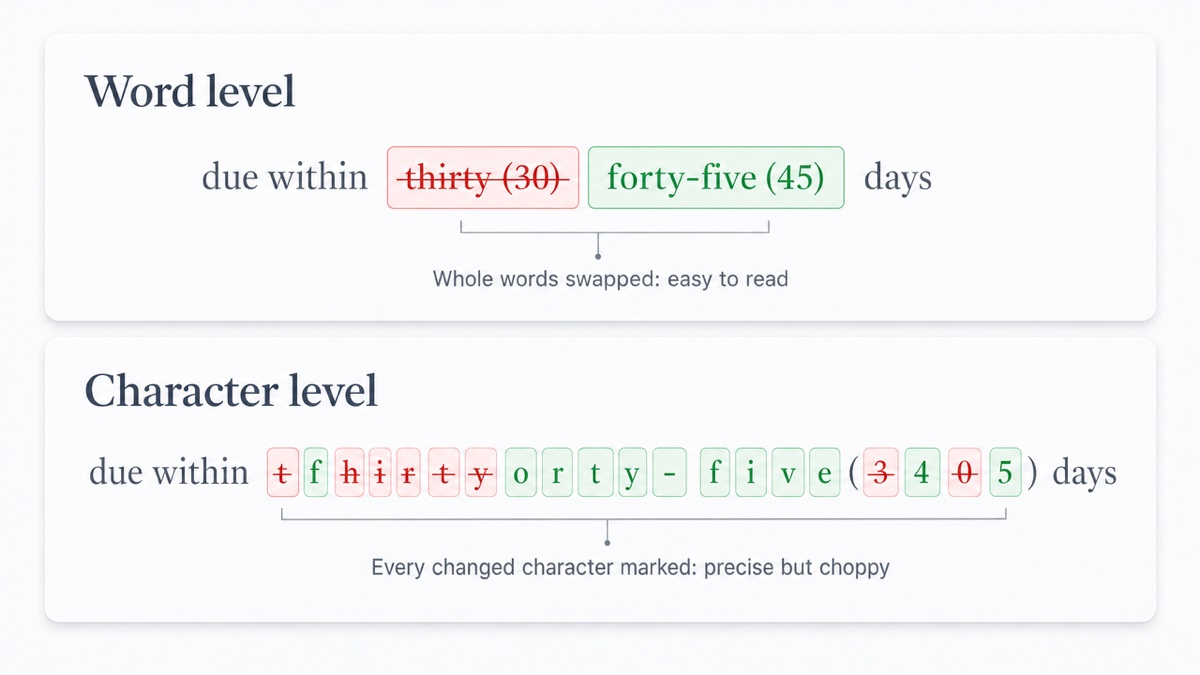
A word-level comparison treats "thirty" and "forty-five" as whole units. It strikes the old word and inserts the new one, which is easy to read.
A character-level comparison can show that only one letter changed. That is precise, but on a heavily edited sentence it can turn into scattered fragments that are hard to read.
For contract review, word-level output is usually easier to read. Character-level output helps when a single character can matter, such as a defined term changing case or "$1,500" becoming "$1.500".
Deterministic redlines vs AI summaries
A redline can be checked. Every mark corresponds to text that is actually in one file and not the other.
An AI summary is generated prose. It can be fluent and still leave out a change or describe one inaccurately, and you cannot audit a summary the way you can audit a redline. If you use AI features, use them as a reading aid. Confirm every change against a deterministic redline before anything is signed or filed.
Output: redline, side-by-side and reports
Inline redline vs side-by-side
An inline redline shows one document with insertions and deletions marked in the text. It is the familiar Track Changes view and the fastest way to read a negotiated turn.
A side-by-side view puts the original and revised versions in two columns with the differences marked. It is often preferred for PDFs, and it makes it easier to see context when a passage was rewritten heavily.
A good tool lets you switch between the two views.
What to send to clients, opposing counsel and courts
The format you send carries different risks.
Word with tracked changes
- The recipient can accept or reject each change.
- It is a live editable file and may carry metadata about authors and earlier edits.
- Metadata-cleaning tools can strip tracked changes before the file goes out.
Static redline (Word or PDF)
- The markup is visible, but there is no tracked-changes data underneath.
- The recipient cannot quietly accept or reject changes, which makes it a good record of what you showed them.
- A PDF redline is the most common choice for client updates and file copies.
Departures table
- Lists which sections or clauses changed, rather than marking edits inline.
- Helps stakeholders see the scope of changes in a long agreement at a glance.
Some courts' local rules require a redline or similarly marked version showing how an amended pleading differs from the prior version. This is usually attached to a motion asking the court for permission to amend, and self-represented parties are often exempt.. Practice varies, so check the specific court's rules before relying on any format.
Whichever format you send, numbered changes help everyone. "See change 14" is clearer on a call than "the second paragraph on page nine, I think."
Security and processing location
For privileged material, ask a precise question: where does the comparison actually run?
| Model | Where documents go | Questions to ask |
|---|---|---|
| Desktop app | Stays on the user's machine | OS support, update and license management |
| Cloud or API service | Uploaded to the vendor | Encryption in transit and at rest, retention, certifications such as ISO 27001 and SOC 2 |
| In-browser processing | Stays on the device unless you choose to save | What triggers an upload, and what is stored if you do |
Certifications tell you how a vendor runs its systems. Local processing reduces what a vendor holds in the first place. Large firms often require both: local or private processing plus vendor attestations. Ask vendors to answer these questions in writing.
Integration vs standalone use
Integration matters when comparison is a step in a standard workflow. For example, a firm may want lawyers to compare documents from inside the DMS, save the result back to the matter, and redline emails in Outlook. If that describes your firm, standalone tools will feel like a detour.
Standalone tools win when documents arrive from outside your systems. Examples include a "clean" draft emailed by the other side, a PDF from a vendor, or a policy pasted from a website. They also suit teams without a DMS, or people who compare occasionally and don't want an add-in on every machine. Our guide to document comparison for legal teams covers mixed setups in more detail.
Pricing models
You will see three pricing models:
- Free: Word's Compare, if you already have a Word license, plus free tiers of standalone tools. Check what the free tier actually includes. Watermarks, file limits and format restrictions are common.
- Self-serve: a monthly or annual plan you buy with a card and can cancel yourself. This is typical of browser tools.
- Sales-led: per-user annual subscriptions with volume discounts, usually evaluated through a short free trial. Expect a demo, a security review and a contract.
Compare total cost against how often you compare and who needs access. Paying sales-led prices for ten occasional users rarely makes sense. Pushing a hundred daily users onto ad-hoc tools also rarely makes sense.
Test any tool with your own drafts
Vendor demos use clean sample files. Your documents are messier, so build a test set from closed matters (or documents you are permitted to use) and run it through every tool on your shortlist. Make sure the set includes:
- A moved clause: a section cut from one place and pasted elsewhere. Does the tool flag it as a move, or as a deletion plus an insertion?
- Renumbered sections: insert a new 3.2 so everything after it shifts. Does the tool report a flood of numbering changes?
- Table edits: a changed figure in a fee schedule or a deleted row.
- Footnotes, headers and footers: change one word in each and see whether it appears.
- A defined-term change: for example, "Supplier" to "Provider" throughout.
- A single-character change: a decimal point, a digit, or "shall" to "shall not".
- A scanned exhibit or signature page mixed into an otherwise text-based PDF.
- A "clean" final checked against the last agreed draft.
Before you run anything, write down the changes you made, so you have an answer key. Then score each tool on two counts:
- Missed changes: real edits the tool did not show. This is the serious failure. A tool that misses a change can't be trusted with a signing.
- False positives: noise the tool flagged that isn't a substantive change, such as whitespace, styling or numbering churn. This wastes review time but is visible and recoverable.
Weight missed changes far more heavily than false positives. Also note how quickly a reviewer can move from one change to the next, and whether the exported report is something you'd send to a client.
Where DocxDiff fits, and where it doesn't
DocxDiff is a standalone browser tool. It produces a word-level redline: insertions in green, deletions struck through in red, and every change numbered so you can cite it. You can switch between redline and side-by-side views.
Navigation and filters
- Filters show only additions, only deletions, or hide unchanged text.
- Options let you ignore capitalization or whitespace-only edits.
- The j/k keys jump between changes.
What's free
- Unlimited comparisons of Word (.docx), Markdown, plain text and pasted text, with no account required
- HTML and Markdown reports
- A free account adds saved comparison history
What Pro adds ($12/month)
- PDF comparison with page-accurate redlines and moved-text detection
- A page view showing original and revised pages side by side
- Page-faithful and annotated PDF exports
- Scanned-PDF OCR
- Custom branding on reports
- Shared comparisons for your team or clients
Privacy
- Comparison runs in your browser. Signed out, nothing is uploaded.
- If you sign in and save a comparison, both source files are stored so you can reopen the redline later. Skip saving for anything that must never be stored.
- Scanned-PDF OCR sends the file to our OCR provider only after you explicitly approve it.
Limits to weigh honestly
- DocxDiff compares text, not formatting. A change that is only bold or a font won't appear.
- It doesn't produce a Word file with tracked changes for accept/reject. Its reports are PDF, HTML and Markdown.
- It shows you what changed. It doesn't interpret the changes or suggest edits.
- If your firm needs comparison launched from inside its DMS or Outlook, or bulk comparison built into a standard workflow, an enterprise suite is the better fit.
If you're weighing a standalone tool against an enterprise contract, our comparison of enterprise suite alternatives goes into the trade-offs.
The fastest way to evaluate any tool is with your own drafts. Run the test set above in your browser at DocxDiff. It is free, you don't need an account, and nothing is uploaded unless you choose to save.
Frequently asked questions
Is Word's Compare good enough for legal work?
Often, yes, for two clean Word files when you want to accept or reject changes in Word. Always choose "Show changes in: New document," and turn off formatting comparison if styling noise hides substantive edits. Word Compare won't help with PDFs, pasted text, or a report numbered for citation.
Should I use word-level or character-level comparison?
Use word level for reading negotiated prose, because it is cleaner and faster to scan. Character level helps when a single character can change meaning, such as a figure or punctuation in an amount. Your test set should include both kinds of edit.
Can AI replace a redline before signing?
No. A summary can be a useful orientation, but it can omit or misstate a change. A deterministic redline shows every difference in the actual text, so confirm against one before signing or filing.
Is a browser-based tool safe for privileged documents?
It depends on where the tool processes files. Some browser tools upload documents to a server. DocxDiff runs the comparison on your device and uploads only if you sign in and save, or approve OCR for a scanned PDF on Pro. Confirm any tool's behavior against your firm's confidentiality policy.
Does DocxDiff compare PDFs?
Yes, on Pro. It offers page-accurate redlines, moved-text detection and a page view. Scanned pages need OCR, which runs only after you approve it. The free tier covers Word, Markdown, plain text and pasted text.
Does DocxDiff detect formatting changes?
No. It compares text at the word level, which is where substantive changes live. If a formatting-only change matters, check it in Word.