Choosing a Document Comparison Tool for a Small Law Firm
A good document comparison tool for a small law firm does four things. It produces an accurate redline you can cite change by change, keeps client documents off servers you have not vetted, exports a report you can file or send, and publishes its price, so you don't have to sit through a sales call to learn it. If a tool also runs in a browser with no install, a solo practitioner or office manager can start using it the same day, with no IT project.
This guide gives you a requirements checklist, a short test you can run before you commit, and the questions to ask about security and cost. It also describes what DocxDiff's free tier and $12/month Pro plan include, and where they stop.
The requirements checklist
1. Accuracy you can verify
Every insertion and deletion should be marked. Check how the tool handles:
- Small edits. "Thirty (30)" becoming "forty-five (45)" and a single changed dollar figure.
- Moved text. Moved-text detection reports a relocated clause as moved. Without it, the same clause shows up as a deletion plus a separate insertion.
- Numbering and structure. Renumbered sections should not bury the real edits.
- Scanned pages. A scanned PDF is a set of page images. It needs OCR before its text can be compared.
2. The formats you actually receive
Most small firms trade .docx drafts. They also get signed or "final" PDFs, and sometimes text pasted into an email. Make sure the tool reads each of these. Also find out which formats are on the plan you intend to buy.
3. Reports you can use
A redline that only exists on your screen is hard to attach to a file or send to a client. Look for a few things:
- Exportable reports.
- Numbered changes, so you can say "change 14" on a call.
- A summary of how much changed.
Legal comparison guidance generally recommends that a report state the settings used for the comparison. That lets someone else understand what was ignored.
4. Privacy that matches your obligations
You need to know where each document is processed, whether it is stored, and for how long. This matters more for a free tool than a paid one. Free tools are covered in their own section below.
5. Price, setup and buying process
Can you see the price, start without IT help, and cancel without a negotiation? Those questions are covered in the last sections.
What Word Compare does well, and where it stops
Microsoft Word's built-in comparison is free with Office and works for simple, one-off checks. To use it:
- Open Word and go to Review > Compare > Compare Documents.
- Choose the original document and the revised document.
- Click More to choose which changes to show, such as formatting, case changes or whitespace.
- Click OK. Word builds a new document showing the differences as Tracked Changes.
For a two-page letter, that may be all you need. The limits show up in contract work:
- Word files only. Word Compare only handles Word documents. It does not natively compare PDFs or scanned PDFs.
- One output style. Results appear as Tracked Changes. There is no dedicated side-by-side redline view or PDF redline.
- No summary statistics. Word has no report summarizing the comparison.
- It needs Word. A paralegal on a different machine, or a client without a license, can't run it.
Word's Track Changes feature has its own gap. It records edits only if the other side left it on. A "clean" draft from opposing counsel shows you nothing about what changed. An after-the-fact comparison of your last version against theirs does.
Formatting noise versus substantive changes
A redline full of font, spacing and style changes hides the edits that matter. Comparison tools approach this differently:
- Rich-text comparison reports formatting changes as well as wording. For example, it will flag a heading that changed from bold to italic.
- Text-only comparison strips formatting and shows wording changes alone. It is often the clearer view for heavily formatted documents, or when a standard comparison gives confusing results.
For most negotiation work, the substance lives in the words. Formatting still matters in some documents, such as a defined term that lost its bold or a pleading with court-specific styling. In those cases, check formatting separately.
Are free document comparison tools safe?
Some are and some aren't. "Free" tells you nothing about where your document goes. Ask these questions of any tool, free or paid:
- Where is each file type processed? Some web tools compare PDFs in the browser but upload Word files to a server for conversion. Confirm this for every format, not just one.
- Is anything stored? If so, find out what is stored, for how long, and whether you can delete it on demand.
- Are documents used for anything else? Ask directly whether uploaded content is used to train AI models or improve the service.
- Who are the subprocessors? OCR and file conversion are often handled by third parties.
Lawyers generally have a duty to make reasonable efforts to protect client confidential information and to have a basic understanding of the benefits and risks of the technology they use. The exact wording of these duties varies by state. Many state bars have issued ethics opinions on cloud services. The common theme is reasonable vetting of the vendor rather than an outright ban. This is general information, not legal advice. Check your jurisdiction's rules or consult your bar's ethics counsel.
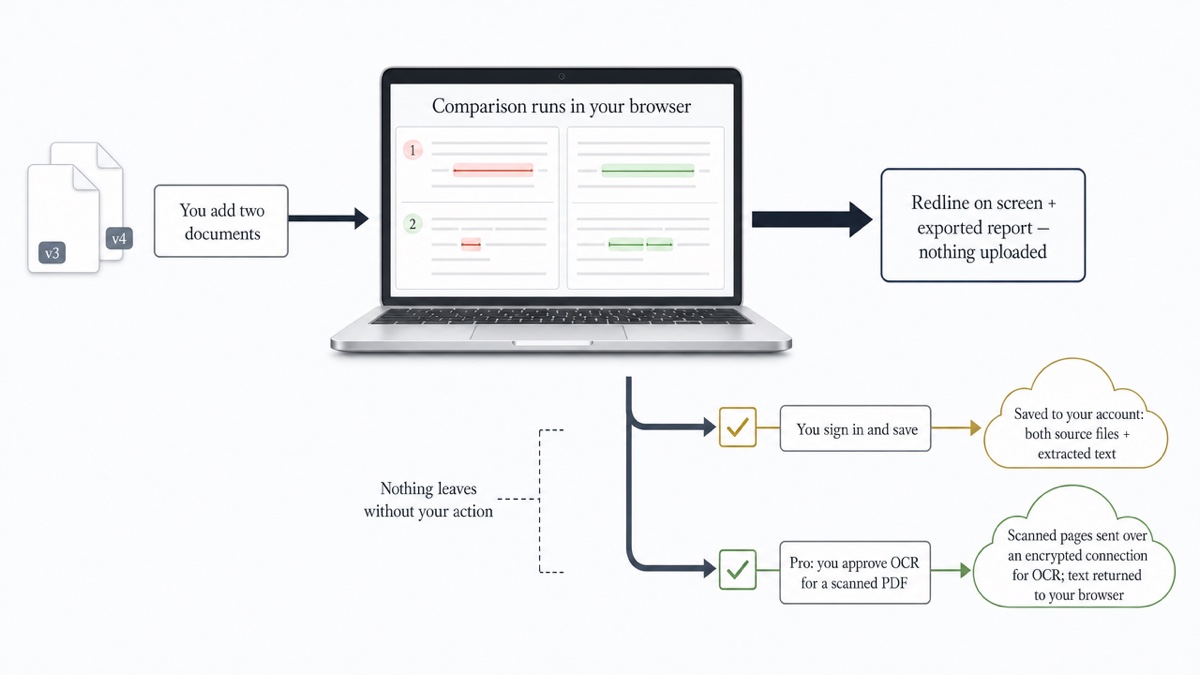
In-browser processing simplifies the analysis. If the comparison runs on your own computer and nothing is uploaded, there is no third-party storage to assess for that comparison. Our guide to document comparison security and privacy covers this in more depth.
A 20-minute accuracy test before you commit
Marketing pages all claim accuracy. Your own documents are the better test. Build a short test set from a past matter, with client details removed:
- A moved clause. Cut a full section and paste it elsewhere.
- Numbering changes. Insert a new section so everything after it renumbers.
- Tiny substantive edits. Change "shall" to "may", one digit in a fee, and a party name in one place only.
- A table edit. Change one cell in a payment schedule.
- Formatting-only changes. Change the font and spacing without touching any words.
- A scanned page. Include a scanned signature page or exhibit, if you deal with them.
Run each tool and count what it catches, what it misses, and how much noise it produces. Then export the report and read it the way your client would. Ten minutes per tool tells you more than any feature grid.
Pricing transparency and hidden costs
Look past the monthly figure to the total cost of ownership:
- Minimum seats. A per-user price may come with a seat minimum that a three-lawyer firm will never use.
- Annual terms and auto-renewal. Find out whether you can cancel monthly or whether you are locked in for a year.
- Add-ons. DMS connectors, OCR and branded output are sometimes priced separately.
- Setup time. Hours spent on installation and configuration have a real cost, even if no one invoices you for them.
If a vendor won't publish a price, treat that as information about how they expect to sell to you. For firms weighing an enterprise product against lighter options, see our guide to enterprise comparison alternatives.
IT requirements: install versus browser
Desktop comparison software is usually installed per machine. Firms on shared Citrix or remote desktop environments typically need a machine-wide installer and someone to manage it. Large firms have IT staff for that. Most small firms don't.
A browser-based tool needs no install and no admin rights. You open a page, drop in two files, and read the redline. If you need deep document-management integration, budget for the setup work that comes with it.
Self-serve versus sales-led buying
Sales-led buying usually means a demo request, a discovery call, a quote and a contract. It can make sense for a 200-lawyer firm with procurement staff. For a solo practitioner, it means days of waiting before a tool can be tested on a real draft.
With self-serve buying, you run the accuracy test today, upgrade if the tool earns it, and cancel from your account if it doesn't. For a broader look at the category, see our overview of legal document comparison software.
DocxDiff Free and Pro: what you get
DocxDiff compares two versions of a document at the word level. Insertions appear in green and deletions are struck through in red. Every change is numbered. The comparison runs in your browser.
Free ($0, no account required):
- Unlimited comparisons of Word (.docx), Markdown and plain-text files, plus pasted text.
- Redline and side-by-side views with numbered changes.
- Focus filters that show only additions or only deletions, or hide unchanged text.
- Options to ignore capitalization or whitespace-only changes.
- j/k keyboard navigation between changes.
- HTML and Markdown reports.
- Saved comparison history, if you create a free account.
Pro ($12/month):
- Everything in Free.
- PDF comparison with page-accurate redlines and moved-text detection.
- Page view, which shows original and revised pages side by side with every change marked.
- Page-faithful and annotated PDF exports.
- Scanned-PDF comparison with secure OCR.
- Custom branding on exported reports.
- Shared comparisons for your team or clients.
- Priority support.
You can cancel any time from your account menu under Billing.
Limits to know:
- DocxDiff compares text, not formatting.
- It shows you what changed. Deciding what a change means is up to you.
- Signed-out comparisons never touch a server.
- If you sign in and save a comparison, both source files and the extracted text are stored so you can reopen the redline later. For documents that must never be stored, skip saving.
Run the test above on your own drafts at docxdiff.app. It's free and needs no sign-up.
Frequently asked questions
Is Word Compare enough for a small firm?
For occasional Word-to-Word checks, it can be. It falls short when you receive PDFs, need a report to attach to a file, or want a side-by-side view. It also requires a Word license on every machine that runs it.
Does DocxDiff upload my documents?
Not unless you choose to. The comparison runs in your browser. A document leaves your device only in two cases: when you are signed in and save a comparison, or when you approve cloud OCR for a scanned PDF on Pro.
Can DocxDiff compare PDFs on the free plan?
No. PDF comparison, page view and scanned-PDF OCR are Pro features. The free plan covers Word, Markdown, plain text and pasted text.
Does it flag formatting changes like bold or font?
No. DocxDiff compares text at the word level, which keeps formatting noise out of the redline. If formatting carries legal weight in a particular document, check it separately.
Does DocxDiff tell me whether a change is risky?
No. It shows every change, numbered and highlighted. Judging what each change means for your client is your call.
What should I ask a vendor about data retention?
Ask where each file type is processed and how long files and results are kept. Ask whether you can delete them on demand, whether subprocessors handle OCR or conversion, and whether your documents are used to train models.