Is Online Document Comparison Secure? How to Check Before You Upload
Whether online document comparison is secure depends on where the comparison actually happens. Some tools load a web page once and run the comparison inside your browser, so the documents never leave your computer, while others upload both of your files to a server, compare them there and keep copies for a period set by the vendor. For privileged or confidential material, that design choice matters more than price, encryption claims or a security badge. You can test which kind of tool you are using in a couple of minutes.
This guide covers where your document goes, how DocxDiff handles files, what to ask any vendor, how to verify a tool's claims yourself, and the metadata risks that remain no matter which tool you choose.
Where your document actually goes
Server-side processing
In the most common model, your browser sends both files to the vendor's servers. The server extracts the text, runs the comparison and sends a result back. Your document now sits on infrastructure run by the vendor and, often, by the cloud provider and other sub-providers it relies on.
Encryption helps, but it is narrower than it sounds. Encryption in transit, such as TLS, protects the file while it travels between your browser and the server. Encryption at rest, such as AES, protects the stored copy. Neither one stops the operator from reading or processing the content once it arrives, because processing it is the whole point of the upload.
In-browser processing
In the other model, the web page includes the comparison code itself. Your browser reads the file from your disk, extracts the text, compares the two versions and draws the redline, all on your machine. The server delivers the page. It never receives the documents.
From a privacy standpoint, this is close to running desktop software, without the installation.
Which steps genuinely need a server
When a vendor says files "must" be uploaded, it helps to know which parts of a comparison really require one:
| Step | Needs a server? |
|---|---|
| Reading a Word, text or text-based PDF file | No. Browsers can parse these locally |
| Comparing the two versions | No |
| Rendering the redline and exporting a report | No |
| OCR on scanned pages (images with no text layer) | Usually, because it is heavy processing |
| Saving a comparison to reopen later | Yes |
| Share links for other people | Yes |
| AI summaries or clause analysis | Usually |
If a tool uploads files for a plain text comparison, that is a design choice, not a technical necessity.
How DocxDiff handles your files
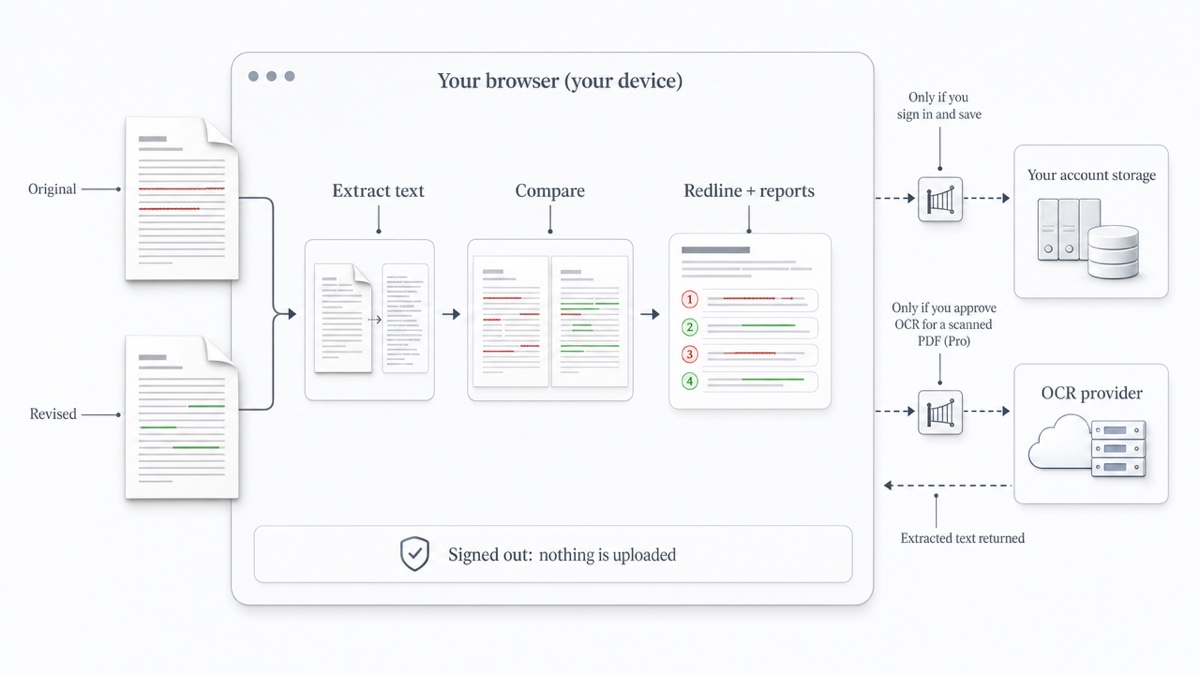
DocxDiff is built on the in-browser model. Text extraction and comparison run in your browser in JavaScript. If you are signed out, your documents never reach a server.
A document leaves your device in only two situations, and both require you to act:
- You sign in and save a comparison. The comparison is stored in your account so you can reopen it later.
- You approve cloud OCR for a scanned PDF (Pro). When DocxDiff detects scanned pages, it asks first. If you approve, the file goes over an encrypted connection to our OCR provider. Text-based pages are read directly, only the scanned pages are OCR-processed, and the extracted text comes back to your browser for the comparison. If you cancel the prompt, the document stays on your device.
Exported PDF, HTML and Markdown reports are generated on your device as well.
What a saved comparison stores
Saving is useful because it lets you reopen the exact redline and download fresh reports later. To make that possible, a saved comparison stores both source files and the extracted text in your account. Your saved comparisons live there alongside the source files needed to reopen them.
The practical rule is simple. For a document that must never be stored anywhere outside your control, stay signed out or skip saving. You still get the full redline, filters and exports.
Free vs paid: architecture matters more than price
People often assume free tools are risky and paid tools are safe. Price says little about where your file goes.
A free tool that uploads documents may keep them until you ask for deletion, with no contract covering how they are handled. A paid enterprise product may come with a contract and still process everything on its servers. A free tool that runs entirely in the browser never receives the file, so there is nothing for it to retain, leak or train on.
Contracts and audits matter when a vendor holds your data. When the vendor never holds it, most of those questions fall away. That is why DocxDiff's core comparison is free with no account: it doesn't cost us server storage to keep your contract, because we never get it. If you are weighing options, our guide to alternatives to upload-based comparison tools goes into more detail.
Questions to ask any comparison vendor
Use this checklist for any tool that will hold your documents, even briefly:
- Where is the comparison processed? In the browser or on a server? Do any steps, such as OCR, previews or sharing, upload files?
- What is retained by default? Original files, extracted text, rendered redlines, share links? For how long?
- How does deletion work? Can you delete files yourself? How long do copies remain in backups after you do?
- Encryption. Is it applied in transit and at rest? Remember what each one covers and what it doesn't.
- Sub-processors. Which cloud hosts, OCR services or AI providers touch your files? Where is the list published?
- AI training. Are documents or extracted text ever used to train or improve models, by the vendor or a third party? Is that excluded in writing?
- Data location. Which country stores the files? This matters for EU matters and for client instructions about data residency.
- Contract terms. Will the vendor sign a data processing agreement? When EU data protection law (the GDPR) applies, a vendor that processes personal data on your behalf generally must be bound by a written contract, or a similar binding legal act, that covers specific terms such as acting only on your instructions and keeping the data secure.
- Certifications, read carefully. ISO/IEC 27001 certifies an organization's information security management system, not the handling of any single file. A SOC 2 report assesses controls against criteria the vendor selects, so ask which criteria are covered.
If a tool adds AI features, ask harder questions. Our guide to AI vs deterministic document comparison explains why the two approaches handle your text differently.
How to verify a tool works locally
Don't take any vendor's word for it, including ours. Try this with a harmless test document before you use real client files.
The Network tab test (Chrome or Edge):
- Open the comparison tool's page.
- Open DevTools (F12, or Cmd+Option+I on a Mac) and select the Network tab.
- Tick Preserve log so requests aren't cleared as the page changes.
- Load your two test files and run the comparison.
- Watch the request list. Look for POST or PUT requests, or any request whose size is close to your file's size, sent to the tool's domain or another domain.
An in-browser tool may still request fonts, scripts or analytics. What you should not see is your document going out.
The offline test:
- Load the tool's page normally.
- In the Network tab, open the throttling dropdown (it usually says "No throttling") and choose Offline. Or disconnect from Wi-Fi.
- Add your files and compare.
If the comparison still works with no connection, it is processing locally. If it fails or hangs, it needs a server.
Metadata: the risk in what you send out
A secure comparison tool protects the files you compare. It does nothing about what is hidden inside the documents you send to the other side.
Word files can carry comments, residual tracked changes, earlier versions, author names, document properties, hidden text and custom XML data. Before sending a draft out, run Word's Document Inspector: File > Info > Check for Issues > Inspect Document. Work on a copy, because Microsoft notes that removed content may not come back with Undo.
The comparison output needs the same scrutiny:
- Word's Compare creates a third document with the differences as tracked changes. Send that file and the recipient can accept, reject and inspect every change.
- Any redline shows deleted text by design. Before you send one to opposing counsel or a counterparty, check that it doesn't reveal internal wording, notes or fallback positions they never saw.
- Check what your report contains. Open the exported PDF or HTML and read it the way the recipient will.
DocxDiff compares text at the word level. It does not read comments or tracked-change metadata, so it won't flag them. Use Document Inspector for those.
Confidentiality duties, in general terms
This section is general information, not legal advice. Confirm your obligations with your jurisdiction's rules or a qualified ethics advisor.
In general, lawyers must make reasonable efforts to prevent unauthorized disclosure of, or access to, client information. Whether a safeguard is reasonable usually depends on several factors. These include the sensitivity of the information, how likely disclosure is without more protection, the cost and difficulty of the safeguard, and whether it would make it harder to represent the client. Professional guidance also treats understanding the risks of the technology you use as part of competence, including how client information is transmitted and stored. Putting confidential information into AI tools that learn from inputs raises further questions, sometimes including client consent.
Choosing a tool that never receives the documents is one straightforward way to reduce that risk. For firm-wide setup, see our guide to document comparison for small law firms.
Compare without uploading
DocxDiff gives you a numbered, word-level redline of Word, Markdown, text or pasted content, free and with no account. It runs in your browser, so you can try the offline test yourself.
Frequently asked questions
Is DocxDiff safe for privileged documents?
The comparison runs locally on your machine, which makes it suitable for privileged and confidential material. If a document must never be stored, stay signed out or don't save the comparison. Saving stores both source files and the extracted text in your account.
Does DocxDiff upload my files when I export a report?
No. PDF, HTML and Markdown reports are generated on your device. The only uploads are saving a comparison while signed in and cloud OCR for scanned PDFs, which is a Pro feature that asks for your approval first.
Do I need to install an offline tool to keep documents private?
Not necessarily. A browser-based tool that does all its processing locally gives you similar privacy without installing anything. Confirm it with the Network tab or offline test above.
Is a free tool less secure than a paid one?
Not inherently. What matters is whether the tool receives your file and what it does with it. A free tool that never uploads anything exposes less than a paid tool that stores every document on its servers.
Does encryption mean the vendor can't see my document?
No. Encryption protects files in transit and in storage. Once a file is uploaded for processing, the service can read it. That is why where processing happens matters.
Does DocxDiff use my documents to train AI?
DocxDiff is not an AI tool. It shows what changed between two versions word by word, and signed-out comparisons never reach our servers.