How to Compare Two Versions of a Contract: A Step-by-Step Workflow
To compare two versions of a contract, confirm which draft is the agreed baseline and prepare clean copies of both files. Then run an independent comparison of the baseline against the new draft, triage the numbered changes, check definitions, high-risk clauses and cross-references, and write a short summary that cites each change by number.
Don't rely on the other side's tracked changes or cover email to tell you what moved. Compare the files yourself.
This guide sets out that workflow as a checklist that paralegals, associates and business reviewers can repeat on every turn. It's general information about document review, not legal advice. Decisions about what a change means belong with a qualified attorney.
Step 1: Identify the versions and confirm the baseline
Most missed changes trace back to comparing against the wrong draft. Before you compare anything, answer three questions:
- What was the last version both sides agreed on, or the last one you sent? That is your baseline, not whatever file happens to be newest in your inbox.
- Did anyone edit your version after you sent it? If a colleague tidied it up after it went out, compare against the copy that was actually sent.
- Is the incoming file a new turn, or a "clean" copy of something already agreed? A clean copy deserves the same scrutiny as a marked-up one.
A naming convention that survives multi-round negotiations
Pick one pattern and use it on every file:
[Agreement]_[Parties]_v[NN]_[YYYY-MM-DD]_[who edited].docx
For example: MSA_Acme-Beta_v04_2026-03-12_BetaCounsel.docx.
Use two-digit draft numbers so files sort correctly. Bump the number every time a file changes hands. Add the editor's initials or side so you can see whose turn it was.
Keep every version in the matter file, including the ones you think are superseded. When a dispute comes up about what was agreed, the intermediate drafts are often the evidence.
Step 2: Prepare the files
Work on copies, never the originals.
If either file contains tracked changes, decide what each one is supposed to represent. The baseline should usually reflect the agreed text, so accept or reject its pending changes to match. In Word, the Accept and Reject buttons sit next to the Track Changes section of the Review tab. Previous and Next let you step through each change in order.
For the incoming draft, keep an untouched copy. Then make a working copy with every tracked change accepted. You are checking the text the other side is asking you to agree to, not the markup they chose to show you.
Also note the file formats. Comparing a Word draft against a signing PDF is common, and a scanned PDF needs optical character recognition (OCR) before its text can be compared.
Step 3: Run an independent comparison
The other side's redline shows what they marked. An independent comparison shows what actually changed. Those can differ, sometimes by honest mistake and sometimes not.
In Microsoft Word:
- Go to Review > Compare > Compare.
- Choose the baseline as the original document and the new draft as the revised document.
- Under More, choose which elements to compare (such as comments, formatting and text), and whether to show changes at the character or word level.
Word produces the result as a third, new document and leaves both source files unchanged. If either file already contains tracked changes, Word asks whether to accept them before comparing. In the output, the original's tracked changes are accepted and the revised file's changes appear as new tracked changes. Any pre-existing markup is folded in rather than shown separately.
When a separate comparison helps. Word Compare works well when you have Word and both files are .docx. A dedicated comparison is useful in a few situations:
- You've been sent a "clean" copy with no markup.
- You don't have a Word license.
- You want a numbered, filterable list of changes you can cite.
DocxDiff compares two Word, Markdown or plain-text files, or pasted text. Every insertion and deletion is marked and numbered. The comparison runs in your browser, so confidential and privileged documents aren't uploaded unless you sign in and save the comparison.
Comparing a Word draft against a PDF, including a scanned one, requires Pro.
DocxDiff compares wording, not formatting. It won't show a font or style change, and it doesn't read tracked-change metadata or comments. Its output is deterministic: it shows exactly what changed and doesn't interpret it. See AI vs deterministic document comparison for why that matters in review.
Step 4: Triage substantive and cosmetic changes
A long redline is easier to handle once you split it into changes that matter and changes that don't.
- Strip the noise first. Turn on "ignore capitalization" and "ignore whitespace-only changes" so spacing and case edits drop out. Turn them off again for a final pass if capitalization can carry meaning, such as a defined term written as "Services" versus "services."
- Read deletions on their own. Use the focus filter to show only deletions. Removed words like "not," "reasonable," "solely" or "prior written" are easy to miss when they sit among insertions.
- Then read additions on their own. New qualifiers, carve-outs and conditions tend to arrive as insertions.
- Hide unchanged text and step through every remaining change with j and k. Mark each one substantive, cosmetic or unclear.
Side-by-side view helps when a sentence has been rewritten so heavily that the inline redline is hard to read.
Word-level comparison is the right granularity for most review. Still, read numbers and dates character by character. A single changed digit inside an amount is exactly the kind of edit that hides in plain sight.
Step 5: Check definitions, high-risk clauses and cross-references
Some clauses deserve a second, deliberate pass however small the redline looks. Ask the supervising attorney which clauses they want checked on every turn. Common picks are payment, term and renewal, liability, indemnity, termination, confidentiality and governing law. Read every numbered change in those sections even if you flagged it cosmetic.
Trace defined-term cascades by hand
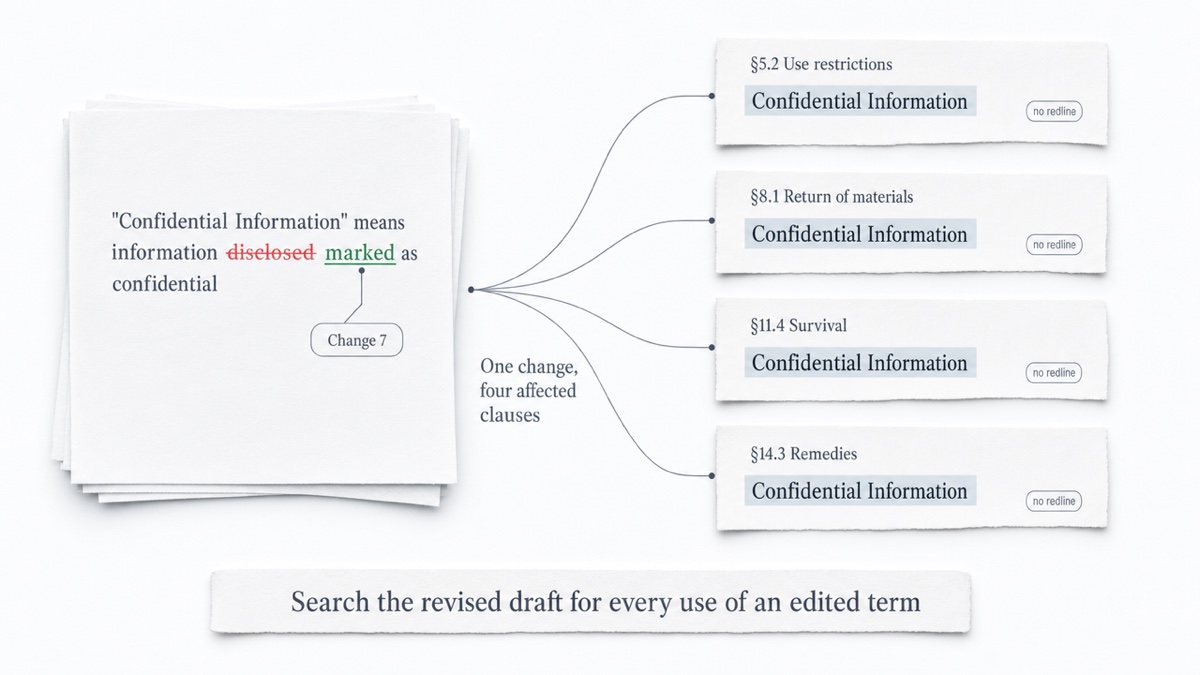
One edited definition can change the meaning of every clause that uses it, without any of those clauses showing a redline. To catch this:
- Filter the comparison to changes inside the definitions section, and any inline definitions such as "(the 'Deliverables')."
- List each defined term that changed.
- Search the revised draft for every use of each term.
- Note the clause numbers that use it and add them to your summary next to the definition change.
Cross-references
Inserted or deleted sections renumber everything after them. For each "Section X" reference near a change, confirm the target still says what the reference assumes. A cross-reference that now points to the wrong clause produces no redline at all.
Moved text
A clause moved to another section usually shows up as a deletion in one place and an insertion in another. Word Compare recognizes a move only when the paragraph is moved unchanged. A paragraph that is moved and also edited appears as a separate deletion and insertion. So does text that moves between a table and free text.
DocxDiff Pro's PDF comparison includes moved-text detection. Without it, check moves by hand:
- Copy a distinctive phrase from each large deletion.
- Search for it among the insertions.
- If you find it, compare the two passages word by word, because a moved clause is a common place to slip in an edit.
Step 6: Write a change summary that cites change numbers
Most reviewers won't read the full redline, so the summary is what they act on. Citing change numbers lets anyone go straight to the markup in an email or on a call ("see change 14").
Use one row per substantive change: change number, clause, what changed, and a note or rating for the reviewing attorney.
Sample change summary: Services Agreement, v03 (ours) against v04 (counterparty)
| Change | Clause | What changed | Reviewer note | Flag |
|---|---|---|---|---|
| 3 | 4.1 Fees | Monthly fee $7,500 → $8,250 | Not discussed on last call | High |
| 4 | 4.1 Fees | Payment due thirty (30) → forty-five (45) days | Not shown in their redline | High |
| 7 | 1.1 "Confidential Information" | "disclosed" → "marked" | Narrows scope; used in §§5.2, 8.1, 11.4, 14.3 | High |
| 9 | 5.1 Term | Term one → two years | Matches the term sheet | Low |
| 12–15 | Throughout | Punctuation, spacing, "shall" → "will" | Cosmetic | None |
Summary for email: "v04 contains 15 changes. Three need a decision: changes 3 and 4 (fees and payment timing) and change 7 (narrowed definition of Confidential Information, which affects four other clauses). Change 4 was not marked in their redline. Change 9 matches the term sheet. Changes 12–15 are cosmetic. The numbered report is attached."
The flags are your triage notes for attorney review. They aren't conclusions about what the clause means.
Step 7: Escalate undisclosed changes
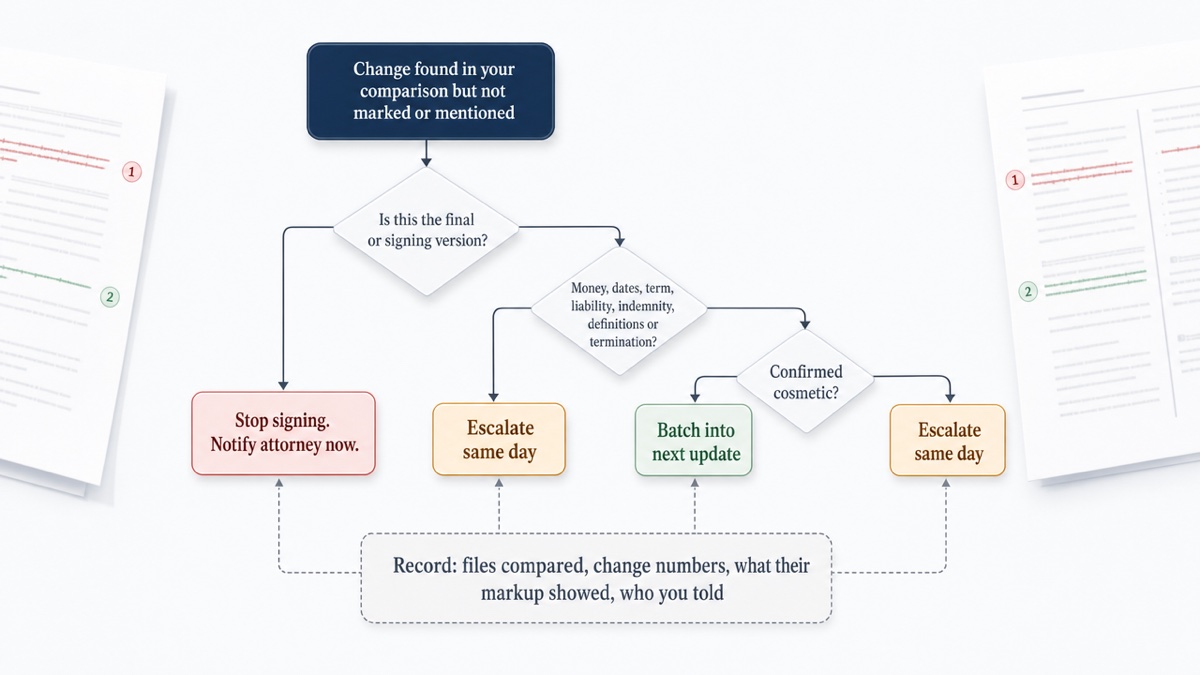
An undisclosed change is any edit that appears in your independent comparison but wasn't marked or mentioned by the other side. It can be an innocent wrong-version export or a deliberate addition. Either way, don't resolve it quietly.
Agree on thresholds with your supervising attorney before negotiations start. A workable default:
- Escalate the same day: any undisclosed change to money, dates, term, liability, indemnity, definitions or termination. Do the same for any undisclosed change at all in a version labelled final or for signature.
- Batch into the next update: undisclosed changes you've confirmed are cosmetic.
- Stop the signing process: if the execution copy differs from the agreed draft in any way you can't explain.
Comparing the execution version against the last agreed draft before it goes out for signature is a widely followed convention, though it is a best practice rather than a legal requirement and the details vary by firm and practice area..
When you escalate, record:
- the file names compared
- the date and time
- the change numbers
- what the other side's markup or email showed
- who you notified
Step 8: Export a report for the file
Finish by attaching a fixed record of the comparison to the matter. Recipients' Word settings can change how tracked changes display, so a static report means everyone sees the same markup.
DocxDiff exports HTML and Markdown reports free. Pro adds page-faithful and annotated PDF exports and custom branding. Send the report with your change summary, and keep it alongside the version files.
If you sign in, you can save the comparison, including both source files, and reopen it from saved diffs. For privileged material that must not be stored anywhere, skip saving.
For the difference between the output formats, see redline vs blackline. For setting this up as a team routine, see document comparison for small law firms.
Run your next comparison at docxdiff.app. Drop in two drafts and get a numbered redline in your browser, free and with no account.
Frequently asked questions
Should I accept tracked changes before comparing contract versions?
Usually yes, on a working copy. Your baseline should show the agreed text, and the incoming draft should show what you're being asked to sign. Keep untouched copies of both, so you can later check whether the other side's markup matched the real changes.
Can I trust the other side's redline?
Treat it as their account of the changes, then confirm it with your own comparison. A wrong-version export or an unmarked edit only shows up when you compare the files yourself.
Does DocxDiff flag risky clauses?
No. It shows exactly what changed, numbered and filterable, and leaves the judgment to you and your supervising attorney. Which clauses get a second look is a decision for the reviewer.
Can I compare a Word draft against the signing PDF?
Yes, with Pro, which includes PDF comparison with page-accurate redlines and moved-text detection. Scanned PDFs are handled through OCR, which is sent to the cloud only after you approve it. The free tier compares Word, Markdown, plain text and pasted text.
Will formatting changes show up?
No. DocxDiff compares text at the word level, so bold, font and style changes won't appear. If formatting matters for a particular document, check it separately, for example with Word Compare's formatting option.
Is this safe for privileged documents?
The comparison runs in your browser, and signed-out comparisons are never uploaded. A document leaves your device only if you save a comparison to your account or approve cloud OCR for a scanned PDF on Pro.